Free & Premium Facecam Overlays
Your gameplay might bring people in. Your face makes them stay. The eye roll after a fail. The laugh that turns into a meme in chat. With the right facecam overlays, those moments feel framed, intentional, and part of a bigger story. Not just a camera in the corner. A presence. Start with a free facecam overlay or unlock more with the Stream Pass. Optimized for Twitch, YouTube, Kick, and any broadcasting tool.
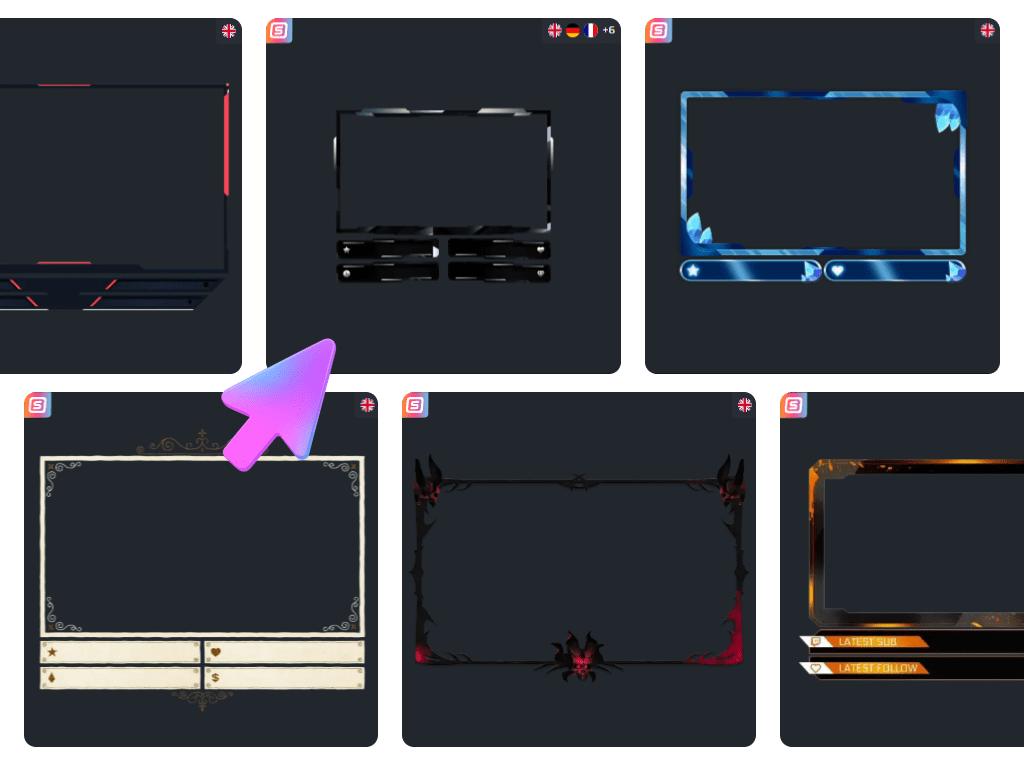
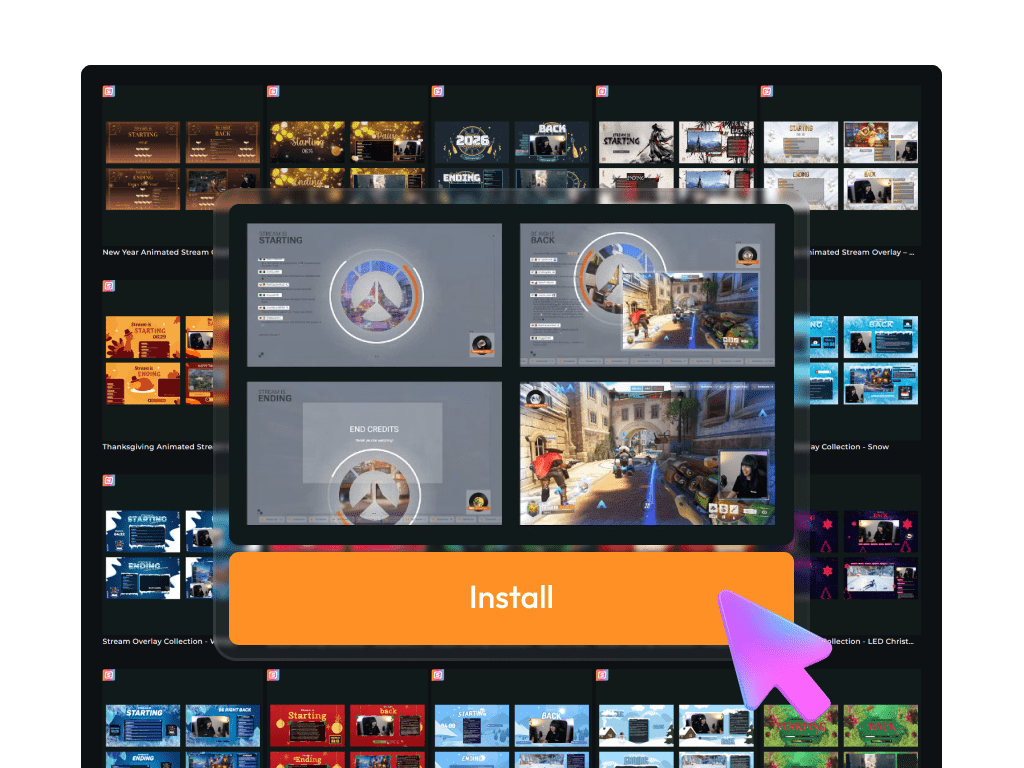
Our Community’s Favorite Facecam Overlays
All Facecam Overlays Free/Premium
Your Reactions Deserve a Frame
Design the corner everyone looks at
Your facecam is where personality lives. It deserves more than a random rectangle.
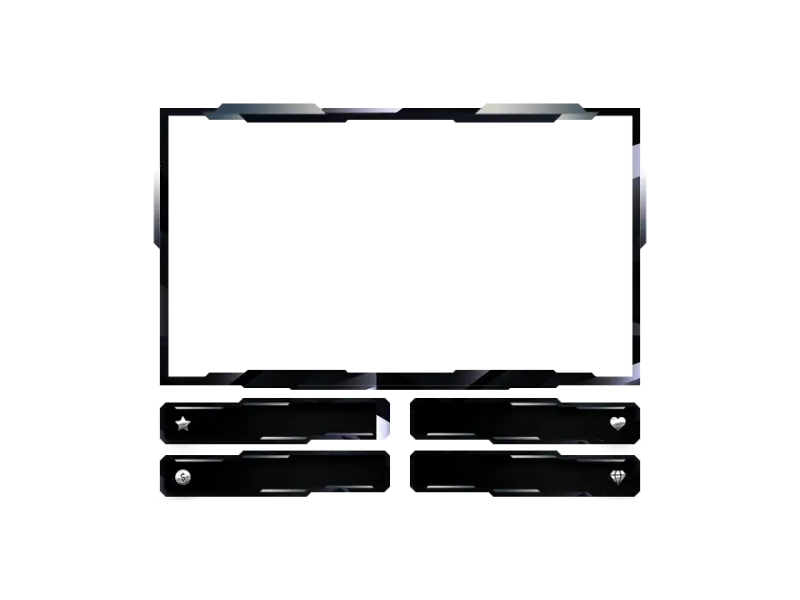
A clean facecam frame creates structure. A bold overlay for your facecam adds energy. A minimal facecam template keeps things sharp and distraction-free. Whatever your vibe, your camera becomes a natural part of your layout.
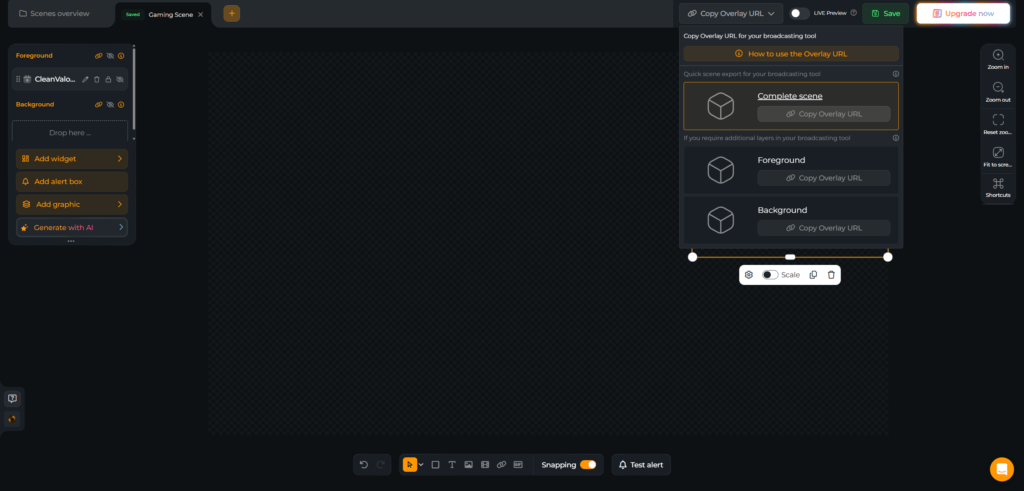
Build your facecam overlays inside the OWN3D Pro Scene Builder. Add it as a browser source in OBS Studio, Streamlabs, XSplit, Meld Studio, or any broadcasting tool. Done in minutes.
Start Simple, Grow Into More
Free first, premium when you want more variety
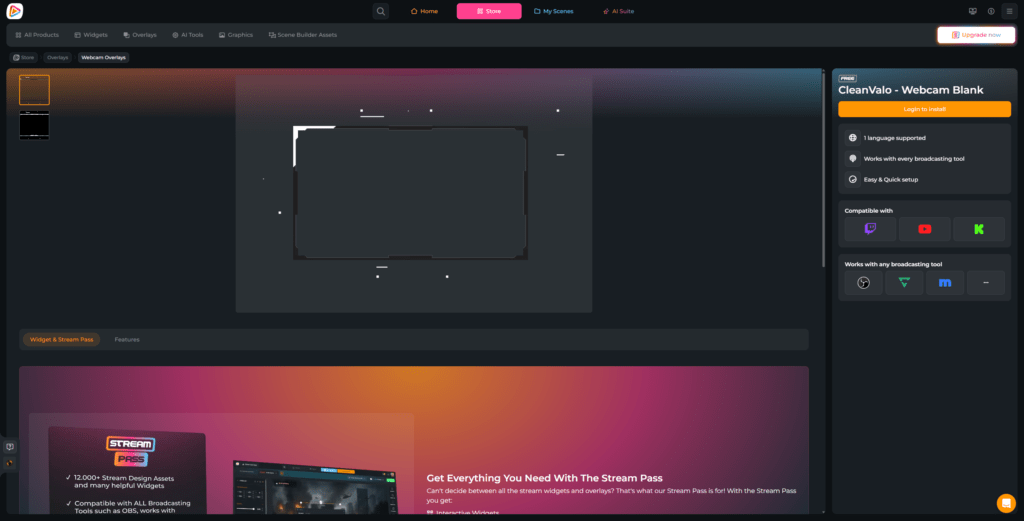
You can begin with a free facecam template and give your stream instant structure. When you want more, the Stream Pass unlocks the full facecam frame library.
Switch your stream facecam overlay depending on the game, event, or mood. Your community will feel the difference.
What Happy Customers Say About Our Facecam Overlays
See how our product makes a difference for content creators.
One Pass. Everything Included.
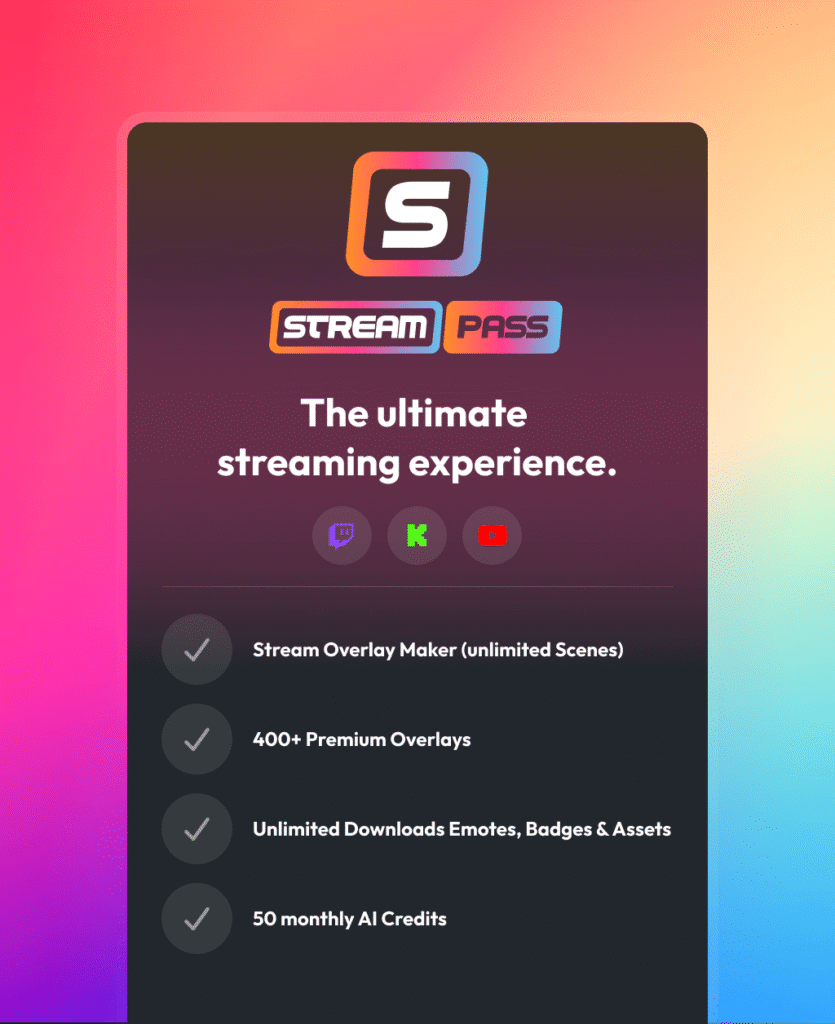
The Stream Pass gives you full access to everything OWN3D Pro has to offer. All products, including facecam overlays, alerts, widgets, emotes, and more, are included and not sold separately.
Works with all broadcasting tools
Customize your facecam overlays in the Scene Builder and use them with OBS Studio, Streamlabs, XSplit, and more. Easy to integrate with any setup.
Unlimited* asset downloads
Download emotes, badges, panels, and more static assets. *Our unlimited plan is subject to fair use.
AI-powered creations
Get 50 AI credits with your Stream Pass to generate custom stream widgets, facecam overlays, emotes, and more.
Multistreaming ready
Stream on Twitch, YouTube, and Kick with facecam overlays and all the tools you need for a professional-looking livestream.
How to Set Up a Facecam Overlay
Getting your facecam overlay live takes just a few steps. Need help? This guide has you covered.
Step 1
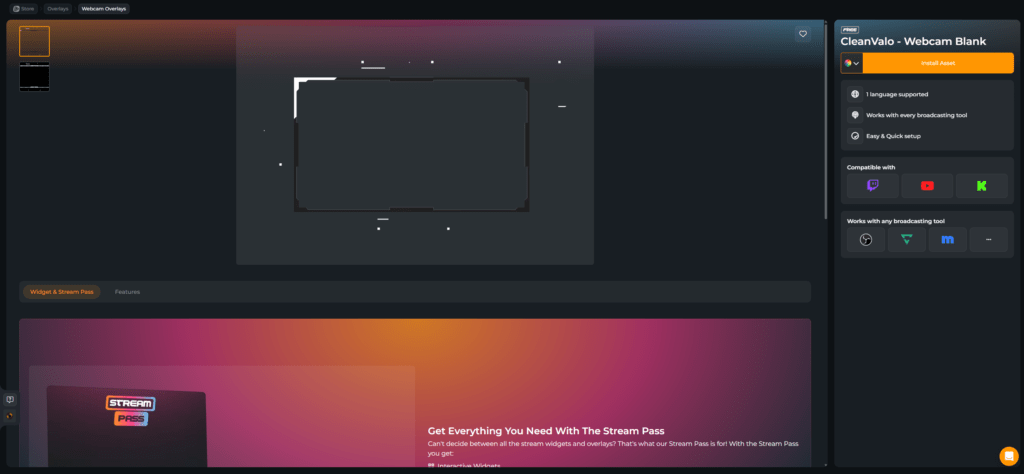
Choose your favorite facecam frame design and click “Login to Install”.
Step 2
Log in to OWN3D Pro with your preferred platform. As soon as you are logged in, click “Install Asset”.
Step 3
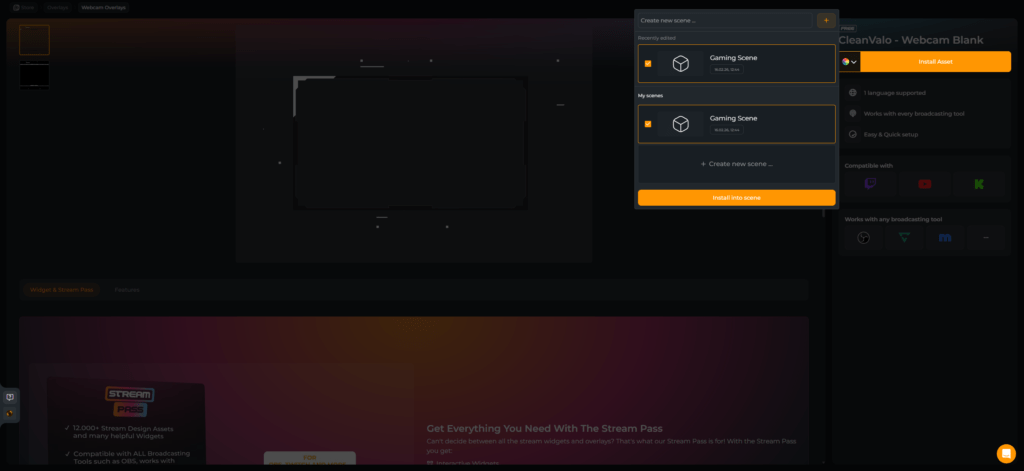
Select an existing scene or create a new one. Click “Install into scene”.
Step 4
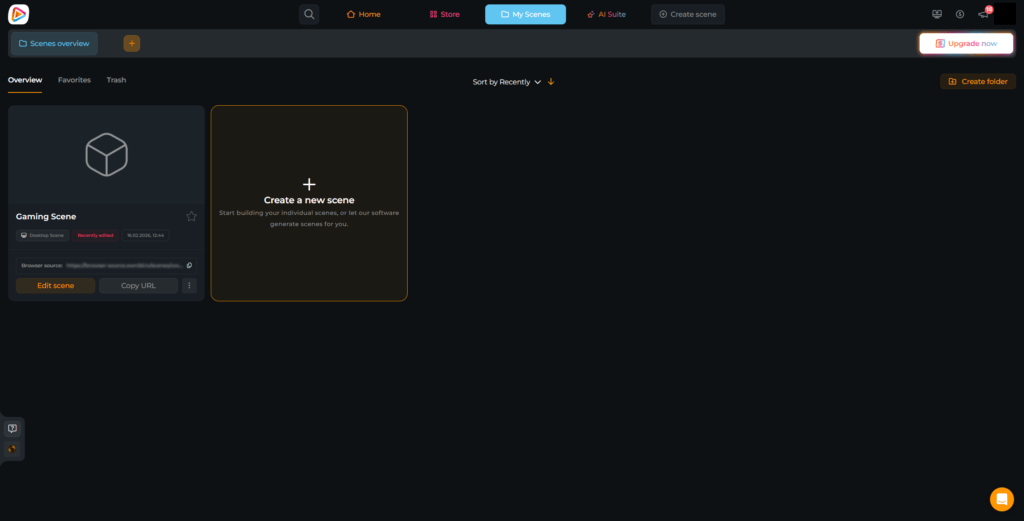
Open your scene from the notification or via “My scenes”.
Step 5
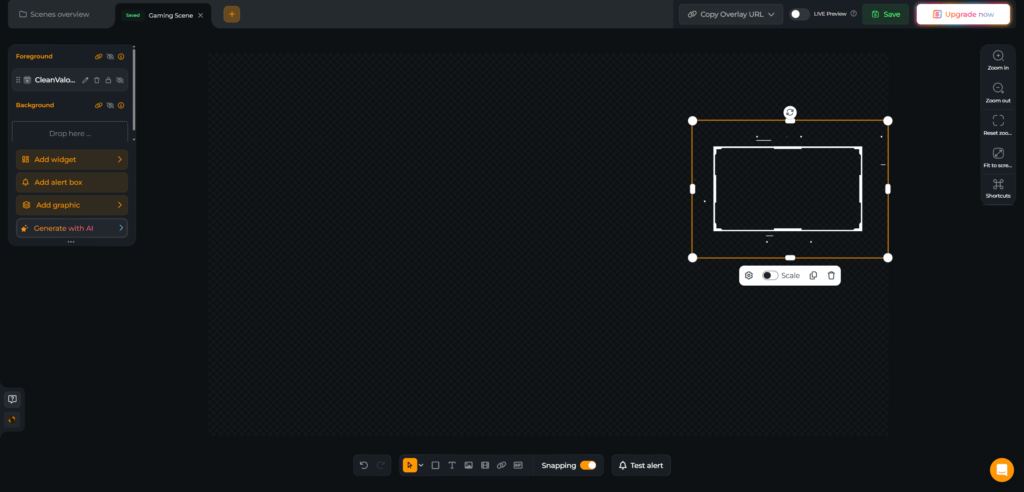
Adjust your facecam frame, resize it, add supporter labels if you want, add widgets and other designs, and save.
Step 6
Copy the browser source URL and open your broadcasting tool. We use OBS Studio.
Step 7
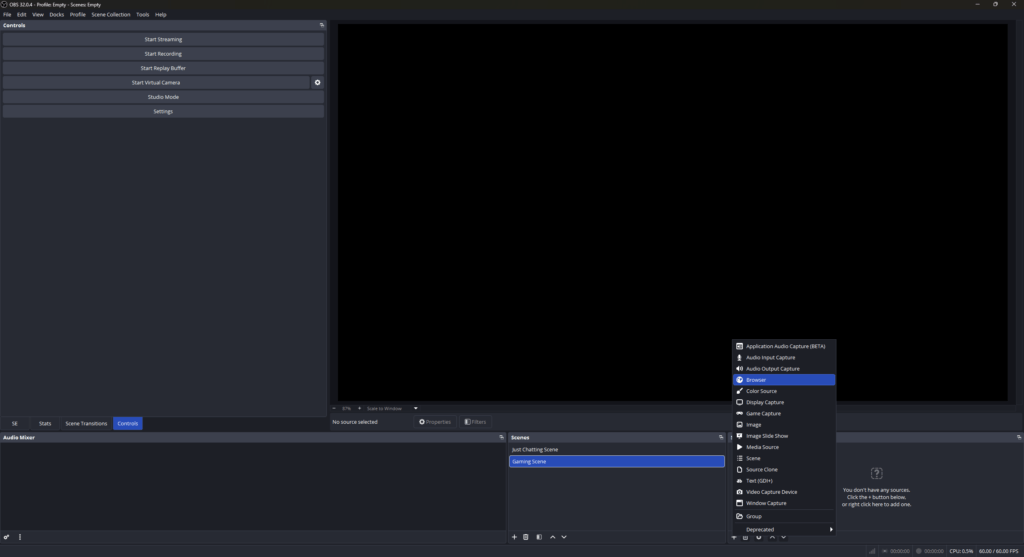
Click “+” in “Sources” and choose “Browser”.
Step 8
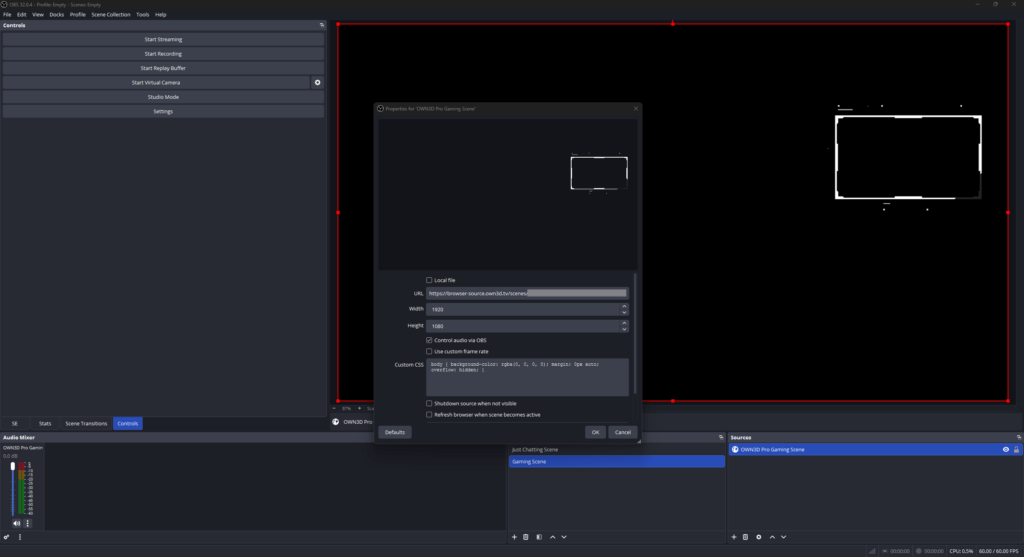
Give your new browser source a name and paste the copied URL into the field. Set the resolution to 1920×1080 so your facecam overlay OBS setup displays correctly. If you want to manage sound directly in OBS, enable the audio option. Now add your camera and gameplay beneath the facecam frame, position everything carefully, and fine-tune your stream facecam overlay until your layout feels clean, balanced, and ready to go live.
FAQs About Our Facecam Overlays
What are facecam overlays, and why do streamers use them?
Facecam overlays frame your camera and turn it into a defined visual element of your layout. Instead of a plain webcam box, you get structure, branding, and a stronger connection between you, your game, and your community.
Is there a free facecam overlay available?
Are the facecam overlays downloadable files?
No. Our overlays are not traditional download files. You build and manage your facecam overlay in the OWN3D Pro Scene Builder, then add it as a browser source in OBS or your preferred broadcasting tool. This keeps everything flexible and easy to update.
Are there different designs and layouts available?
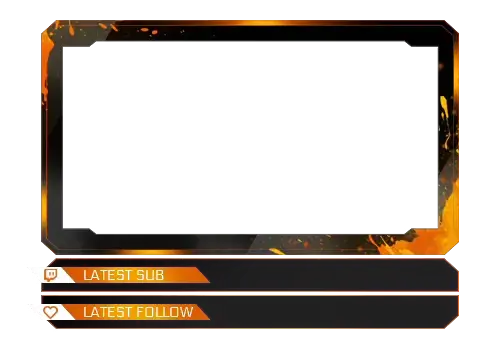
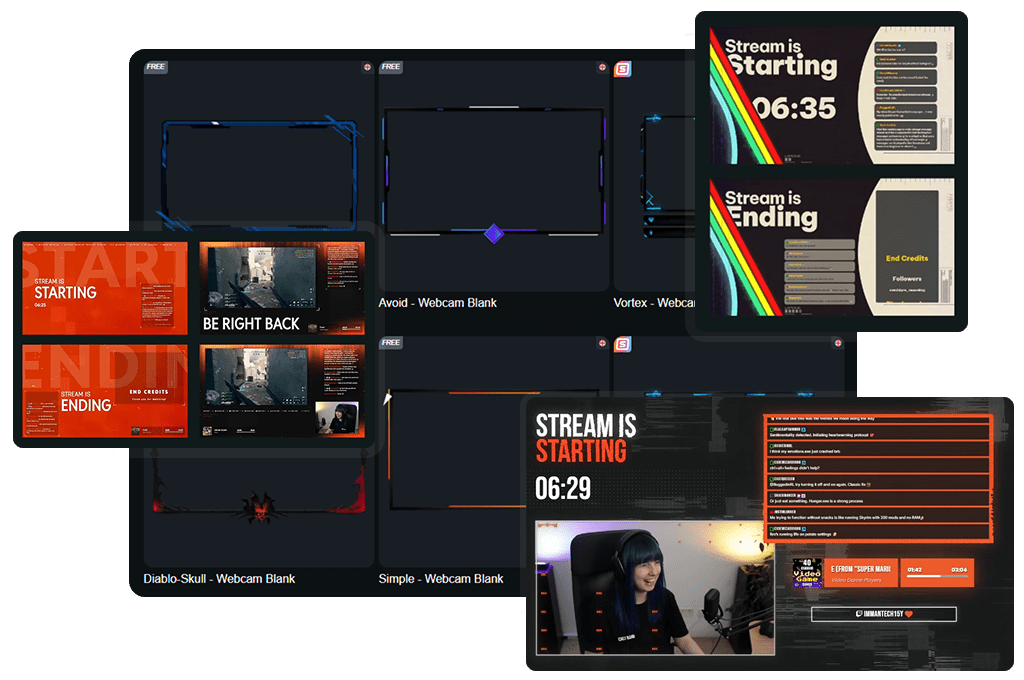
Absolutely. You can choose a simple facecam frame for a clean and minimal look or go for a stream facecam overlay with built-in labels for your community. Display your latest follower, subscriber, donor, or other supporter highlights directly around your cam. This turns your facecam into an interactive space instead of just a frame.

How do I use a facecam overlay in OBS?
After creating your overlay facecam in the Scene Builder, copy the browser source link and add it as a browser source in OBS. Set it to 1920×1080, place it above your camera source, and your facecam overlay OBS setup is ready.
Do the overlays work on Twitch, YouTube, and Kick?
Yes. Your facecam overlay runs through your broadcasting tool as a browser source, so the design itself works on any platform you stream to. If you are simply using a facecam frame without dynamic elements, it is platform-independent.
If you add OWN3D Pro labels and other widgets around your cam, those are fully optimized for Twitch, YouTube, and Kick. This allows you to highlight your latest follower, subscriber, or supporter directly inside your stream facecam overlay.