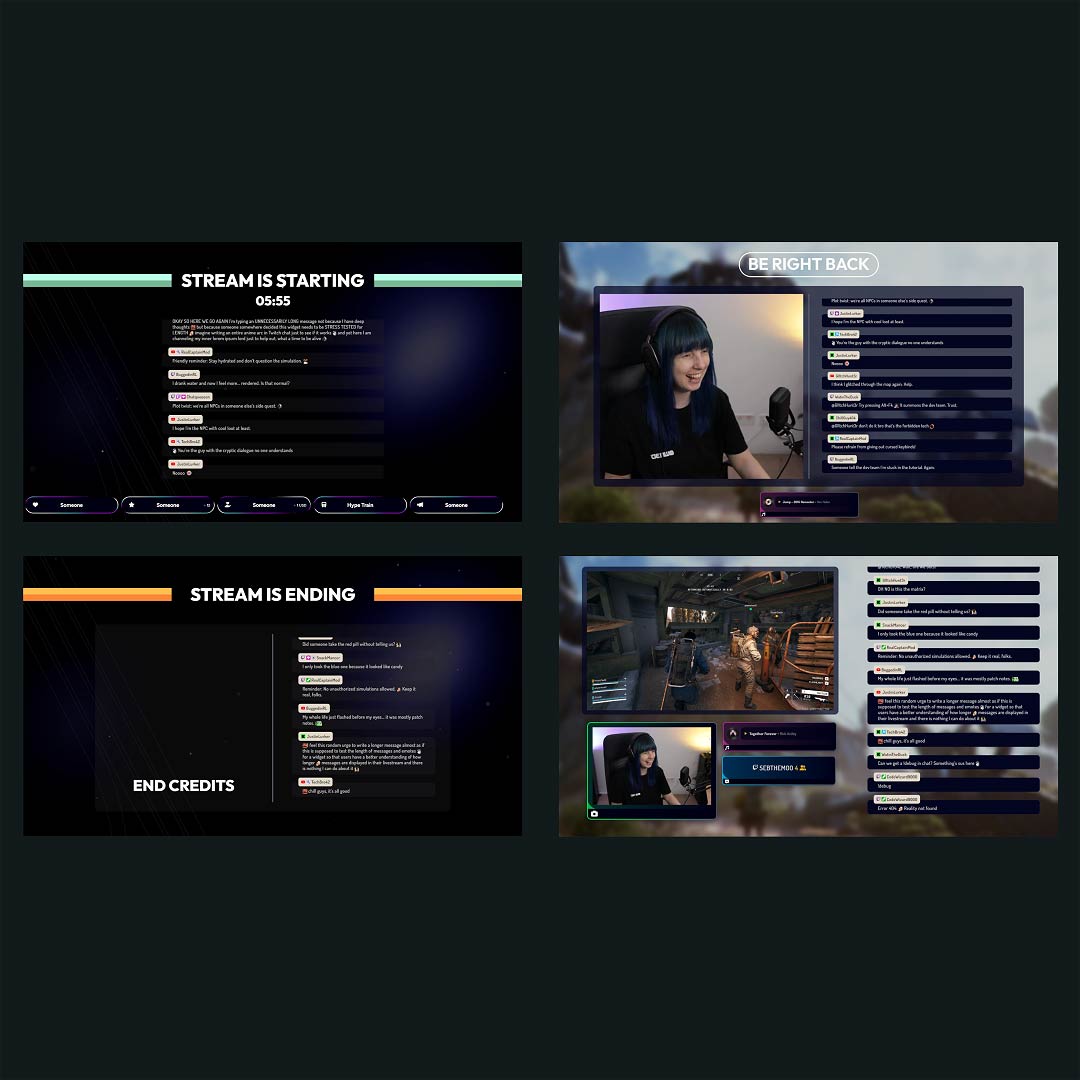
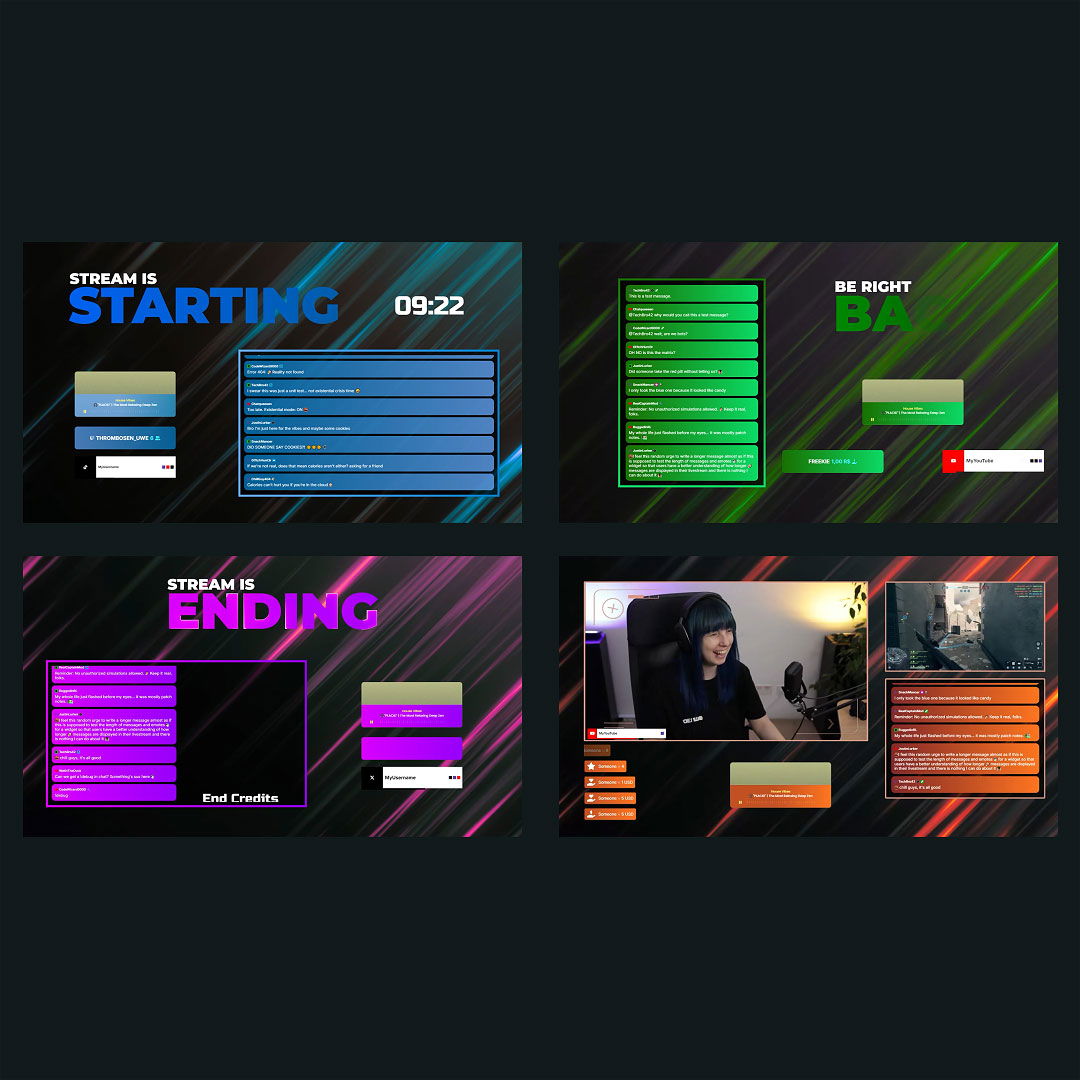
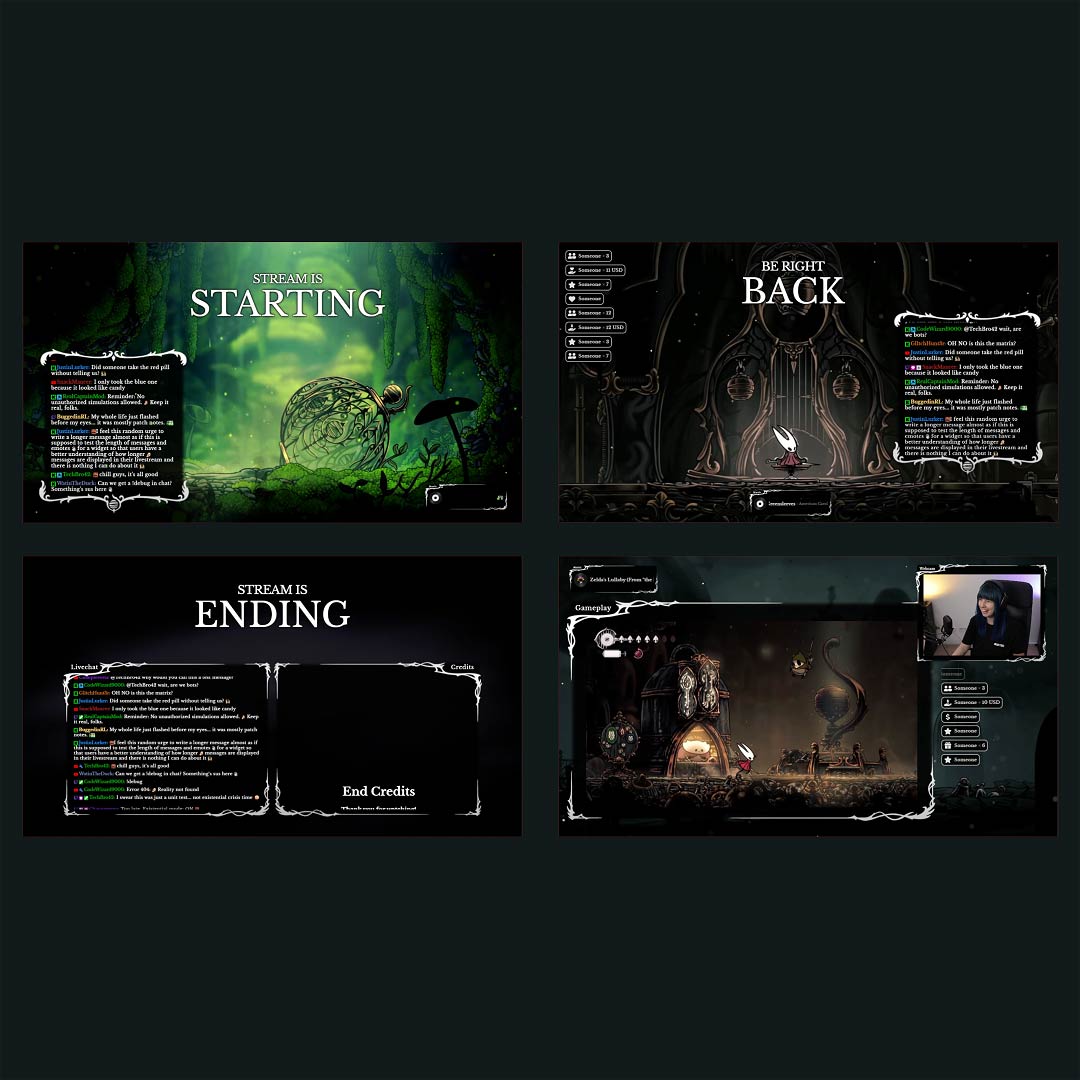
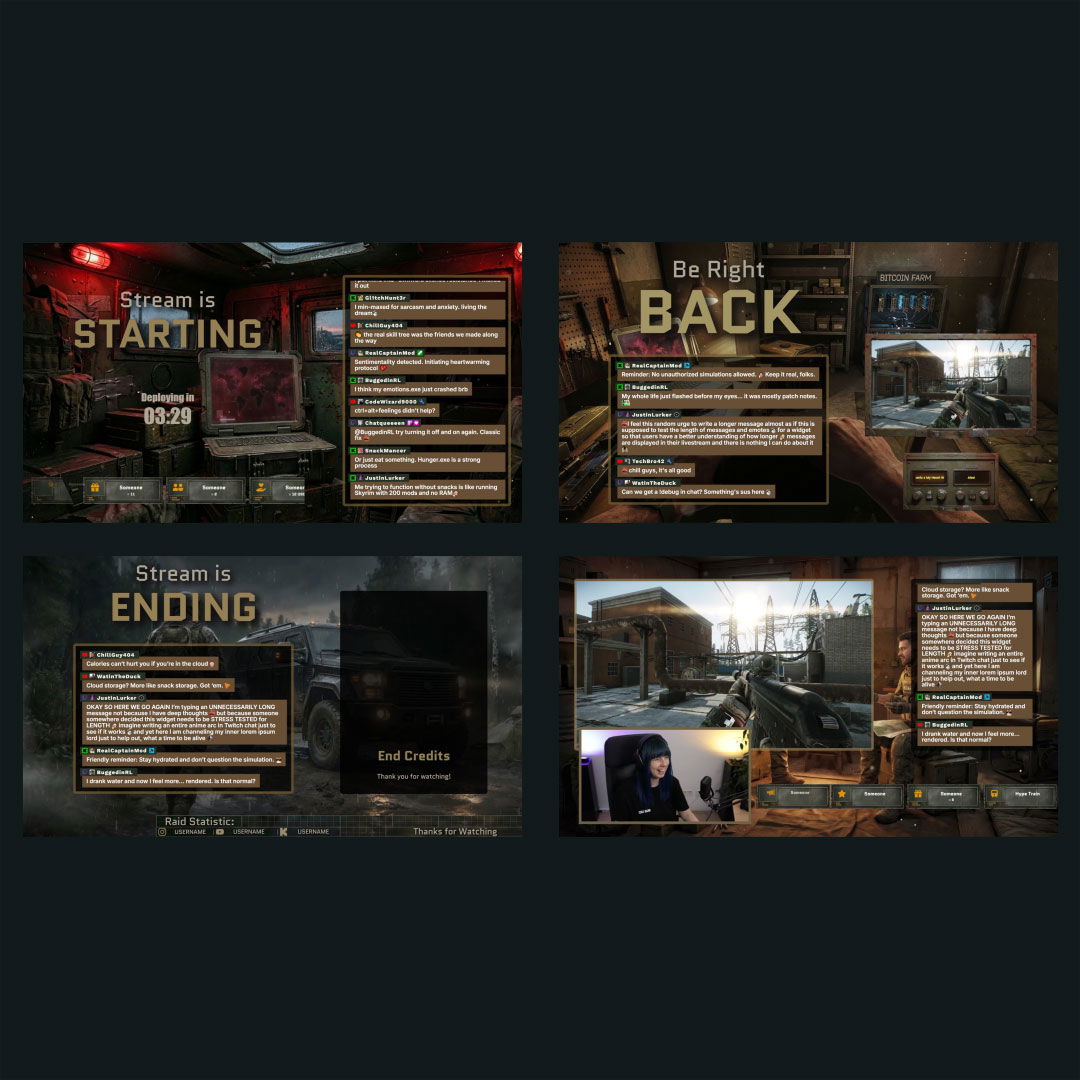
Free OBS Countdown Timer

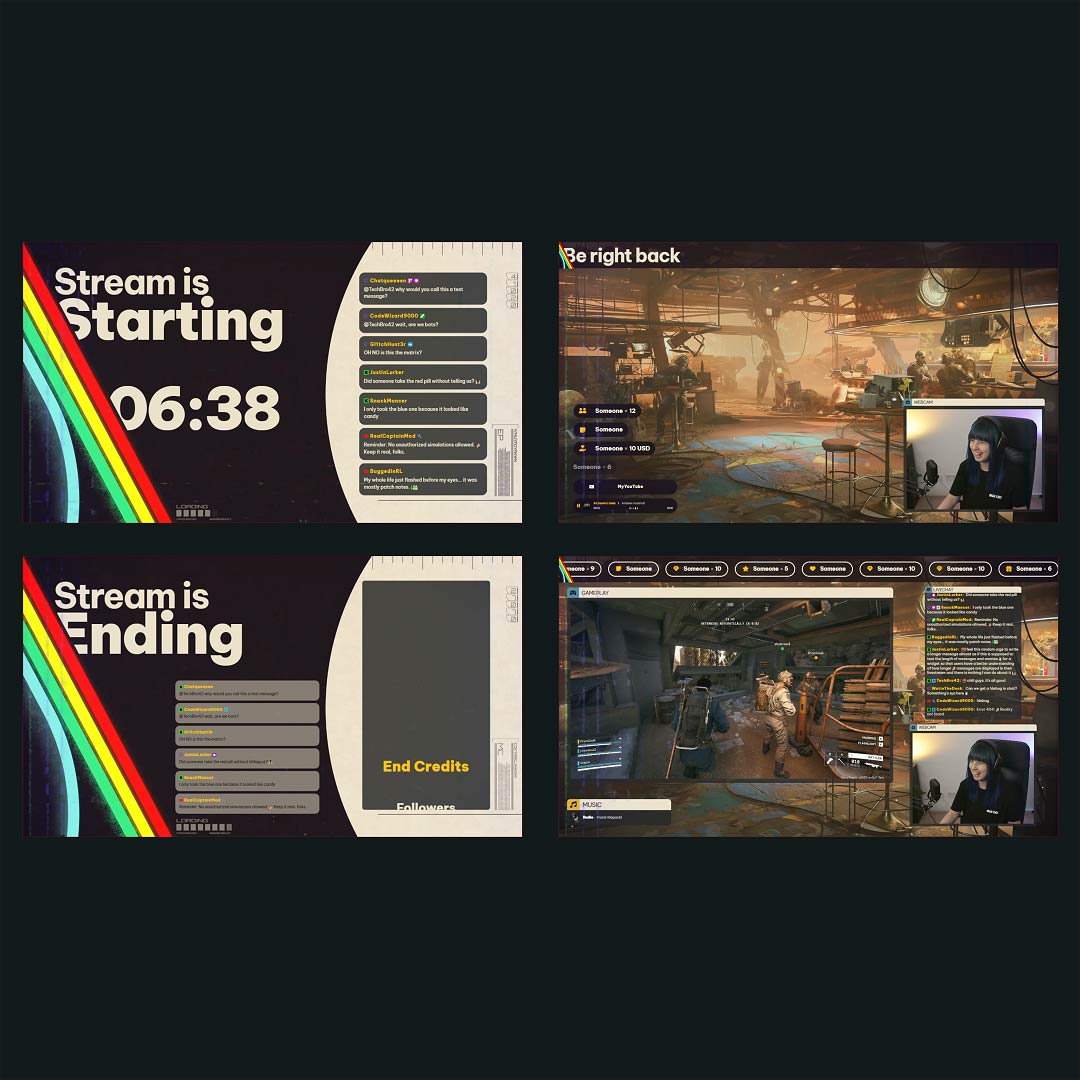
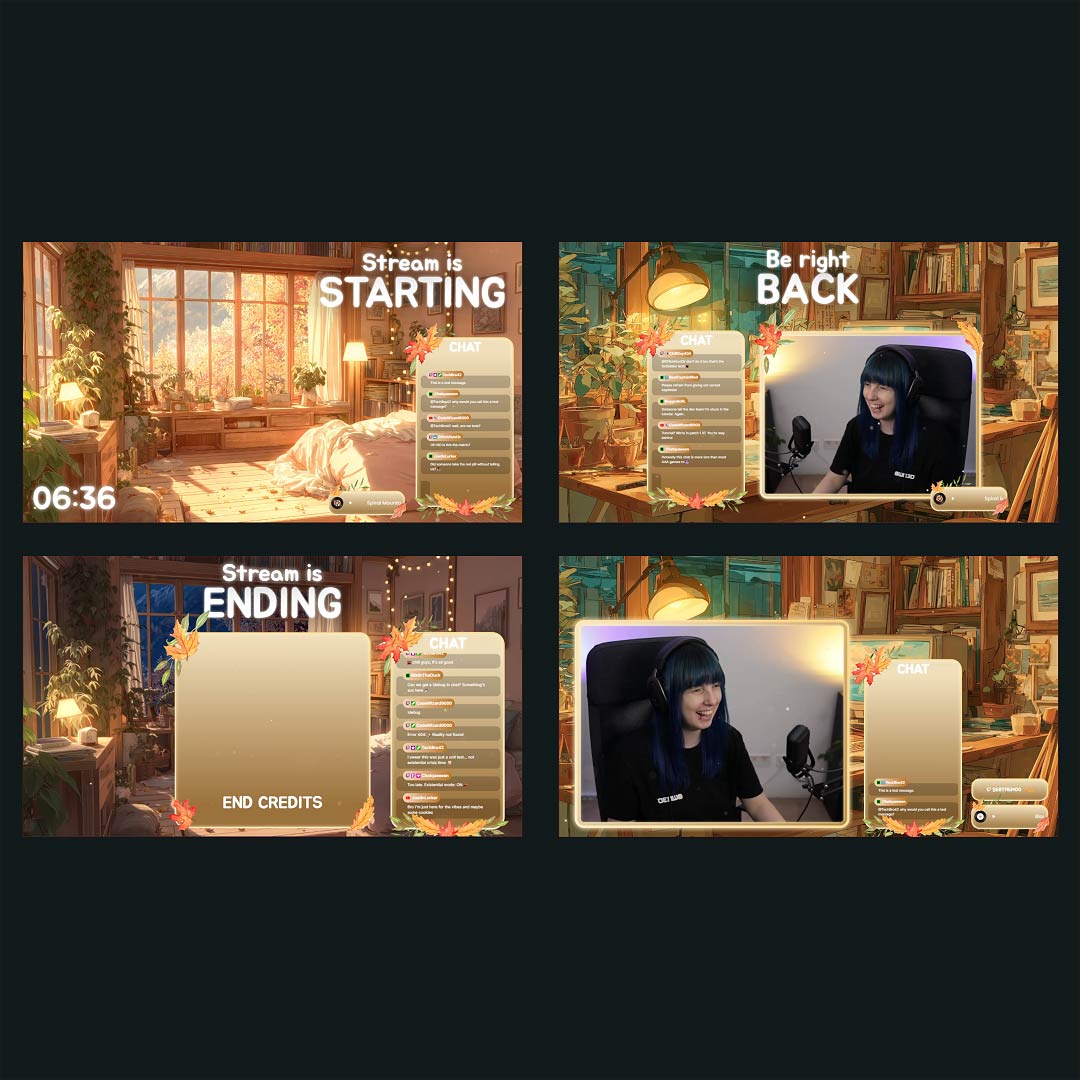
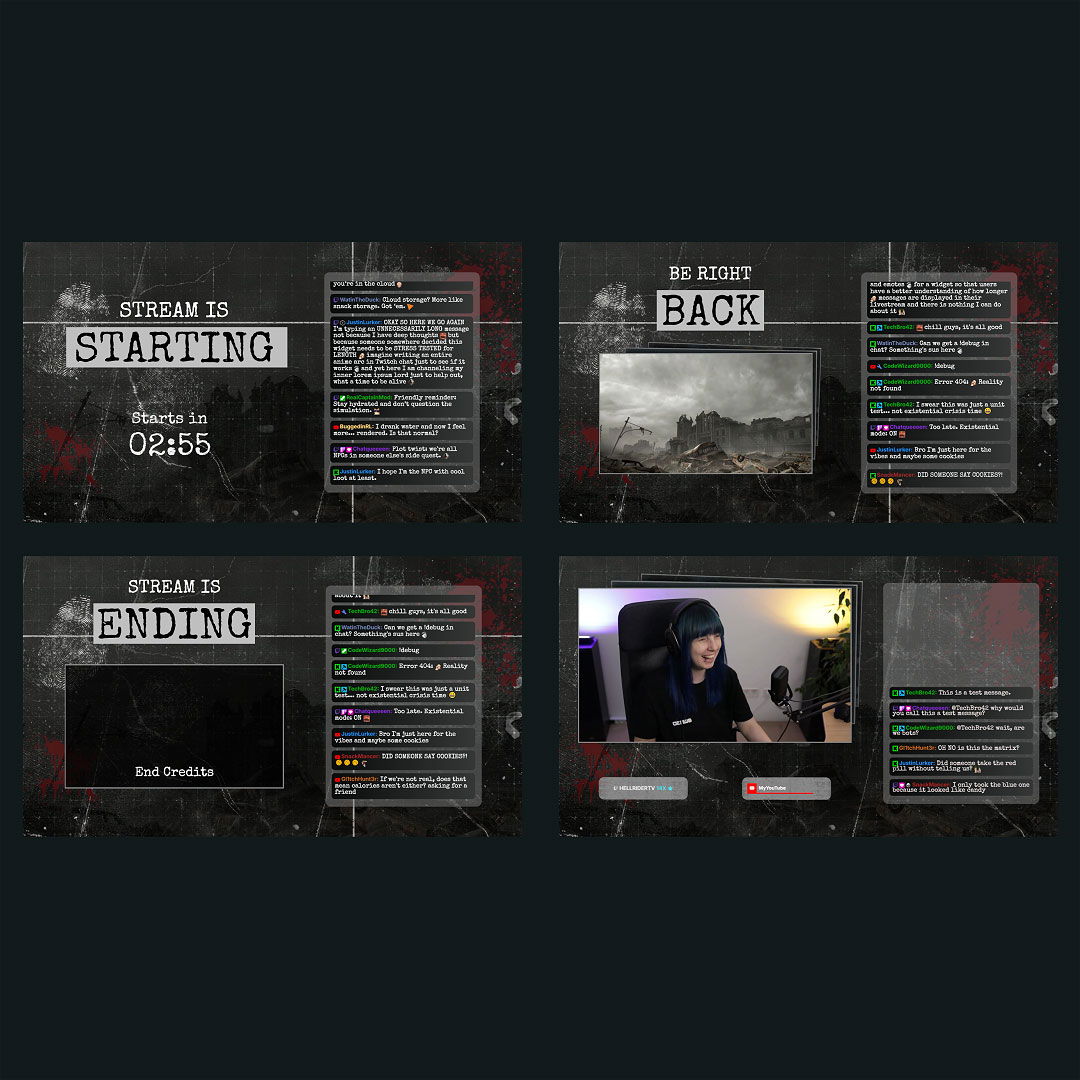
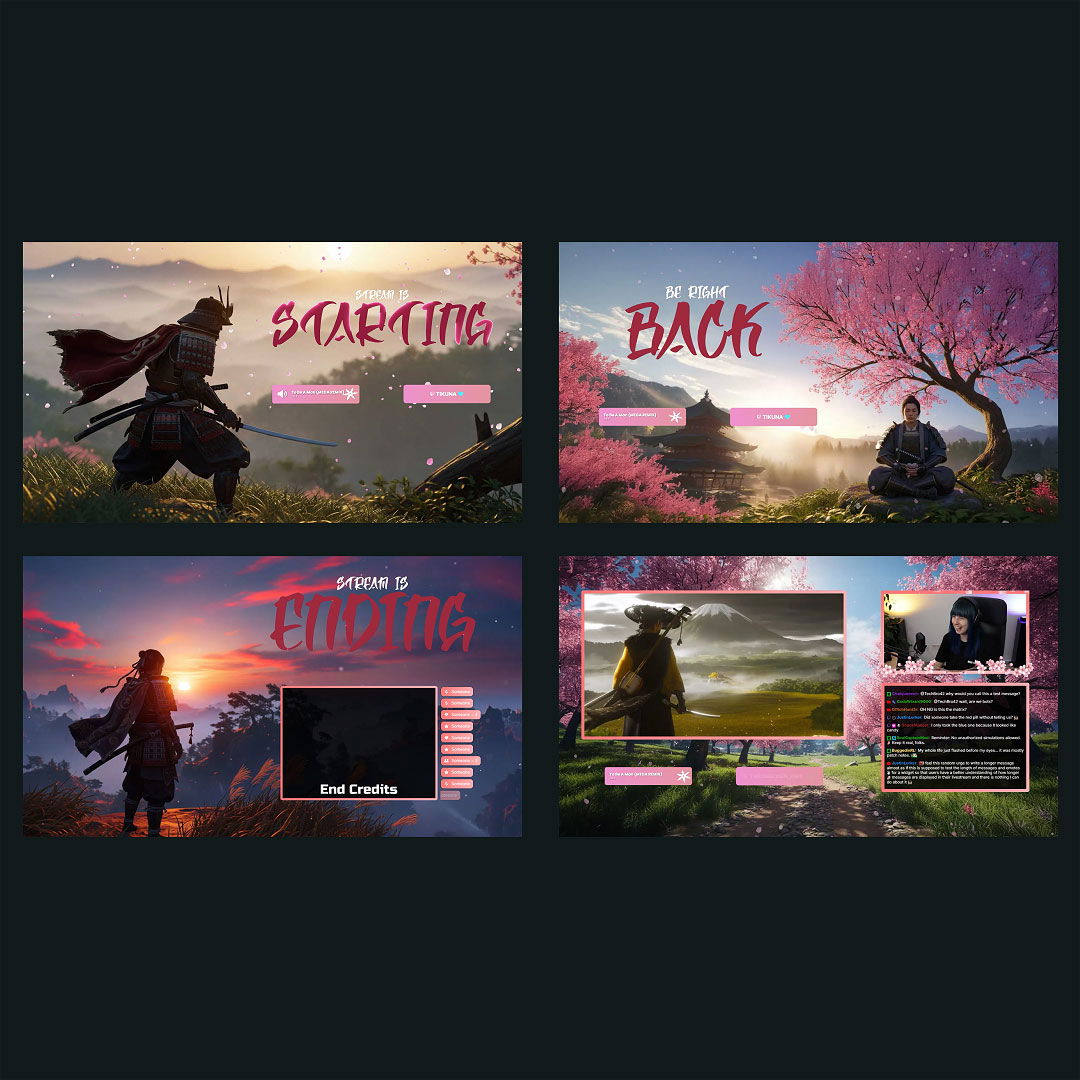
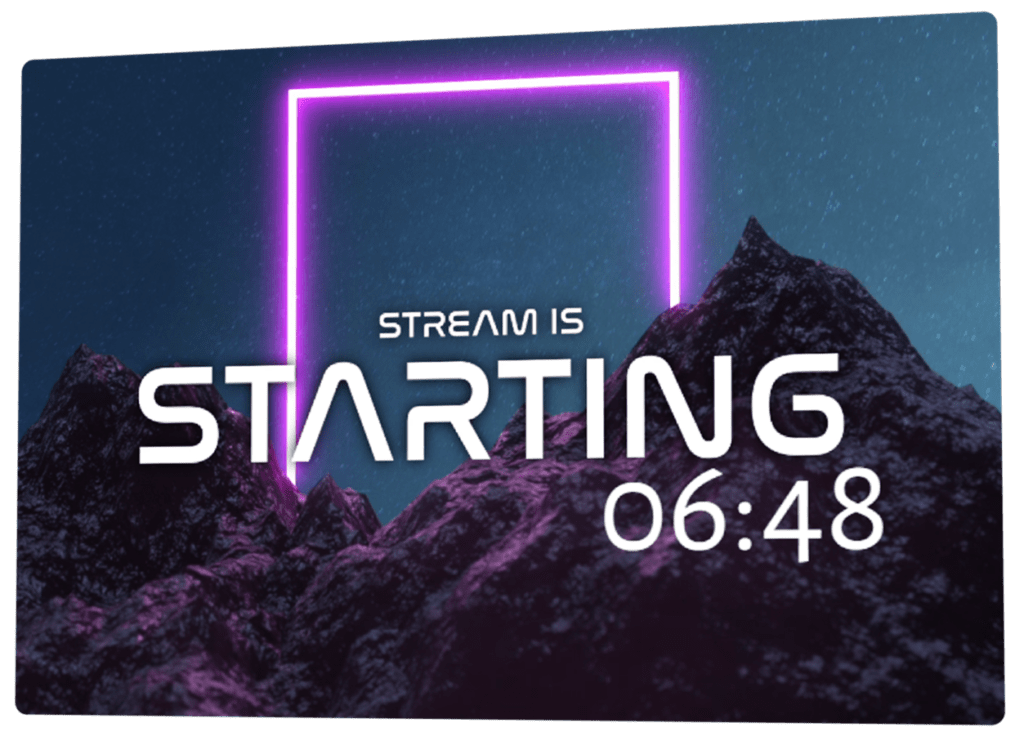
An OBS countdown timer builds anticipation before you even go live. While your community gathers, excitement grows, and everyone knows something is about to start. From the first second, your stream feels intentional and professional. A clean countdown for OBS gives you time to prepare and ensures no one misses the moment your stream begins.

Get Set Up Quickly

Countdown timers made for OBS

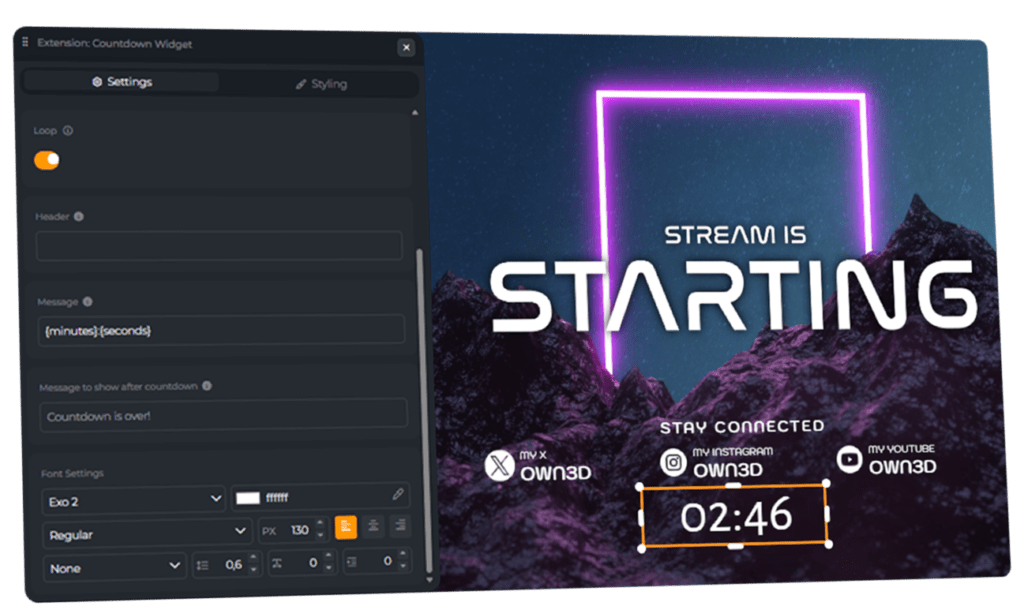
Create your OBS countdown timer in the OWN3D Pro Scene Builder, then add it as a browser source in a broadcasting tool like OBS Studio or Streamlabs. The countdown timer for OBS works perfectly for Twitch, YouTube, Kick, and multistream setups.

Adjust your OBS countdown in seconds

Your OBS countdown timer is fully customizable. Change colors, fonts, size, and placement to fit your layout. Whether it’s a starting screen or a break scene, the countdown timer OBS adapts to your design with ease.

How Creators Use an OBS Countdown

An OBS countdown is often used to create anticipation before a stream begins and give viewers a clear start time. While the timer runs, you can finalize your setup, check audio, or adjust settings in your broadcasting tool. Countdown timers for OBS are also great for pauses, intermissions, challenges, or scheduled segments during a stream.

OBS Countdown Timer Features

Everything you need to create a smooth and professional OBS countdown timer.

Customizable
Themed OBS designs
OBS Stream Start Timer
OBS Stream Break
Ready-to-Use Countdown

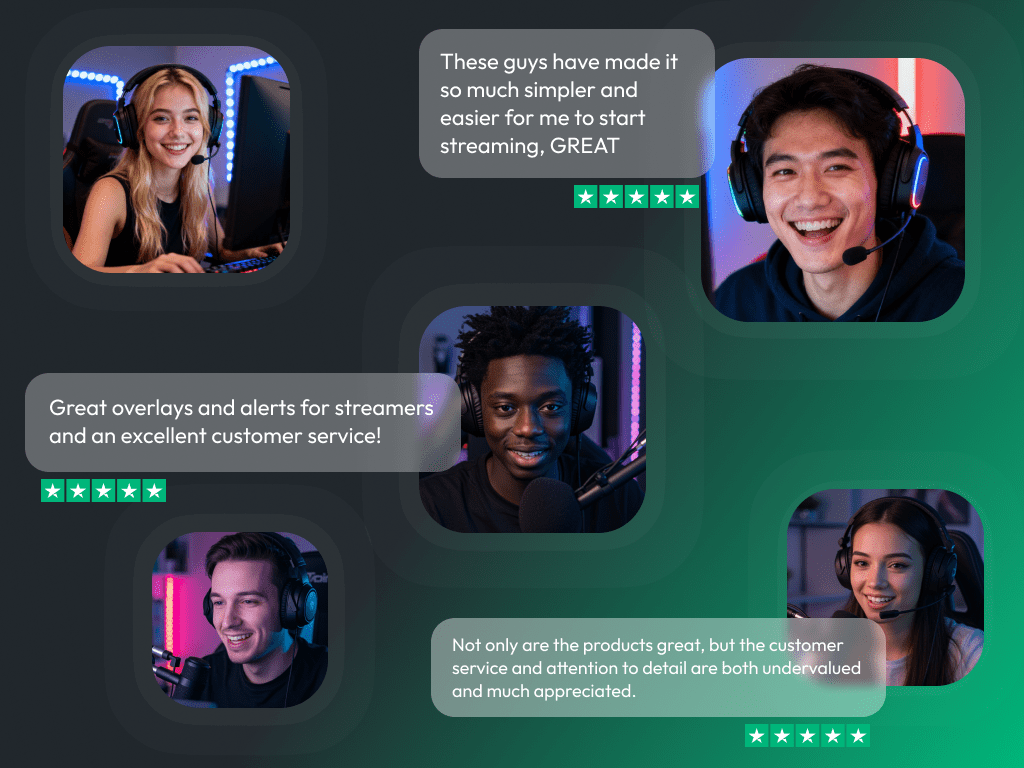
What Happy Customers Say About Our OBS Countdown Timer & OWN3D Pro

See how our product makes a difference for content creators.

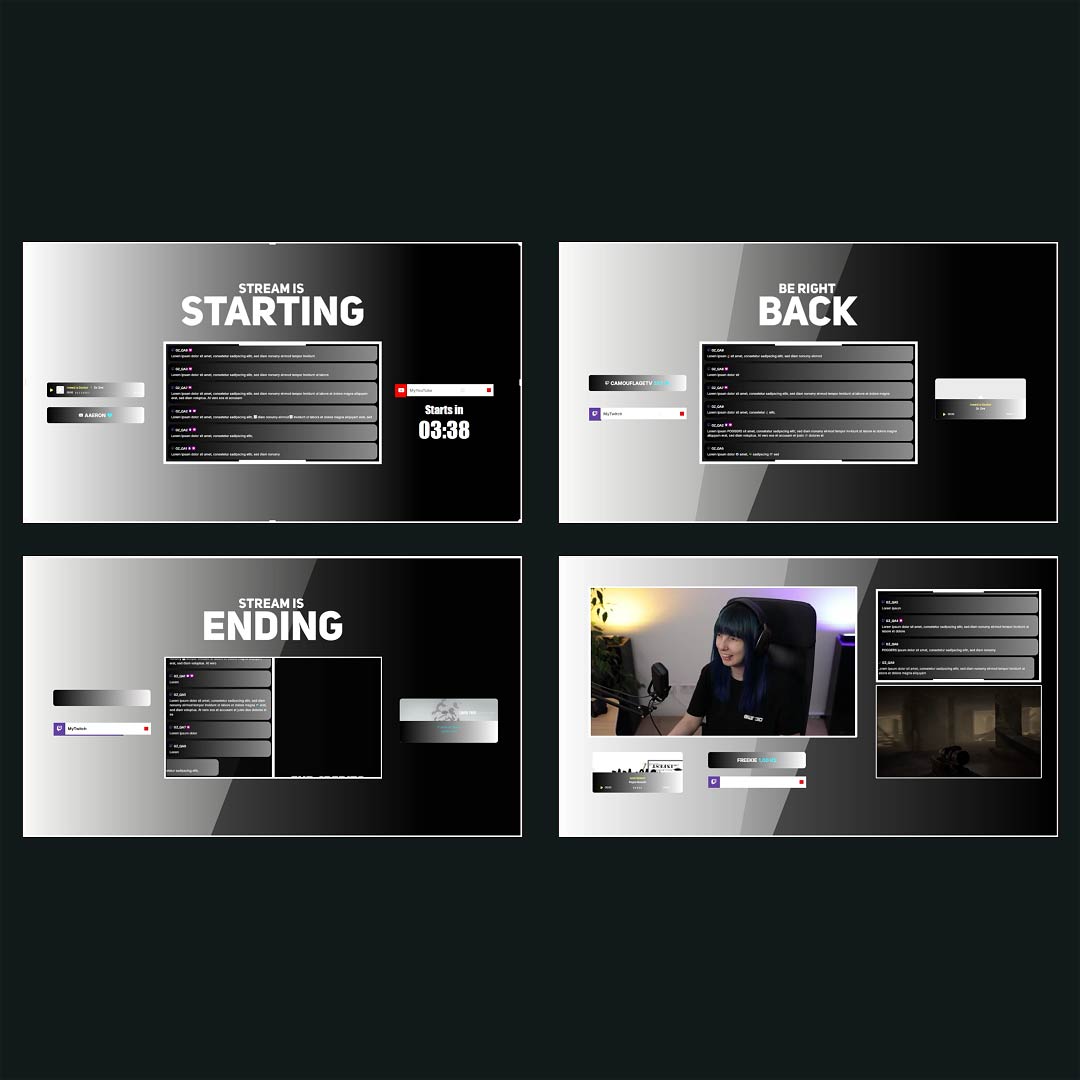
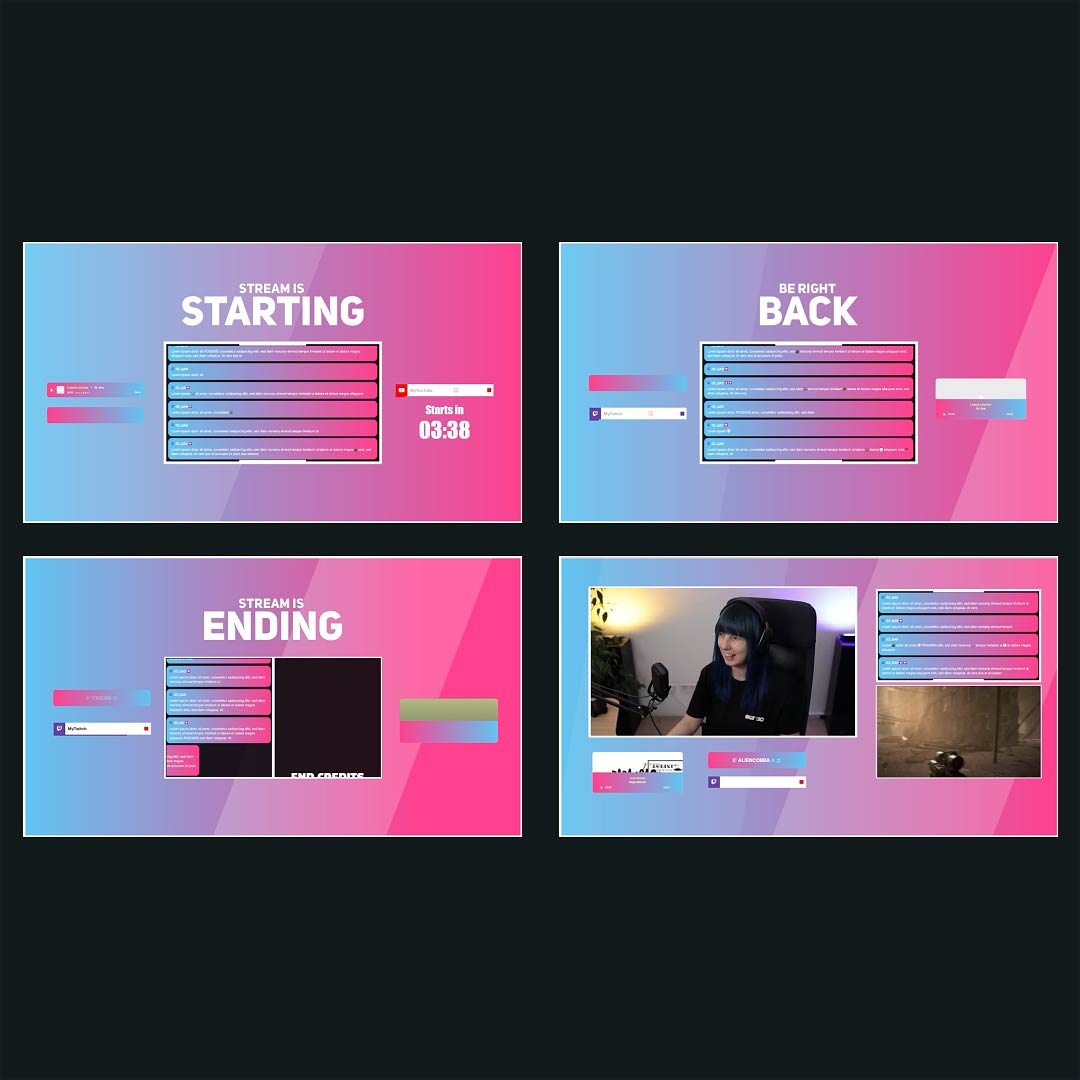
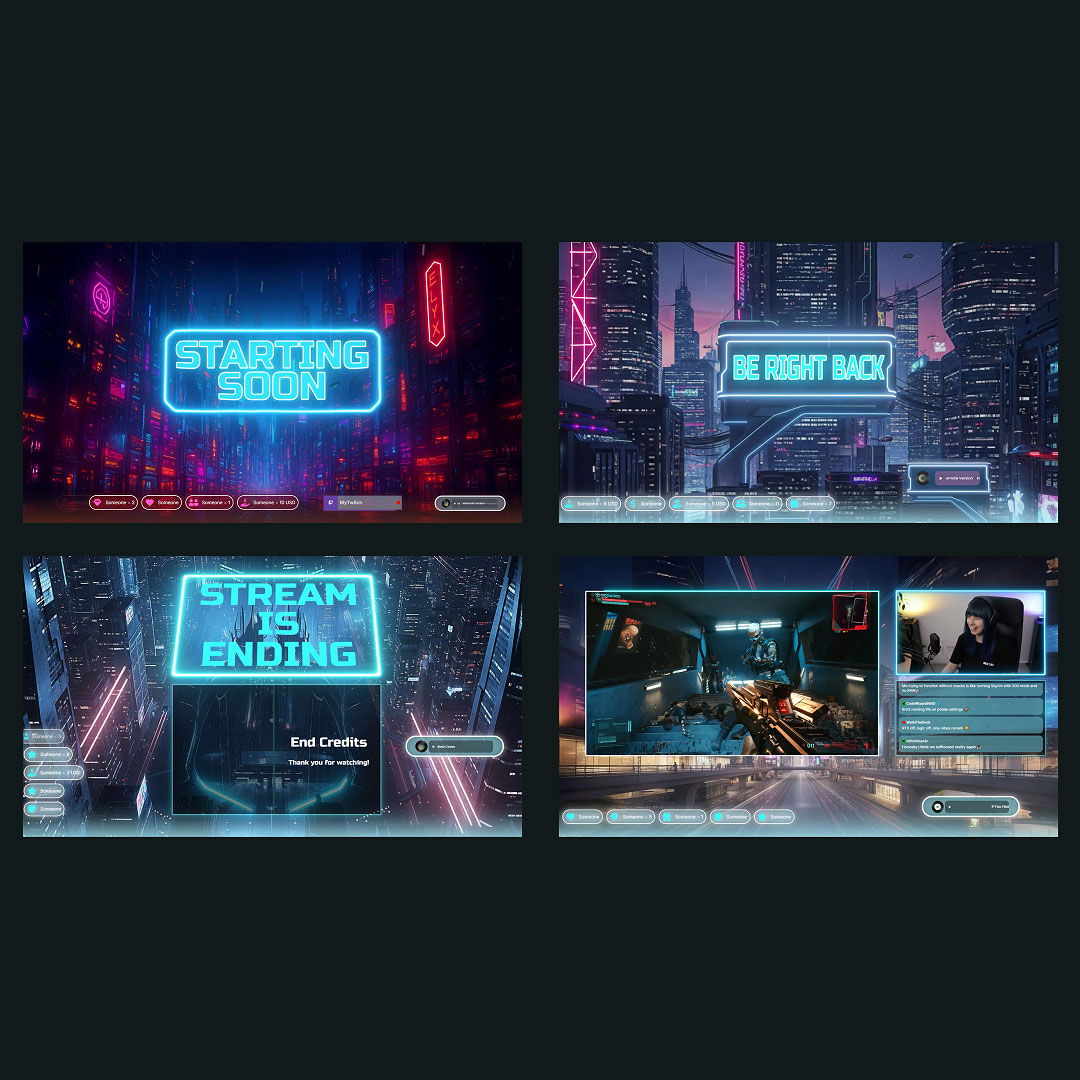
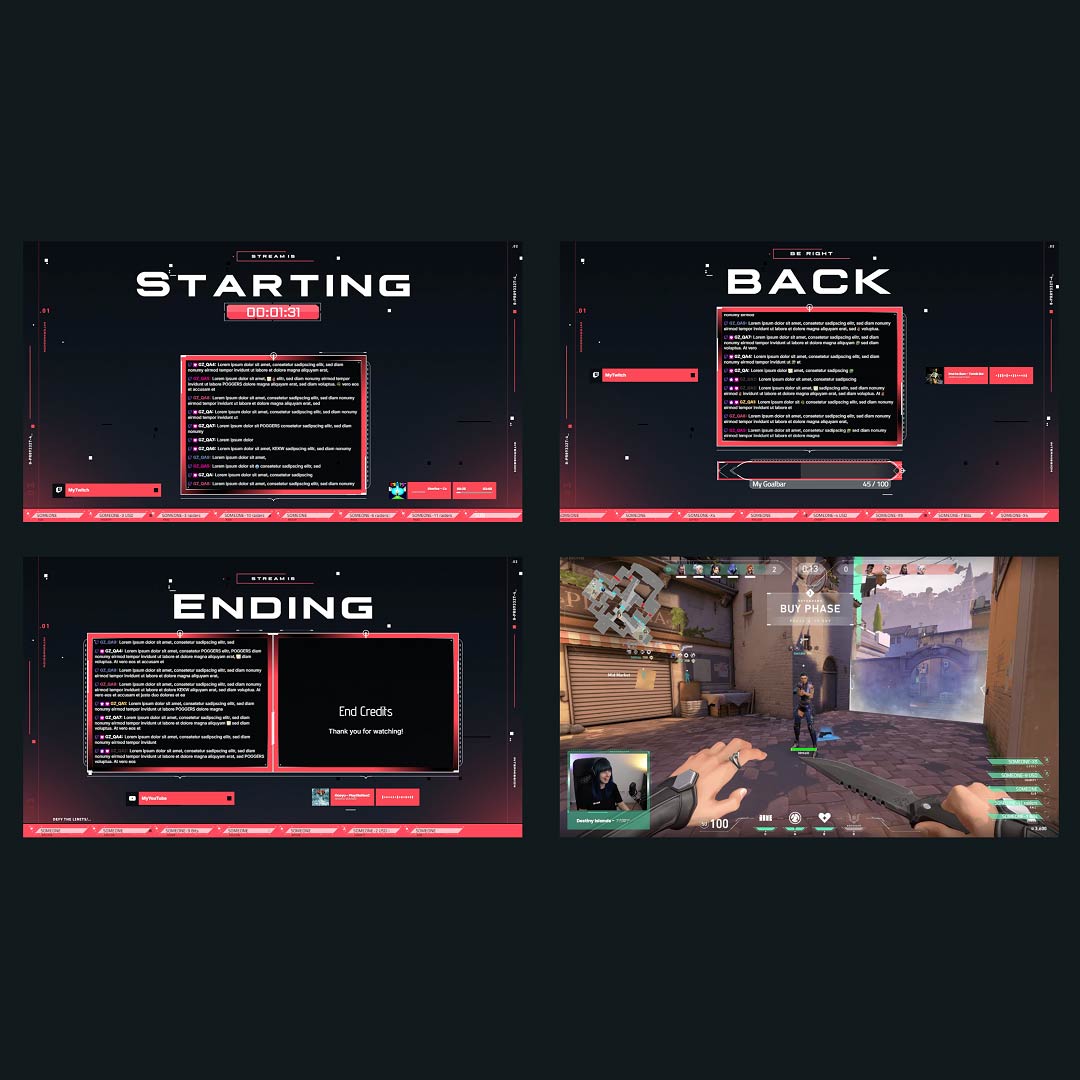
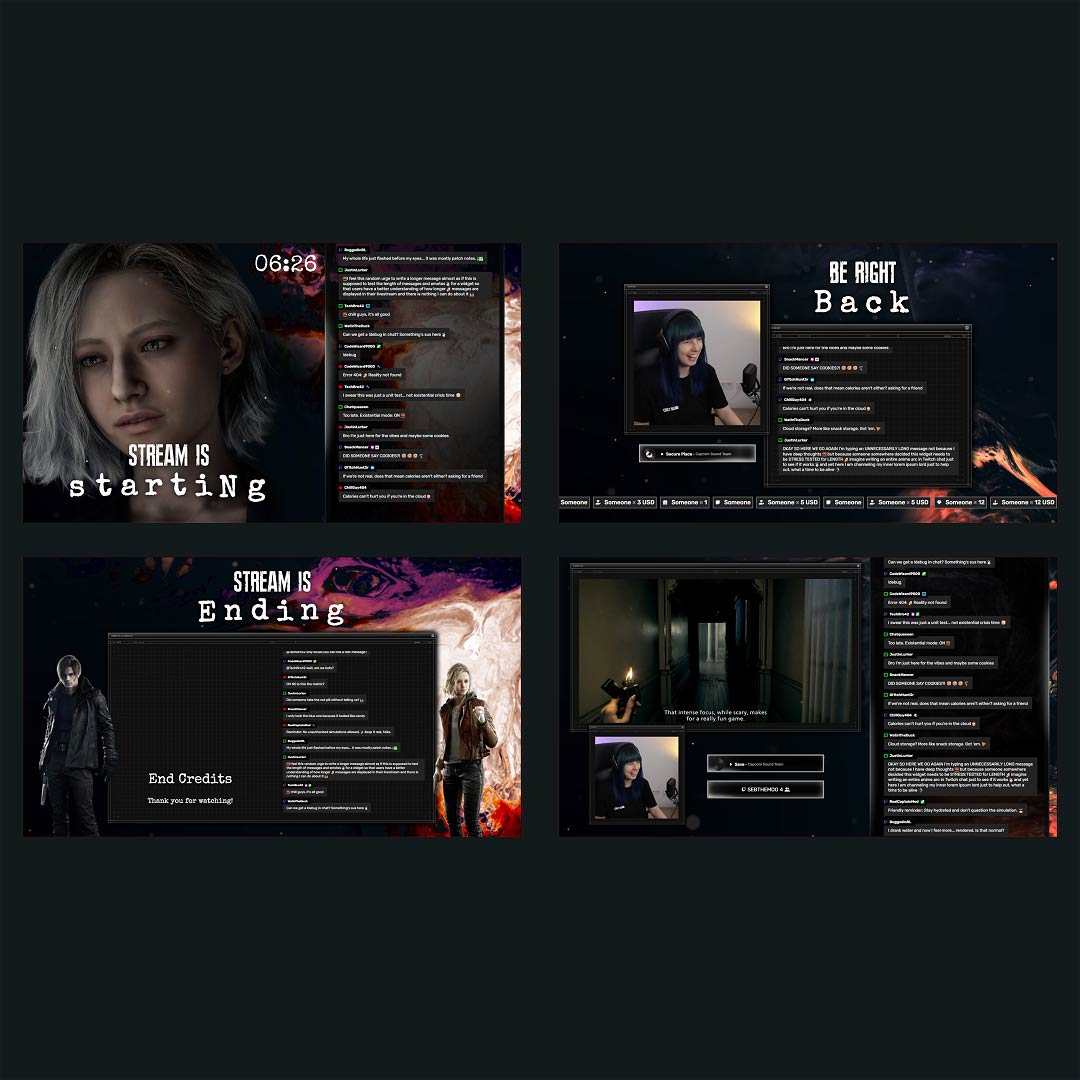
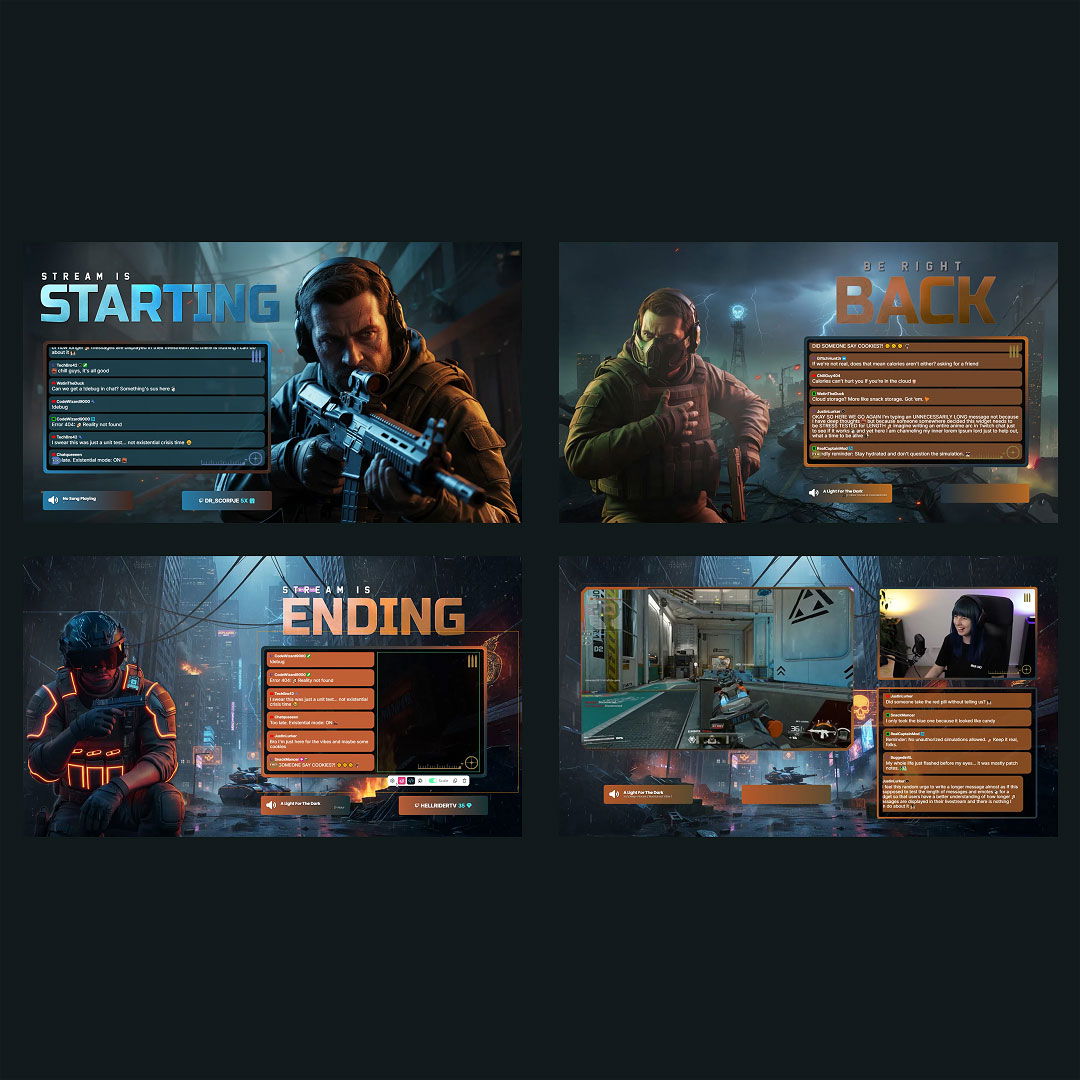
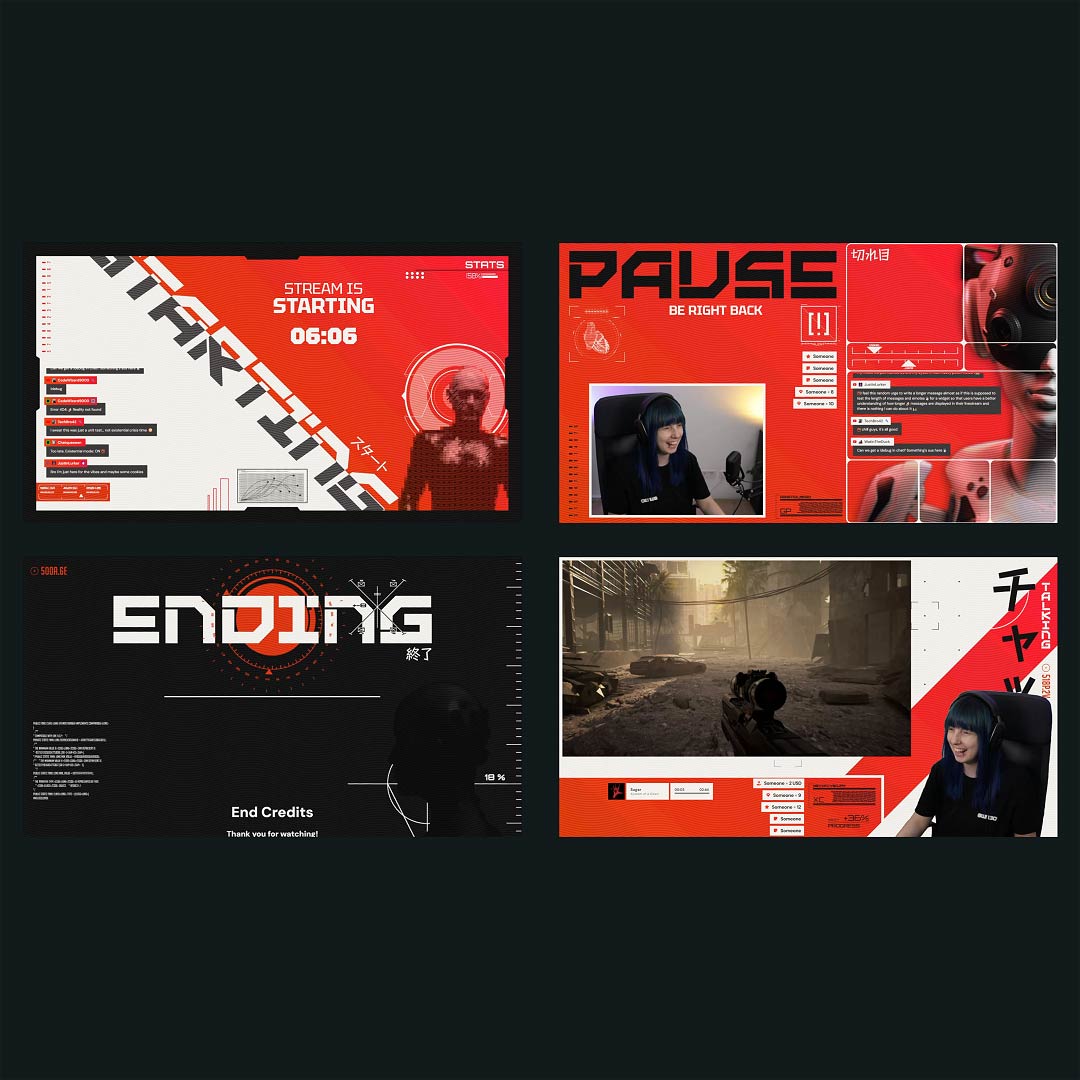
Overlays with OBS Countdowns Free/Premium

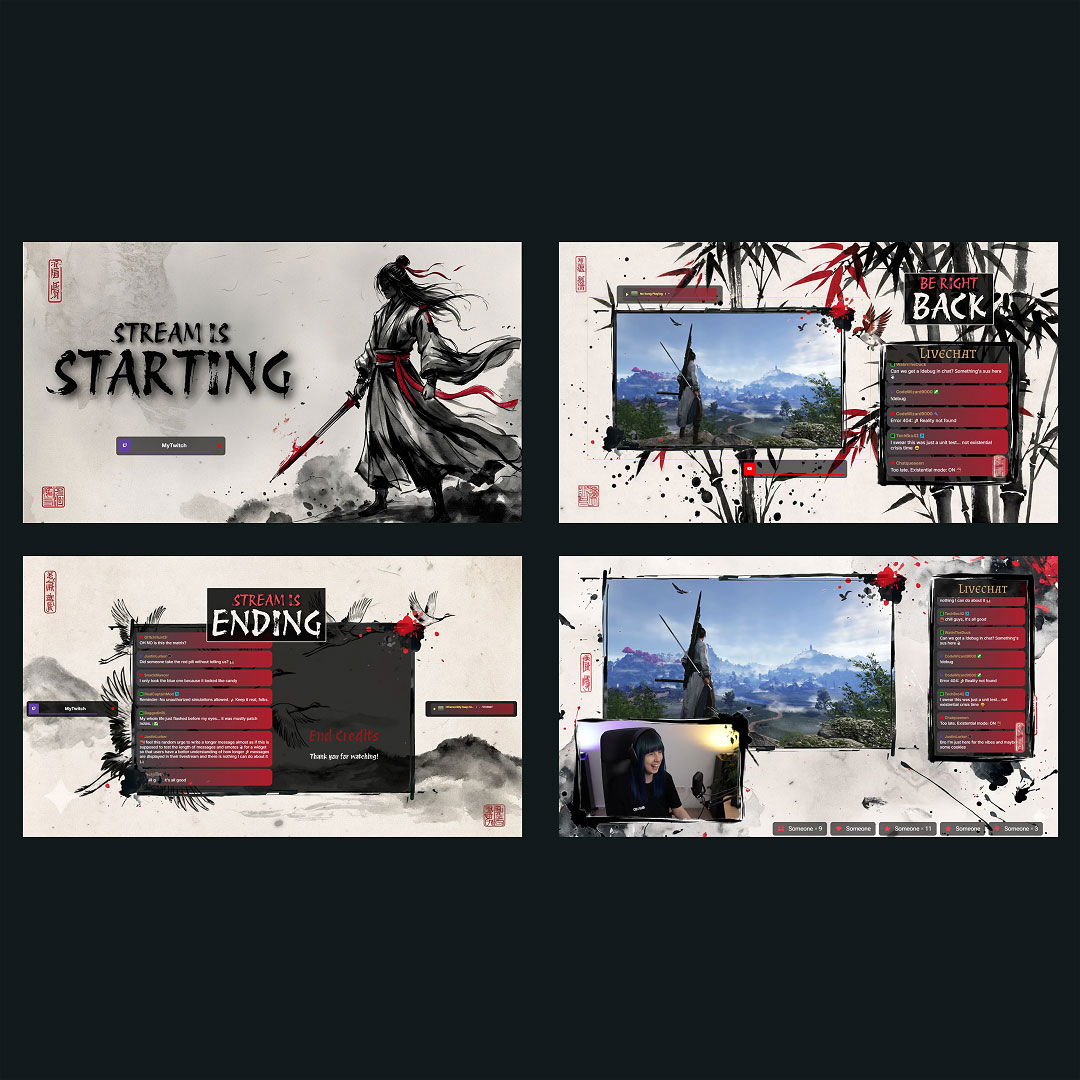
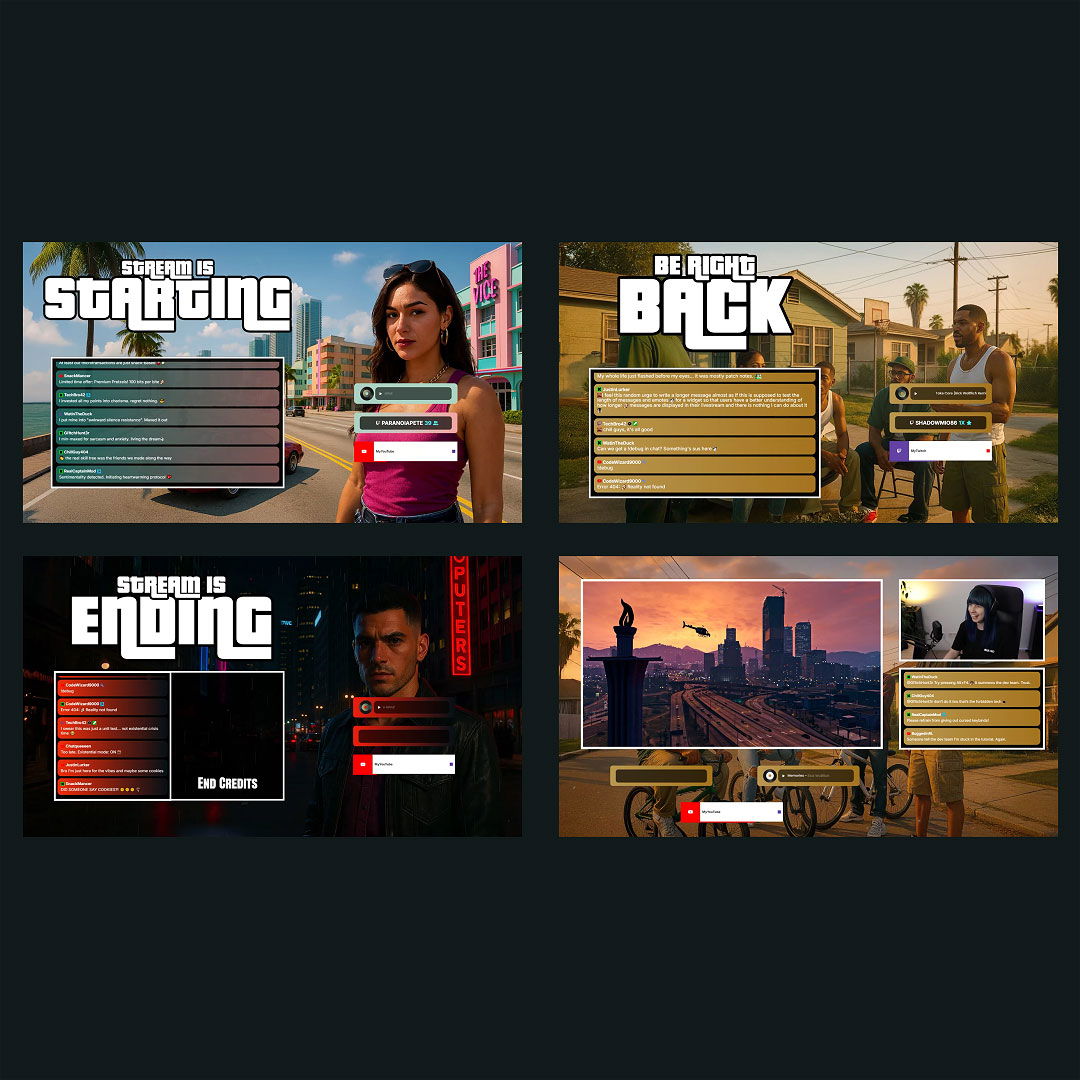
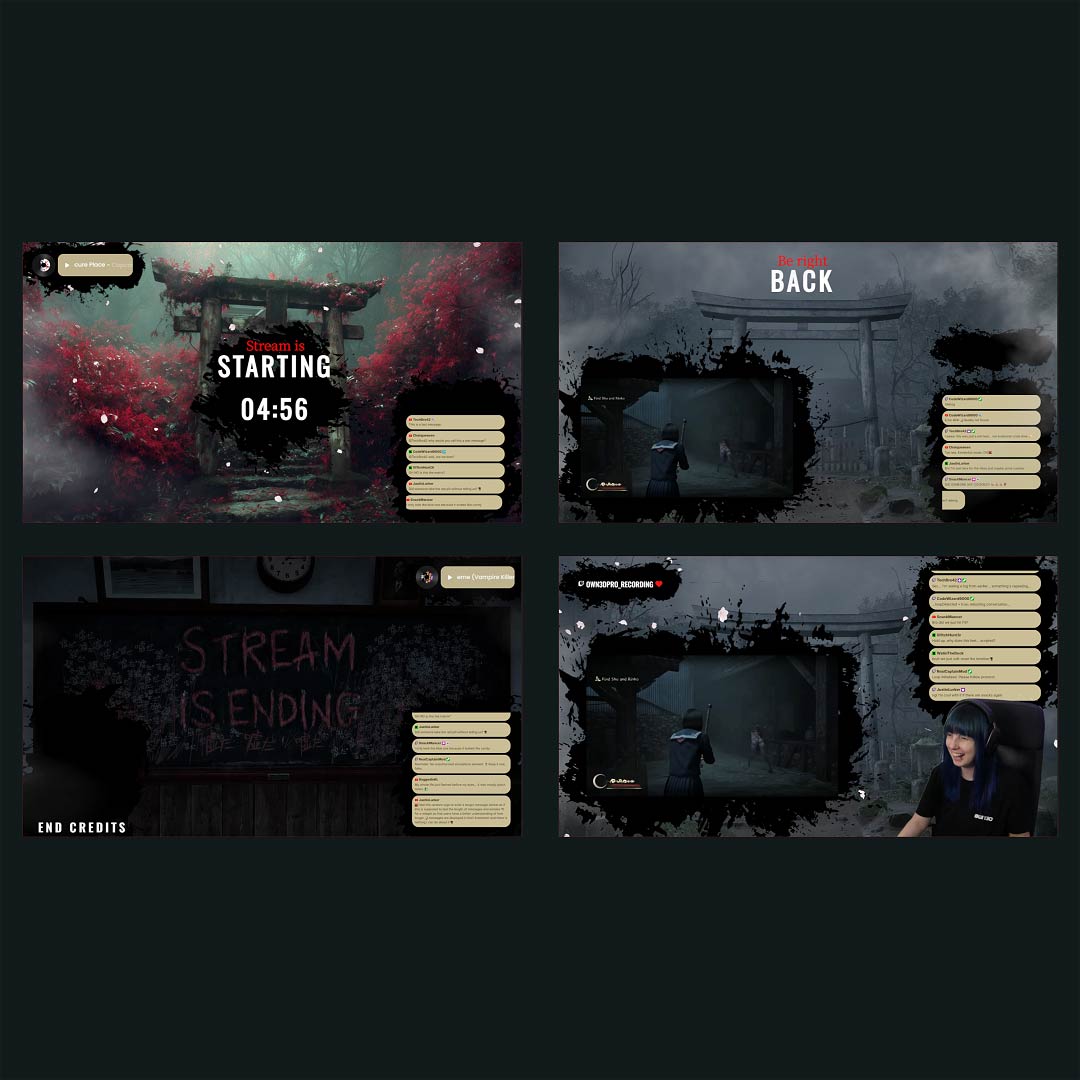
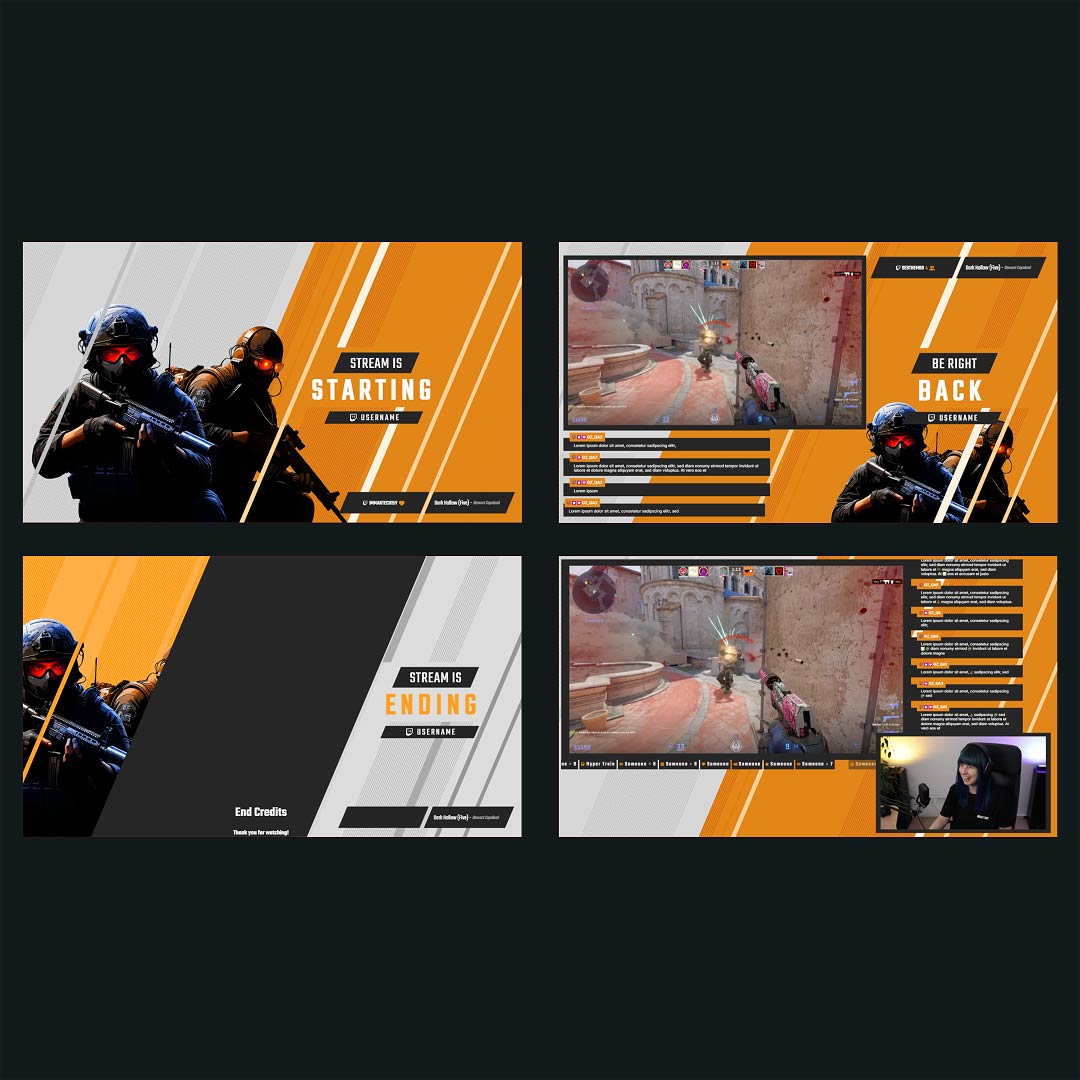
Ready-to-use overlays with built-in OBS countdown timers that you can fully adjust to your liking.

1

One Pass. Everything Included.

The Stream Pass gives you full access to everything OWN3D Pro has to offer. All products, including overlays, alerts, widgets, our OBS countdown, emotes, and more, are included and not sold separately.

Works with all broadcasting tools

Customize it in the Scene Builder and use it as a countdown timer for OBS Studio, Streamlabs, XSplit, or other tools. Everything works smoothly with your setup.

Unlimited* asset downloads

Download emotes, badges, panels, and more static assets. *Our unlimited plan is subject to fair use.

AI-powered creations

Get 50 AI credits with your Stream Pass to generate custom stream widgets, webcam frames, emotes, and more.

Multistreaming ready

Multistream on Twitch, YouTube, and Kick with all the tools you need for a professional-looking livestream.
FAQs About OBS Countdown Timer

What is an OBS countdown timer used for?

An OBS countdown timer helps signal a clear start time before a livestream begins. Beyond that, many creators use a countdown timer for OBS during breaks, transitions, or timed segments. It builds anticipation and brings structure to your entire stream.

Yes. Your countdown timer for OBS can be customized at any time. Adjust colors, fonts, size, and placement in the OWN3D Pro Scene Builder or Desktop App so it fits seamlessly into your stream design.
Yes. With the OWN3D Pro Desktop App, you can import complete scenes into OBS Studio in just a few clicks. This makes it even faster to set up your entire stream, including OBS countdown timers, overlays, and widgets.

Yes. Our OBS countdowns can be used across Twitch, YouTube, and Kick. This also applies to multistream setups, so you can keep the same countdown timer in OBS across all platforms.

Yes. Countdown timers for OBS are added as browser sources and run smoothly in OBS Studio, Streamlabs, and other common broadcasting tools.

Yes. The OBS countdown timer is free to use and included in all free overlays. This means you can run a full countdown timer for OBS without paying anything. Stream Pass overlays also include countdowns, or you can easily add them.

Of course. You can update the duration of your OBS countdown timer directly in your scene on OWN3D Pro whenever you need, even shortly before going live.

Yes. You can reuse your OBS countdown as often as you like. Restart it with the “Refresh” button in OBS, or create multiple countdown timers in OBS with different durations and switch between them as needed during your stream.