Free Stream Countdown Widget
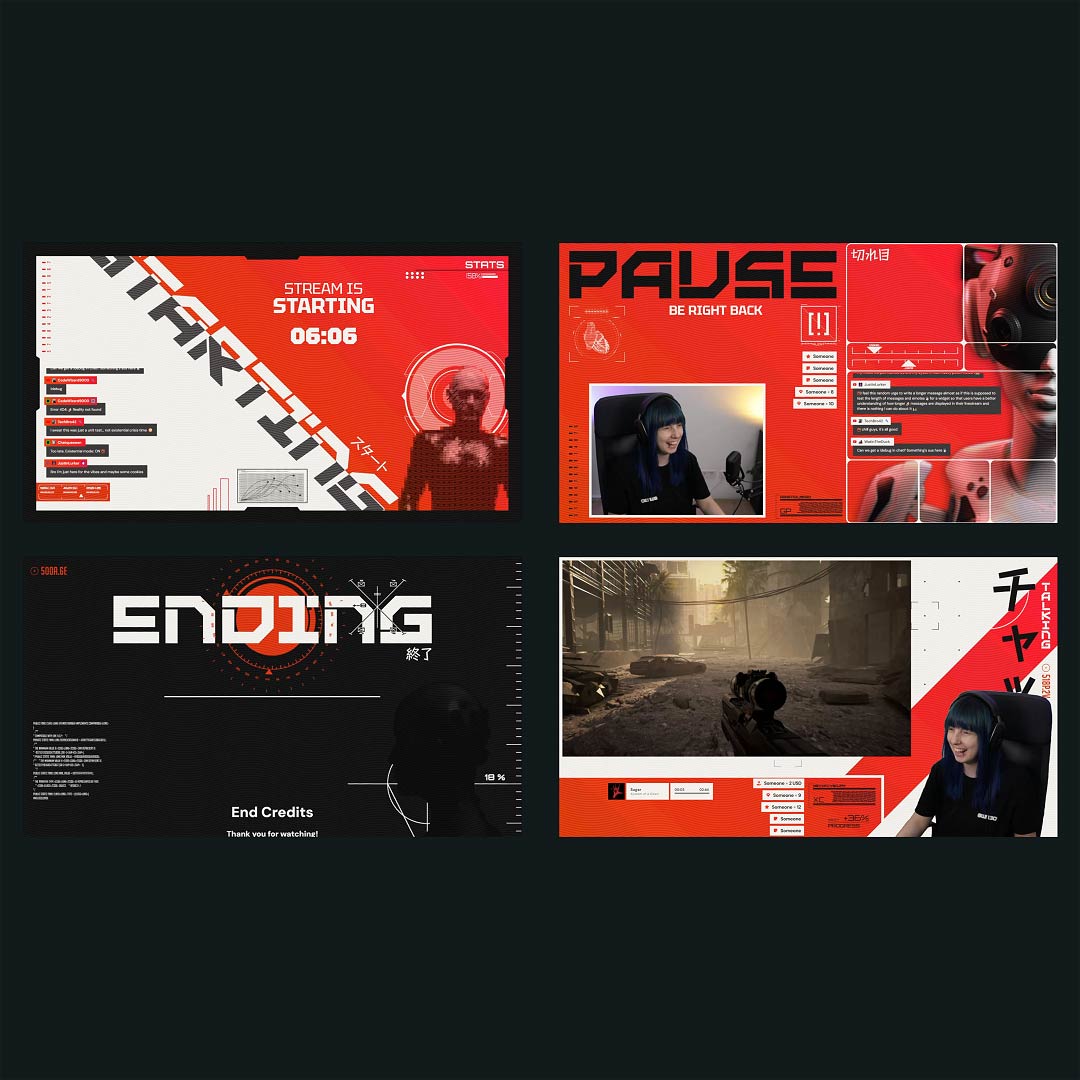
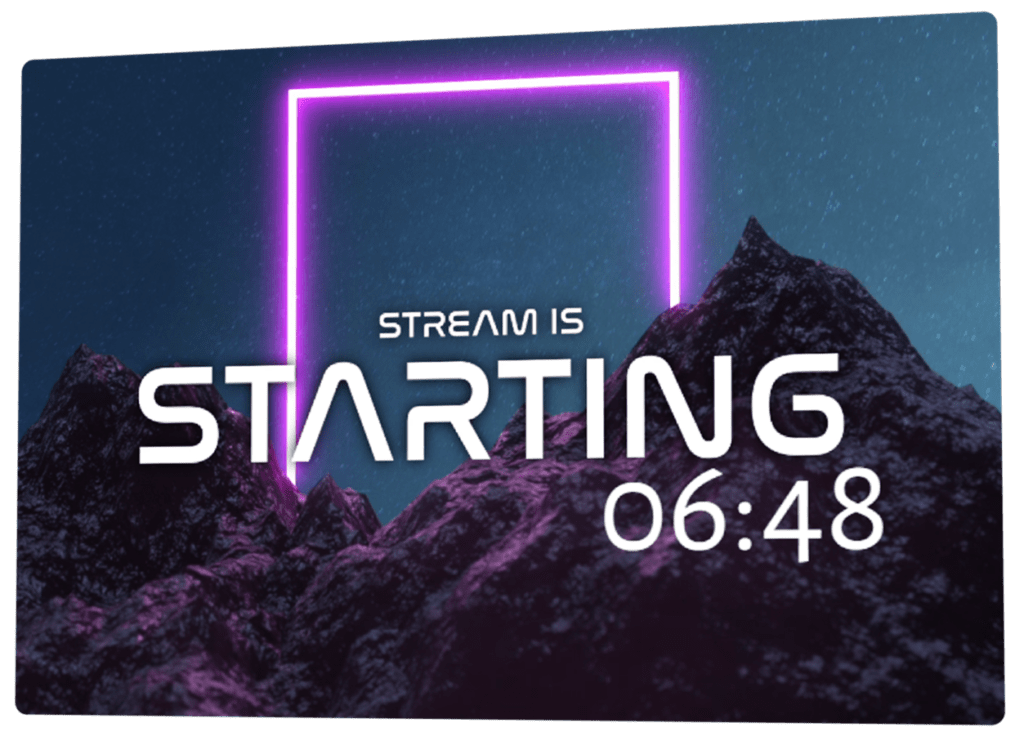
A stream countdown sets the mood before you even start your content. It gives your community time to gather and makes the start feel intentional. From the first second, your stream feels organized and professional. Choose a ready-to-use design with the free stream countdown and set it up fast in OBS Studio or Streamlabs for Twitch, YouTube, and Kick. Use a smooth and confident start that your viewers will appreciate.
Quick & Easy Setup
Stream countdowns for any platform
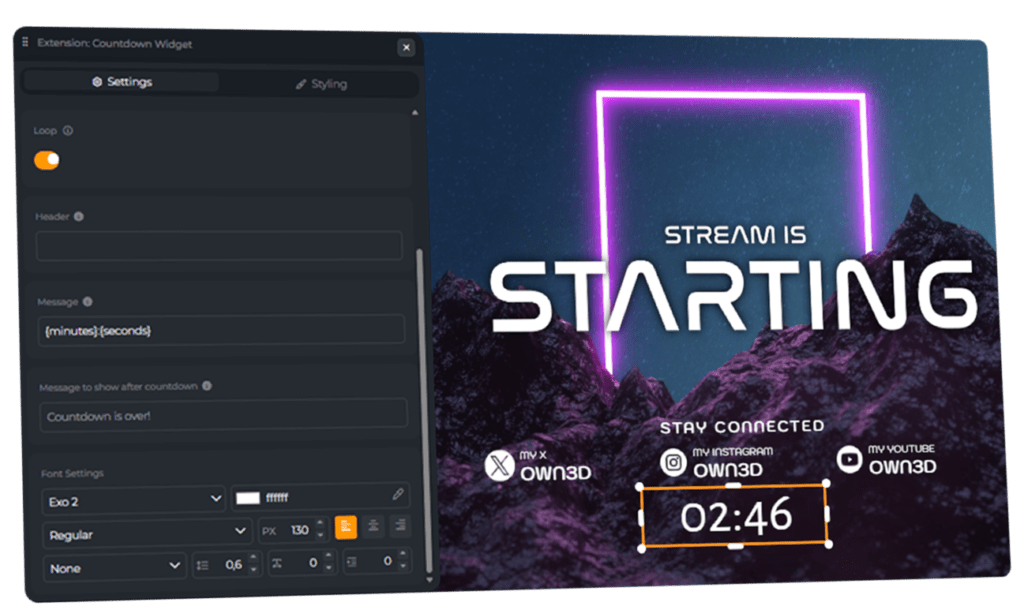
Create your stream countdown in the OWN3D Pro Scene Builder, then add it as a browser source in a broadcasting tool like OBS Studio or Streamlabs. It works for Twitch, YouTube, Kick, and multistream setups.
Customize the stream countdown design
Change colors, fonts, sizes, and positioning in seconds. Place the livestream countdown anywhere in your scene and match it perfectly to your design.
Ways to Use
a Stream Countdown
Many content creators use a livestream countdown to set the mood before going live and give viewers time to join. At the same time, you can prepare for the stream and adjust technical settings in your broadcasting tool while the countdown builds anticipation in your community. And there is more. How you use the countdown is completely up to you.
Stream Countdown Features
Create the perfect stream countdown with customizable timers to keep your viewers engaged.
Customizable
Themed
Starting Screen Timer
Intermission Timer
Ready-to-Use Countdown
What Happy Customers Say About Our Stream Countdown
See how our stream countdown widget makes a difference for content creators.
Overlays with Stream Countdown Free/Premium
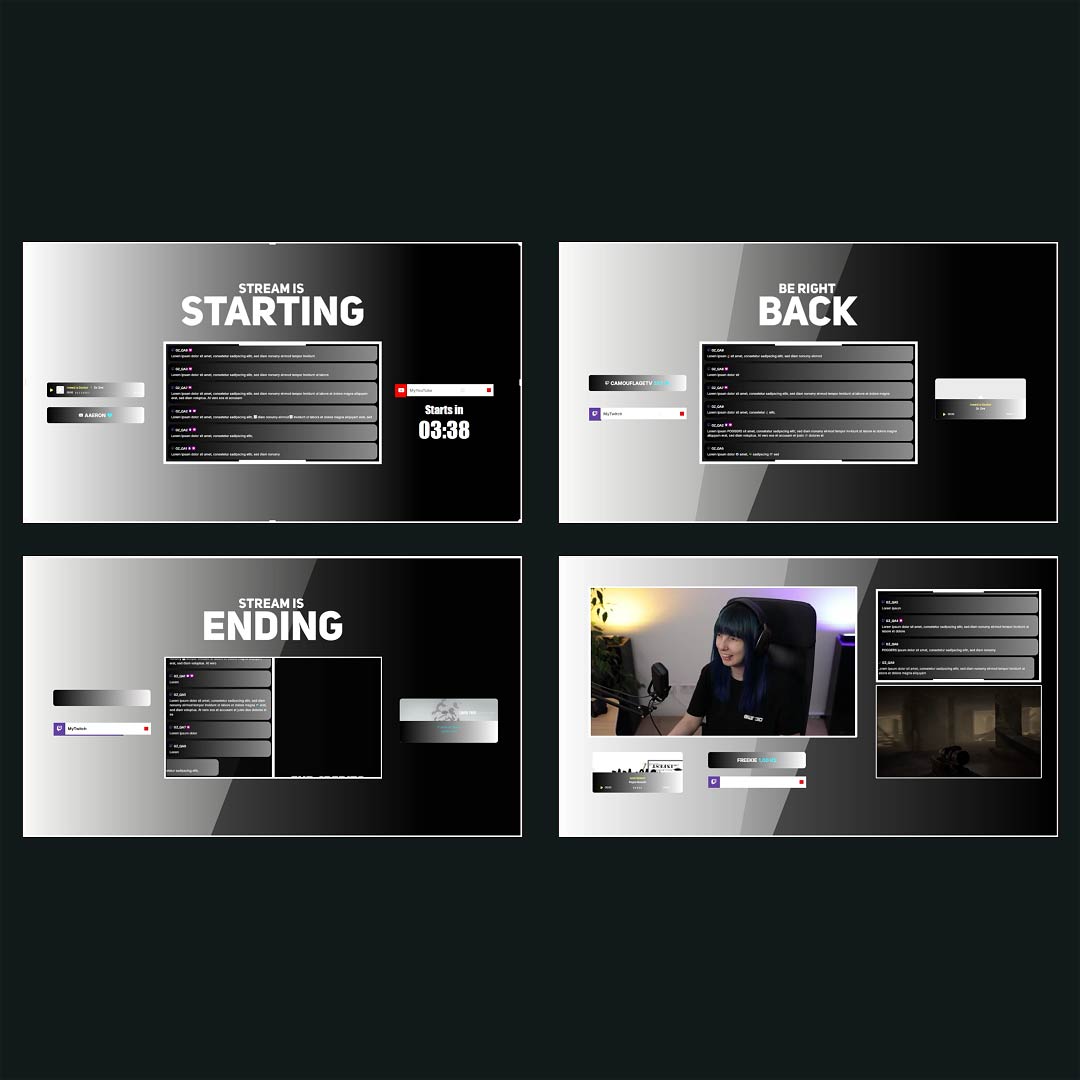
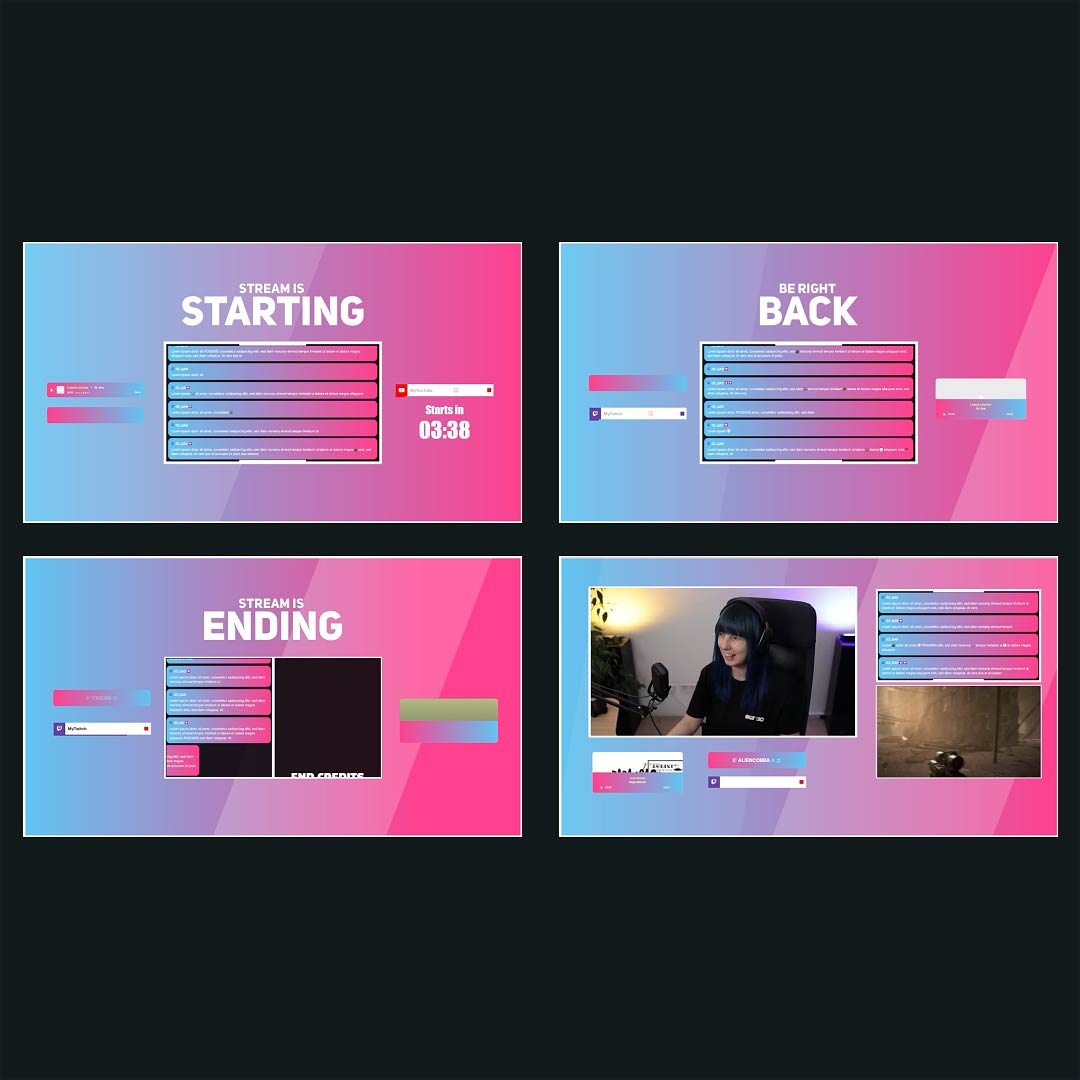
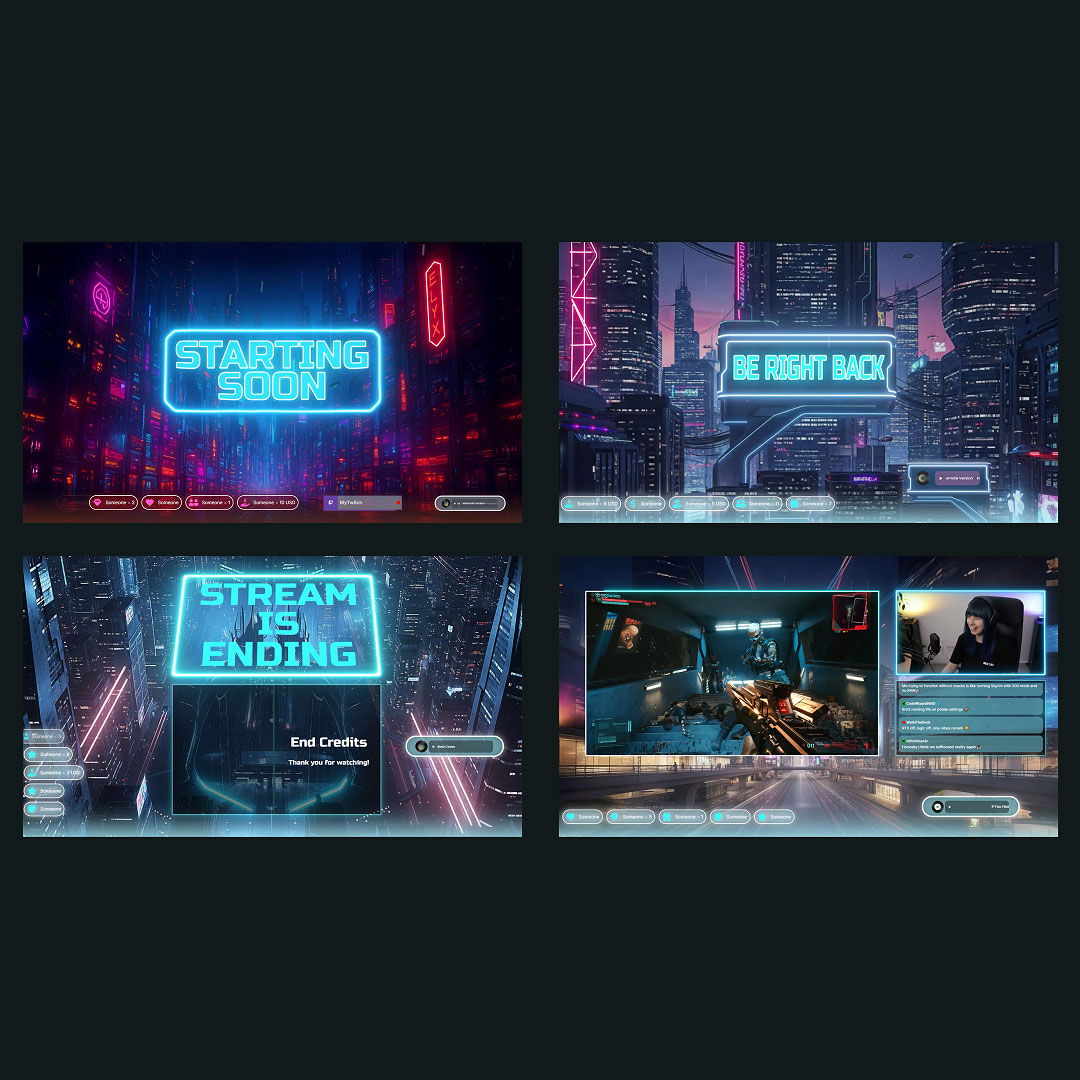
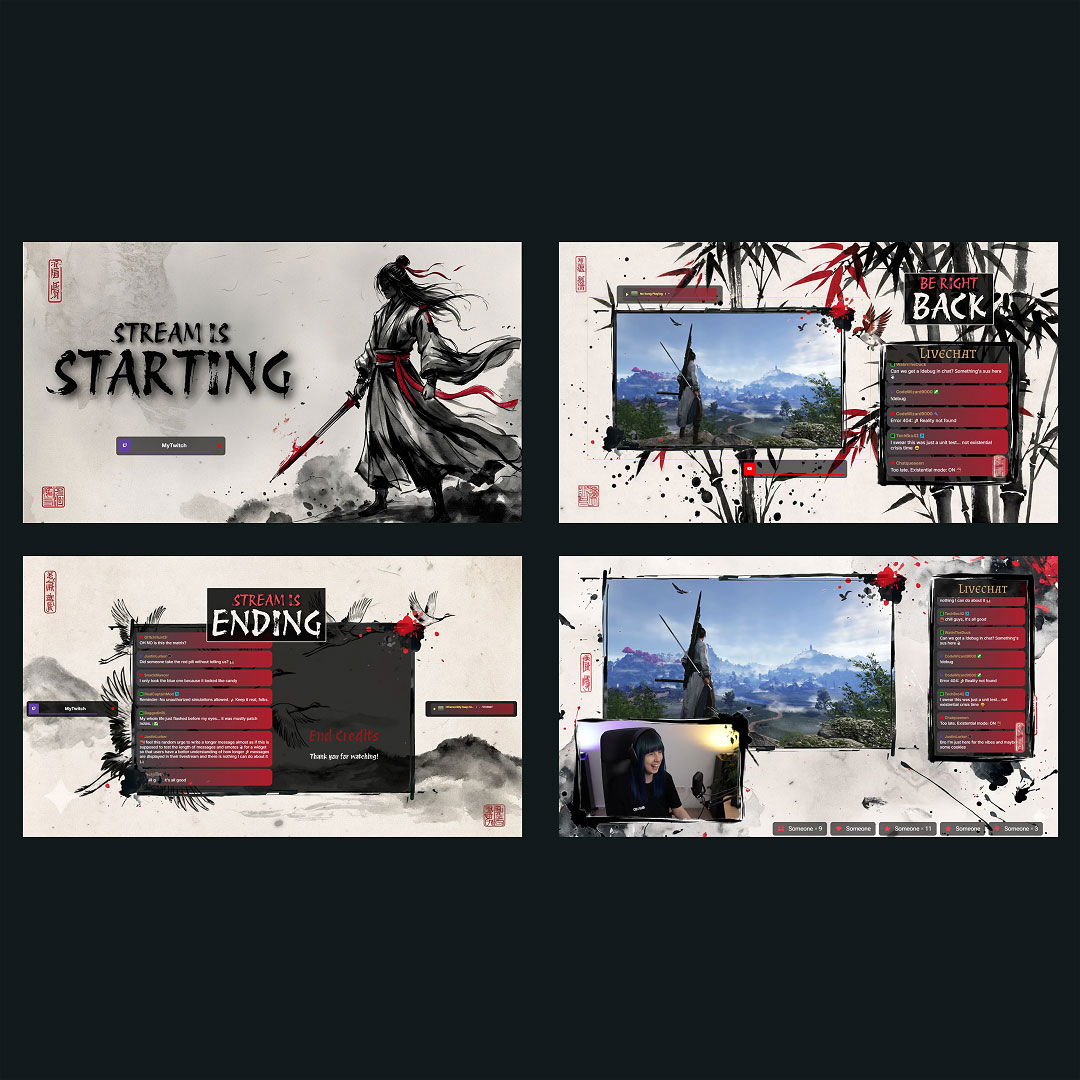
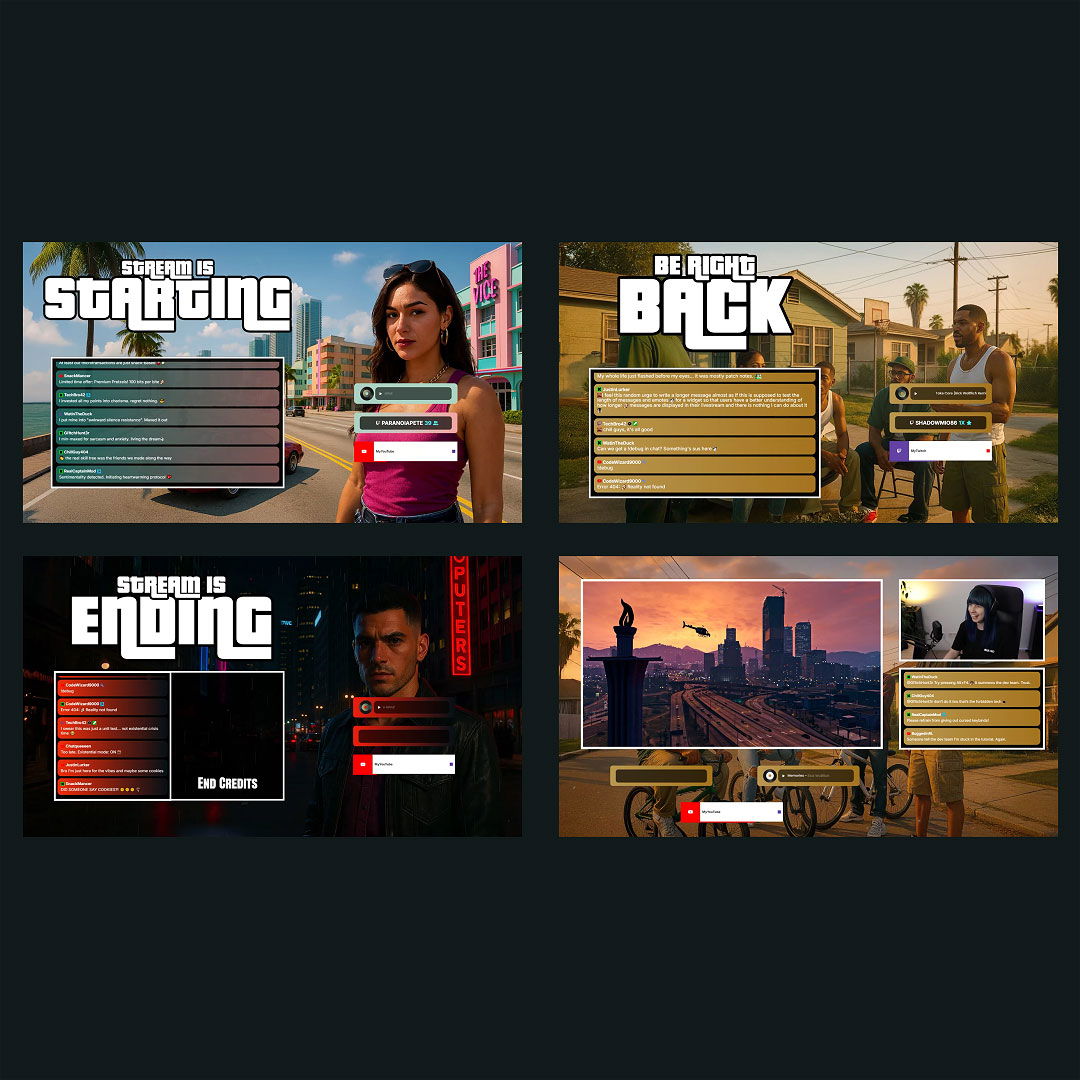
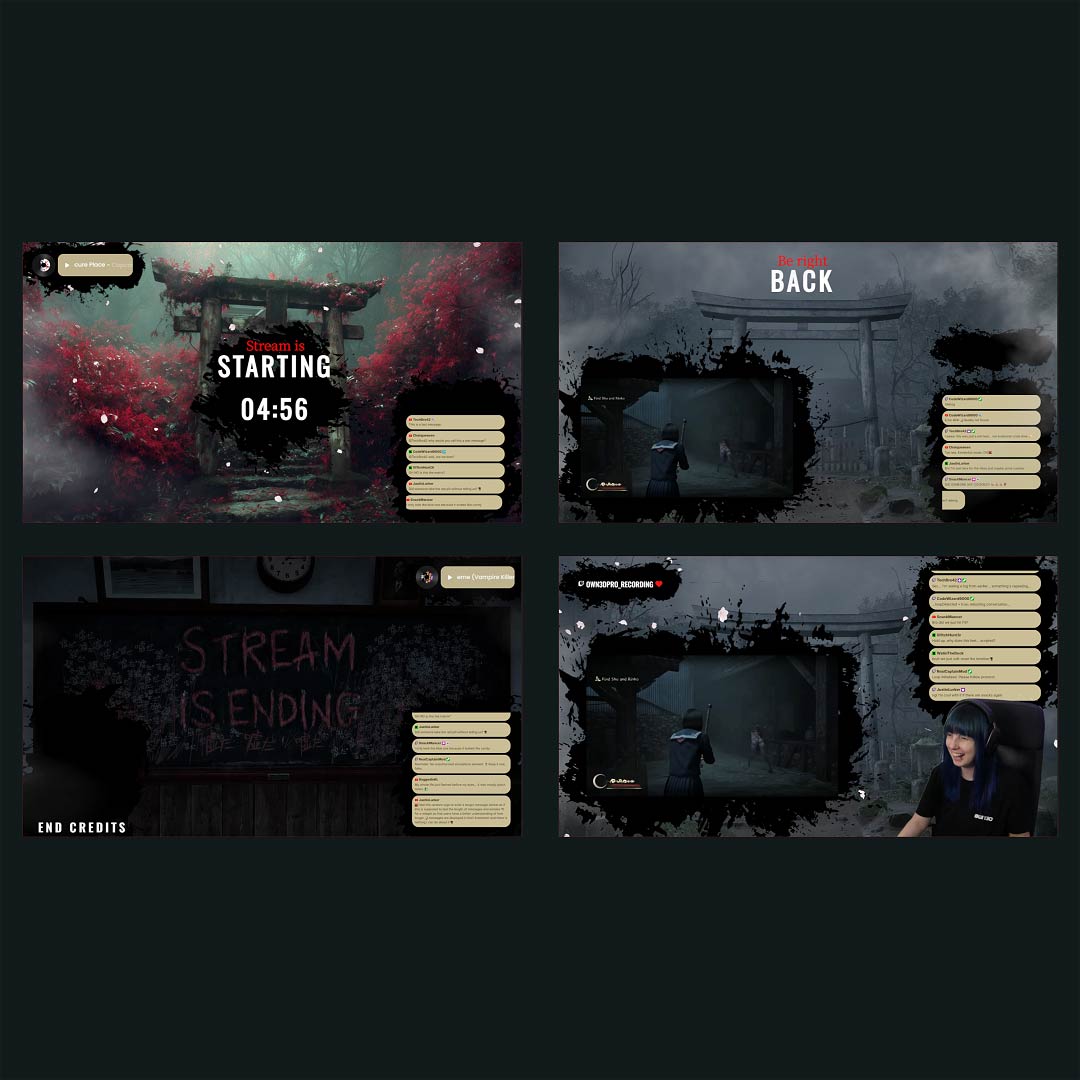
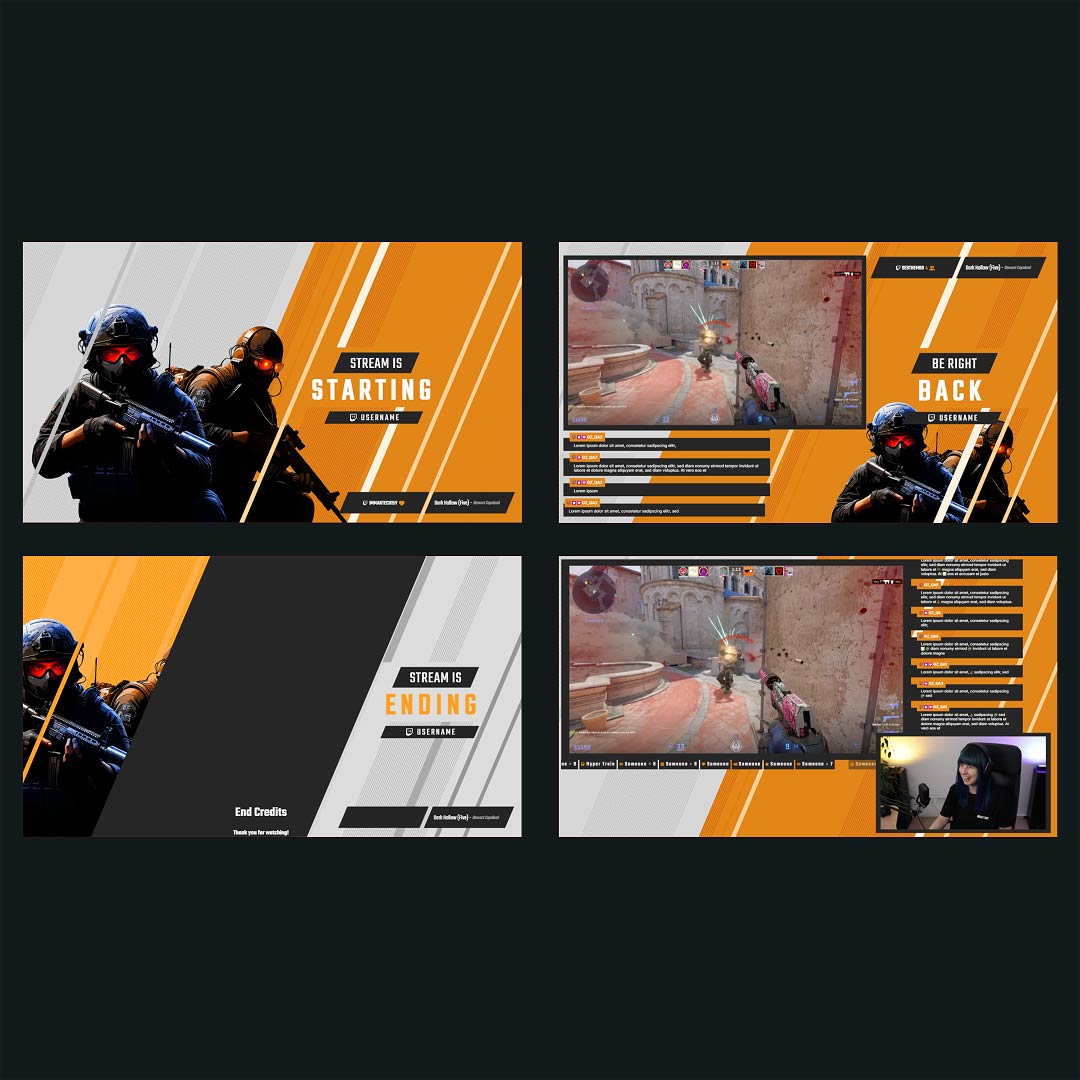
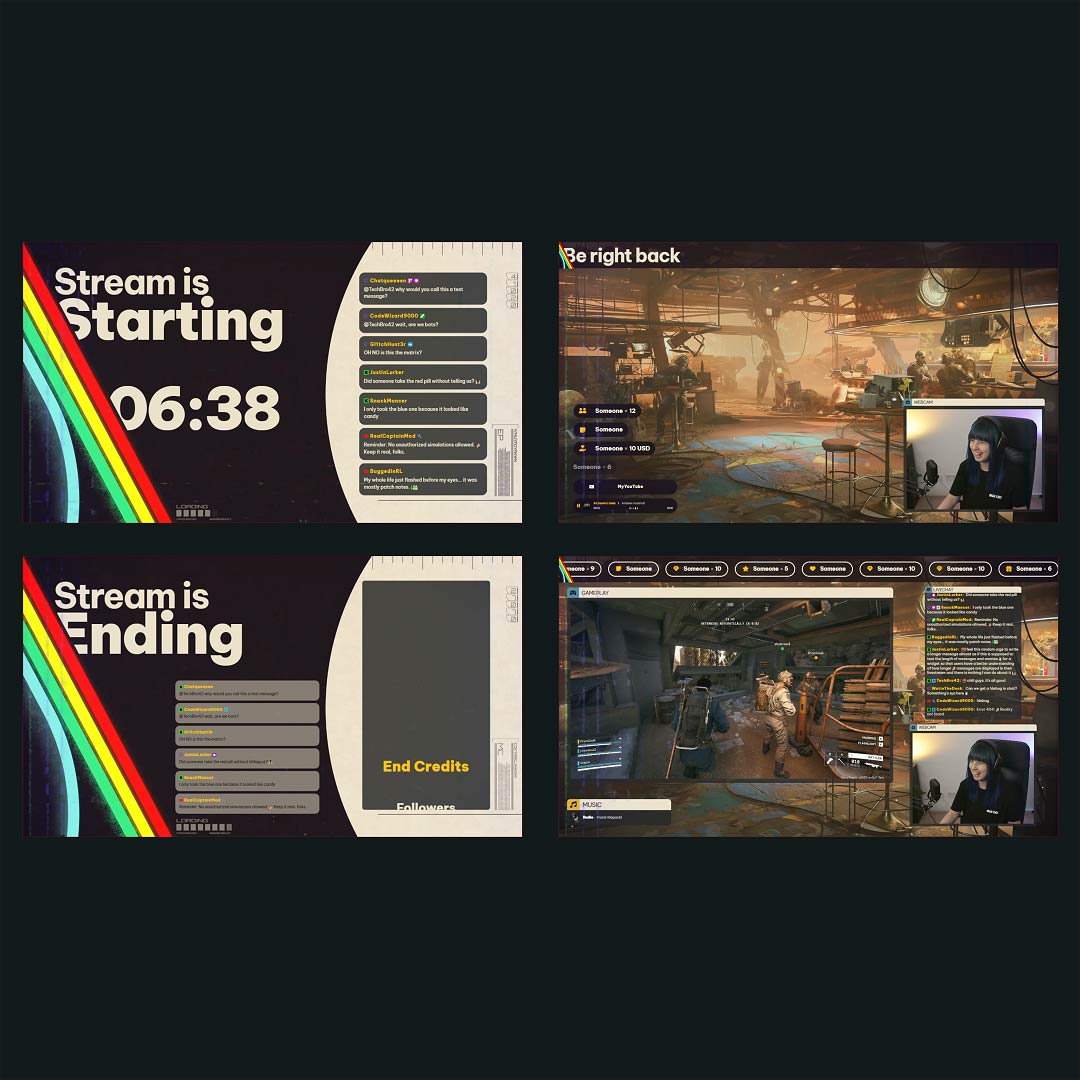
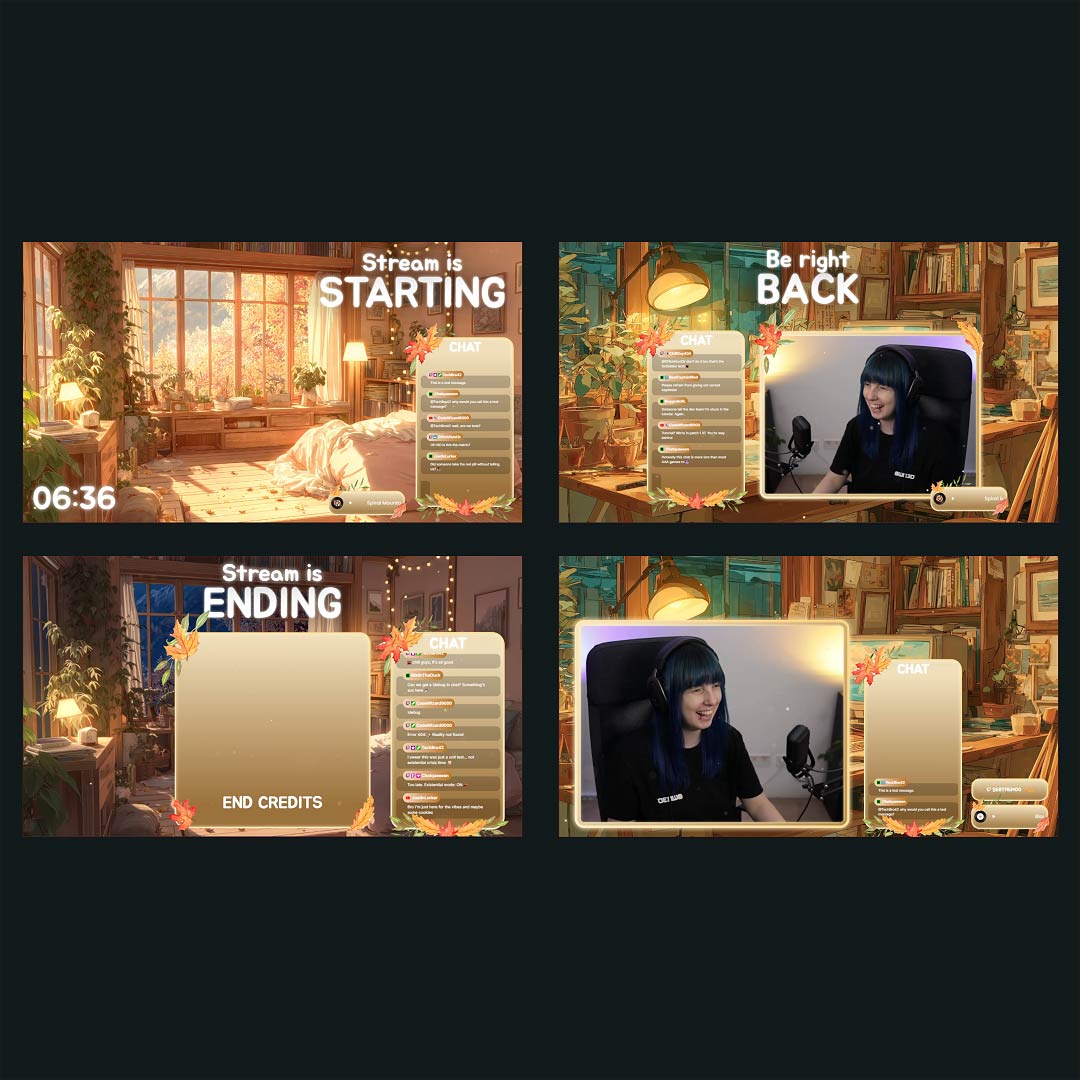
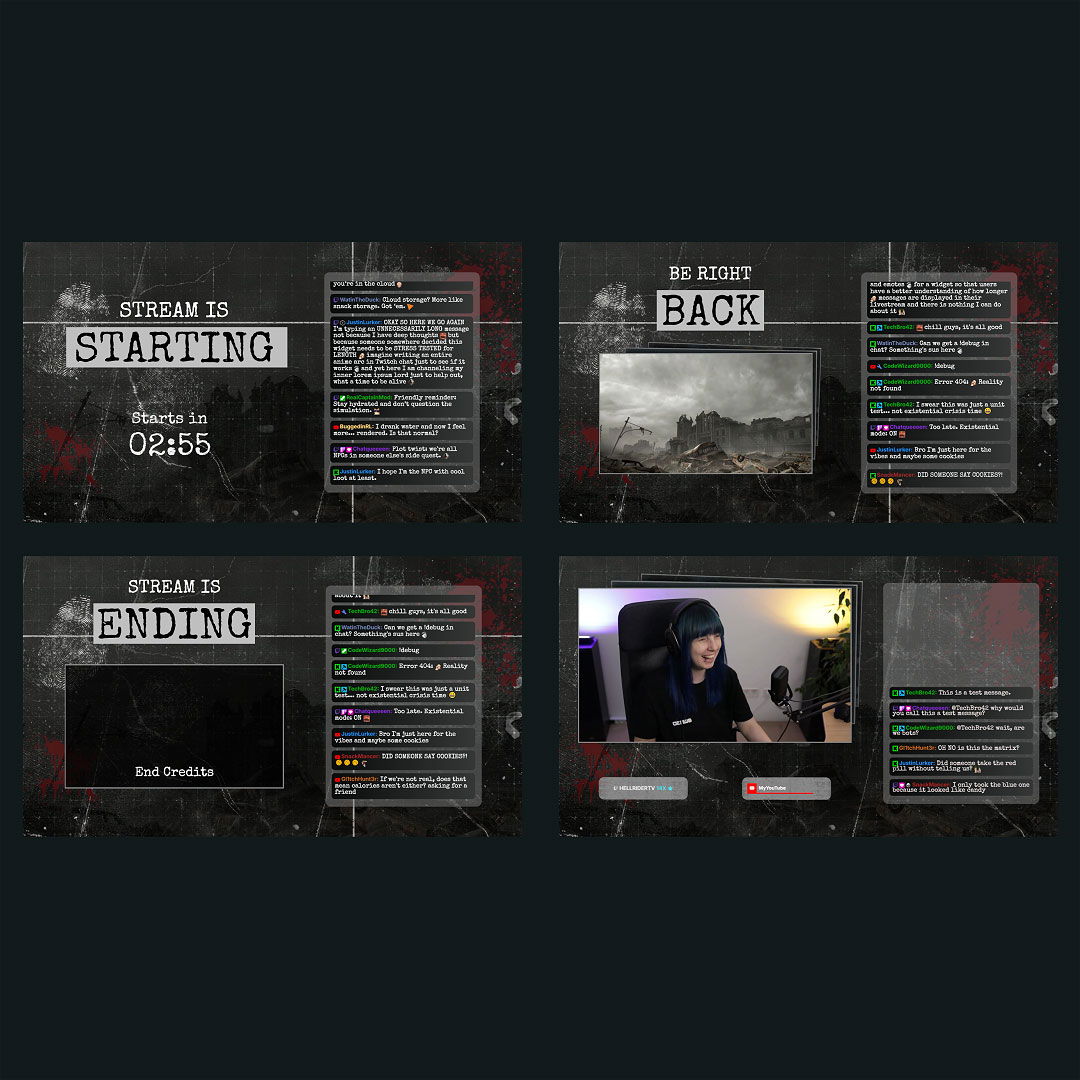
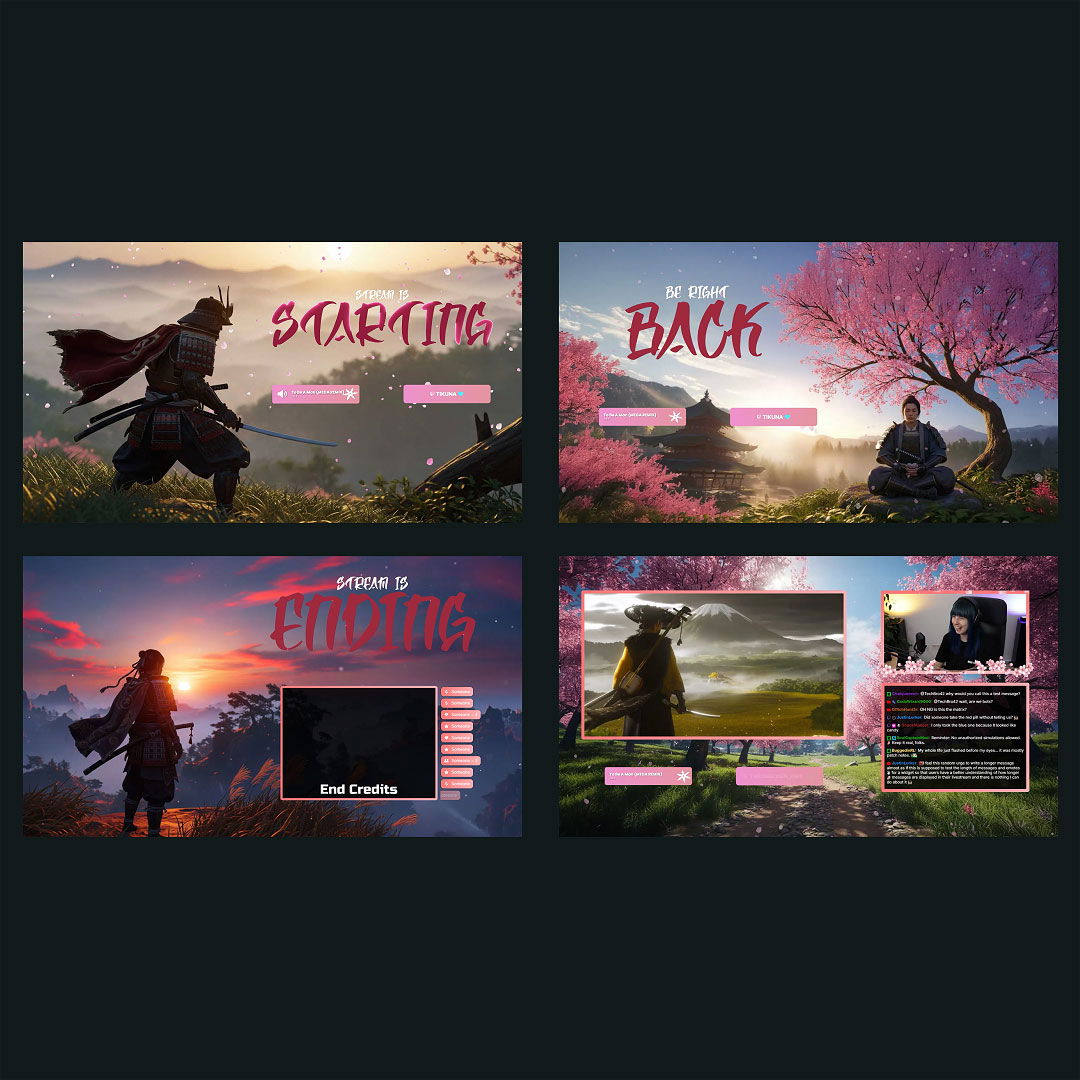
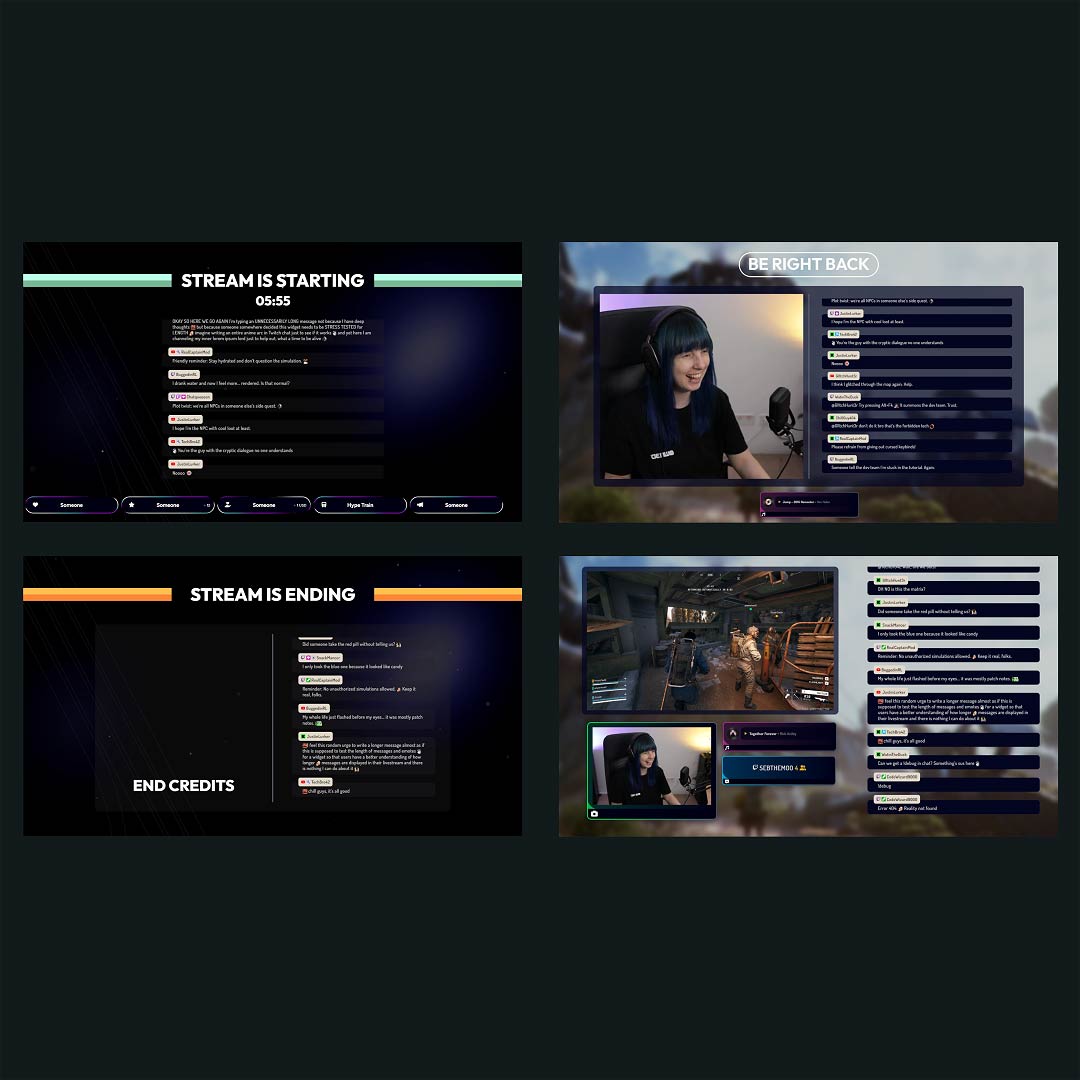
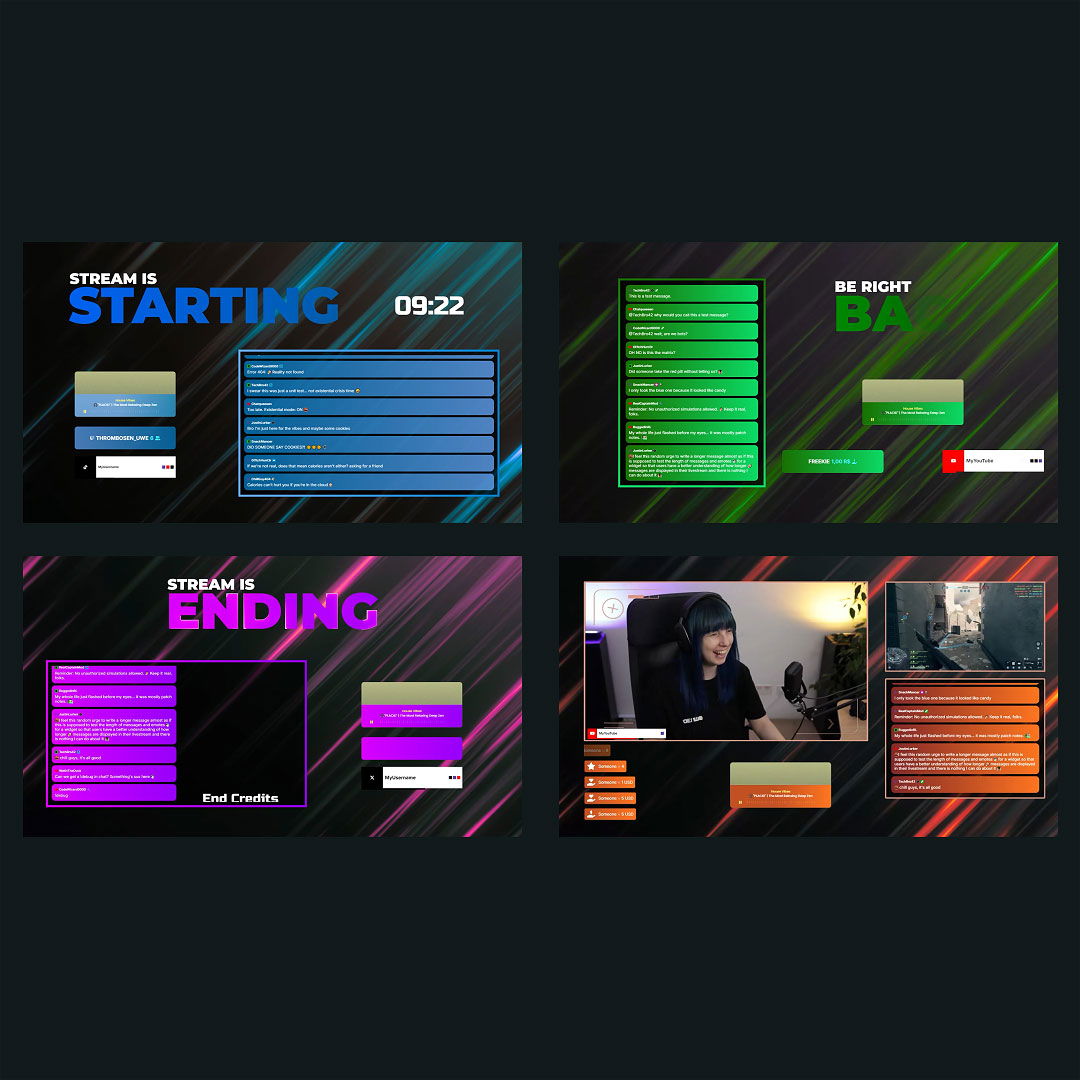
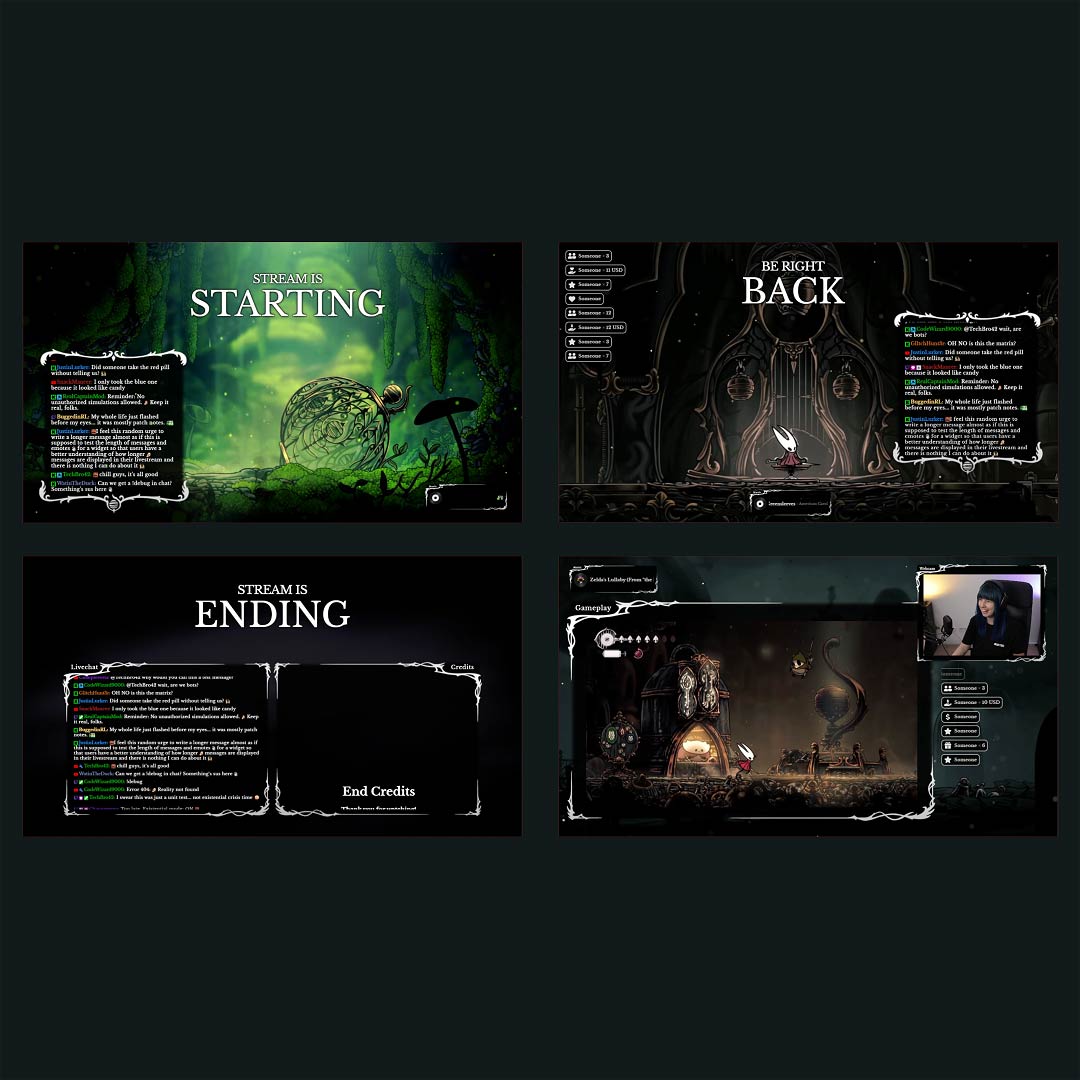
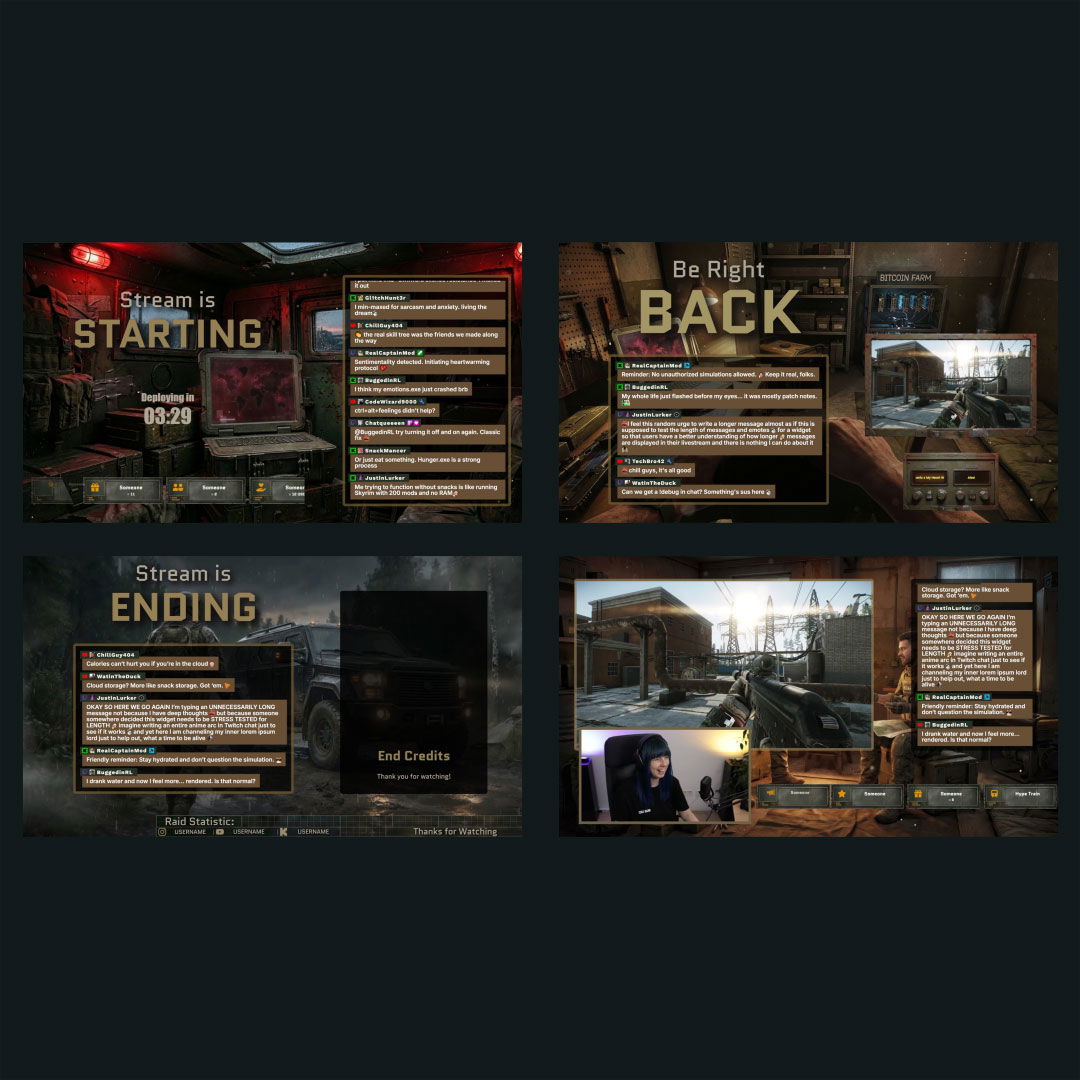
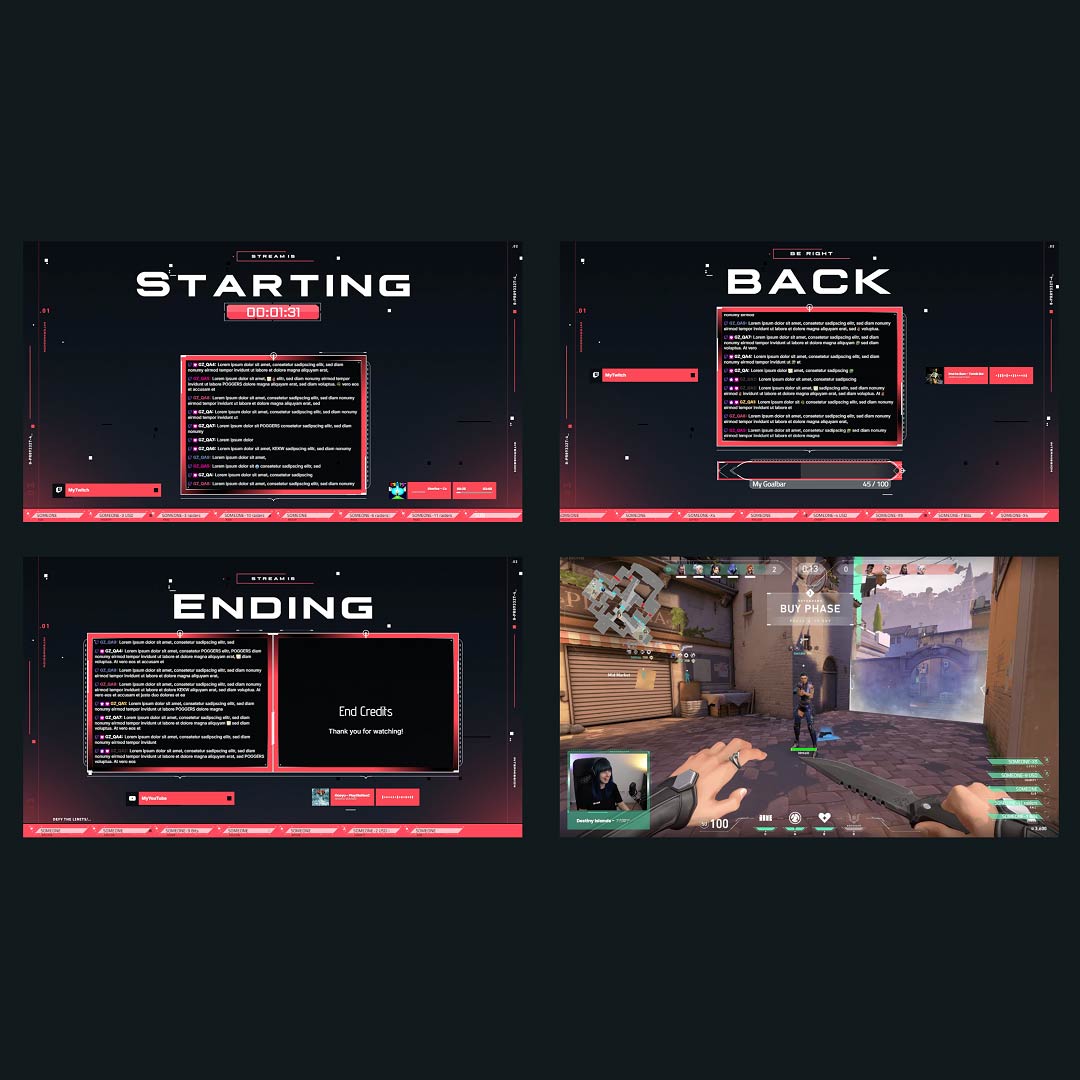
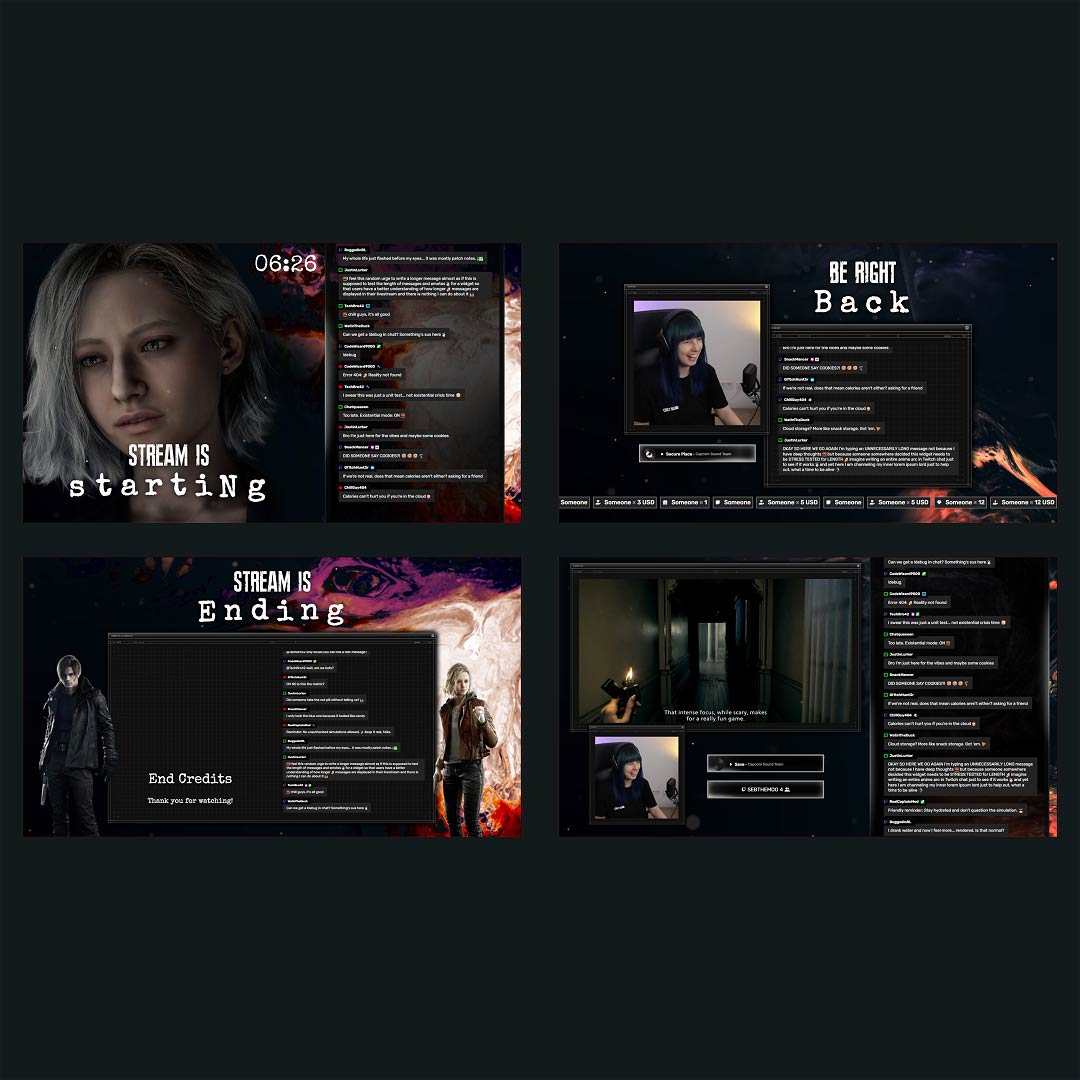
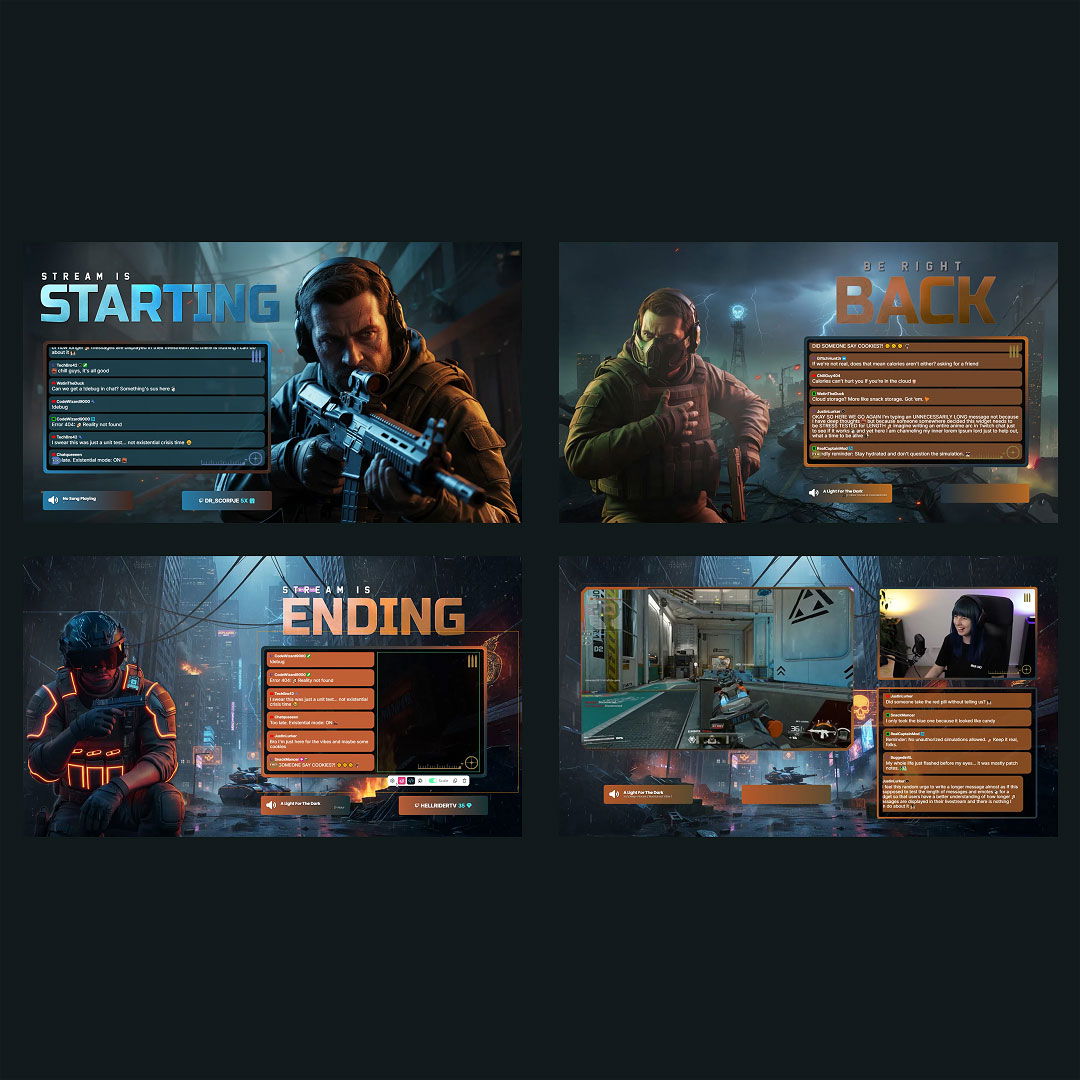
Ready-to-use overlays with built-in stream countdowns that you can fully adjust to your liking.
One Pass. Everything Included.
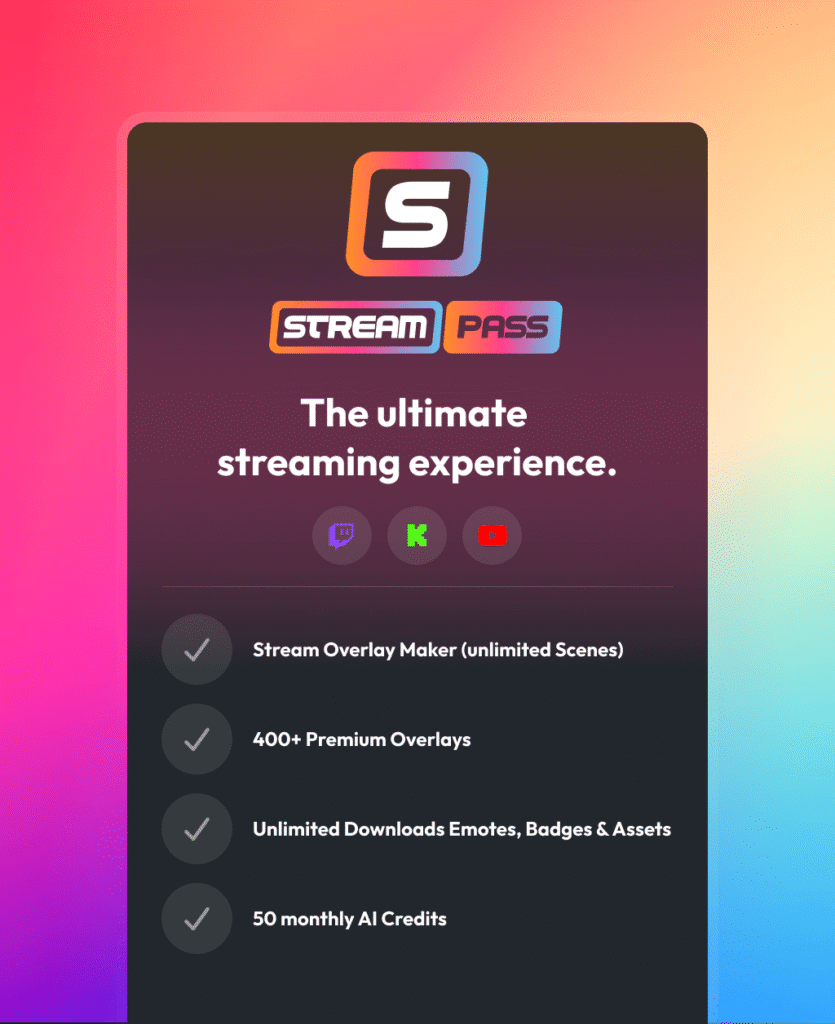
The Stream Pass gives you full access to everything OWN3D Pro has to offer. All products, including overlays, alerts, widgets, our free livestream countdown, emotes, and more, are included and not sold separately.
Works with all broadcasting tools
Customize your stream countdown in the Scene Builder and use it with OBS Studio, Streamlabs, XSplit, or other tools. Everything works smoothly with your setup.
Unlimited* asset downloads
Download emotes, badges, panels, and more static assets. *Our unlimited plan is subject to fair use.
AI-powered creations
Get 50 AI credits with your Stream Pass to generate custom stream widgets, webcam frames, emotes, and more.
Multistreaming ready
Stream on Twitch, YouTube, and Kick with all the tools you need for a consistent and professional livestream.
FAQs About the Stream Countdown
What is a stream countdown used for?
A stream countdown is mainly used to show viewers when your livestream starts, but it can do much more. Many creators also use it during short breaks, for timed challenges, or to bridge pauses in a clean and structured way. It helps manage expectations, keeps viewers informed, and maintains a clear rhythm throughout the stream.
Can I customize the stream countdown design?
Yes! Change colors, fonts, font size, and position in the Scene Builder or Desktop Client to match your stream design.
Can I use a countdown livestream widget on Twitch and YouTube?
Yes. The livestream countdown widget works on Twitch, YouTube, and Kick, including multistream setups.
Do livestream countdown widgets work with OBS?
Yes. Stream countdown widgets are added as browser sources and work smoothly with OBS Studio, Streamlabs, and similar tools.
Are there free stream countdown widgets available?
Yes. The stream countdown widget is completely free and included in all free overlays, so you can use a livestream countdown without paying anything. If you choose Stream Pass overlays, the countdown is either already included or can be added easily to match your design.
Can I adjust the time on my livestream countdown?
Absolutely. You can easily change the countdown timer inside your scene on OWN3D Pro.
Can I reuse the same countdown for different livestreams?
Yes. You can reuse your livestream countdown for every livestream and restart the timer whenever you want. You can also set up multiple countdowns with different lengths and switch between them as you like, depending on how you want to start your stream.