Free & Premium YouTube Webcam Overlays

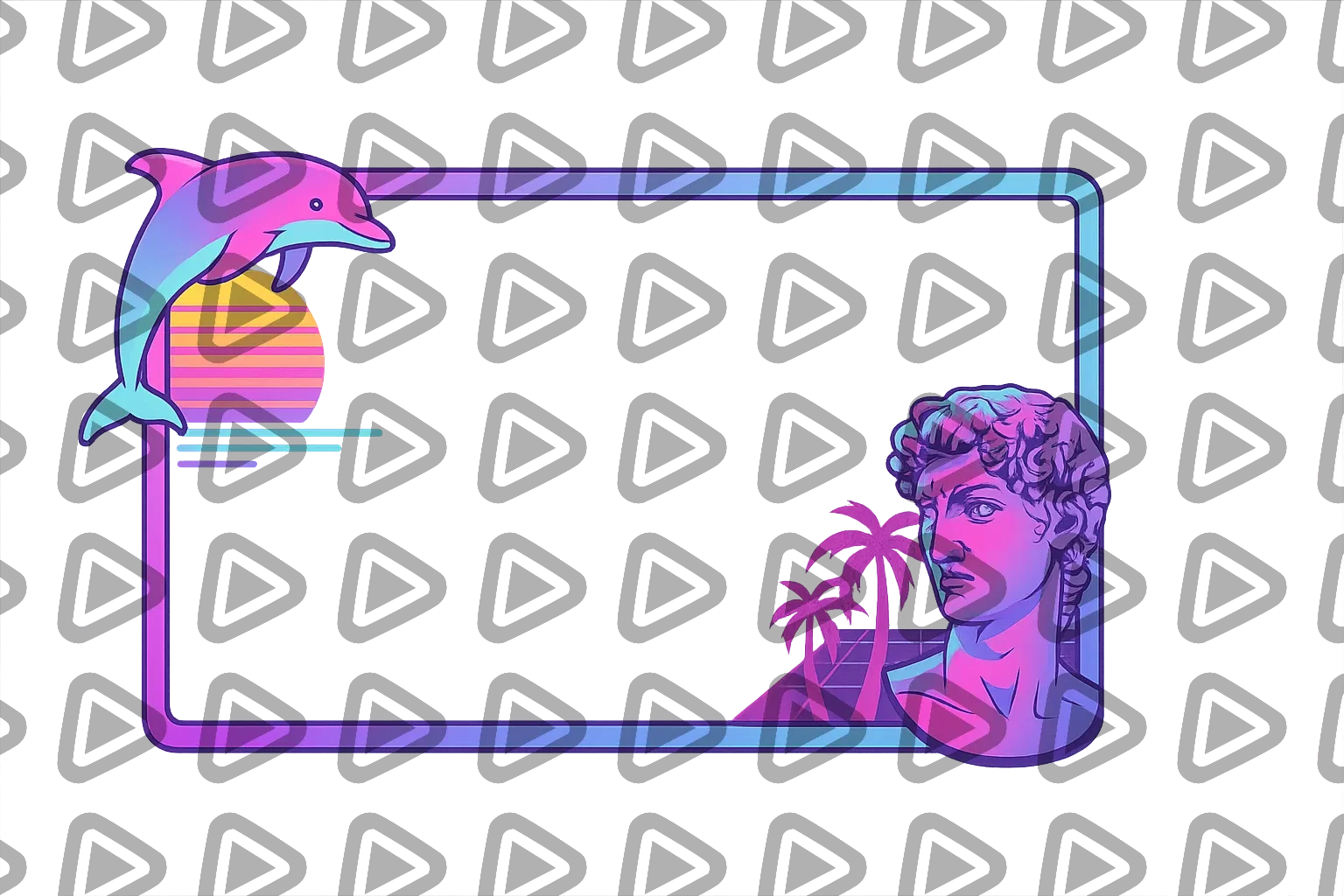
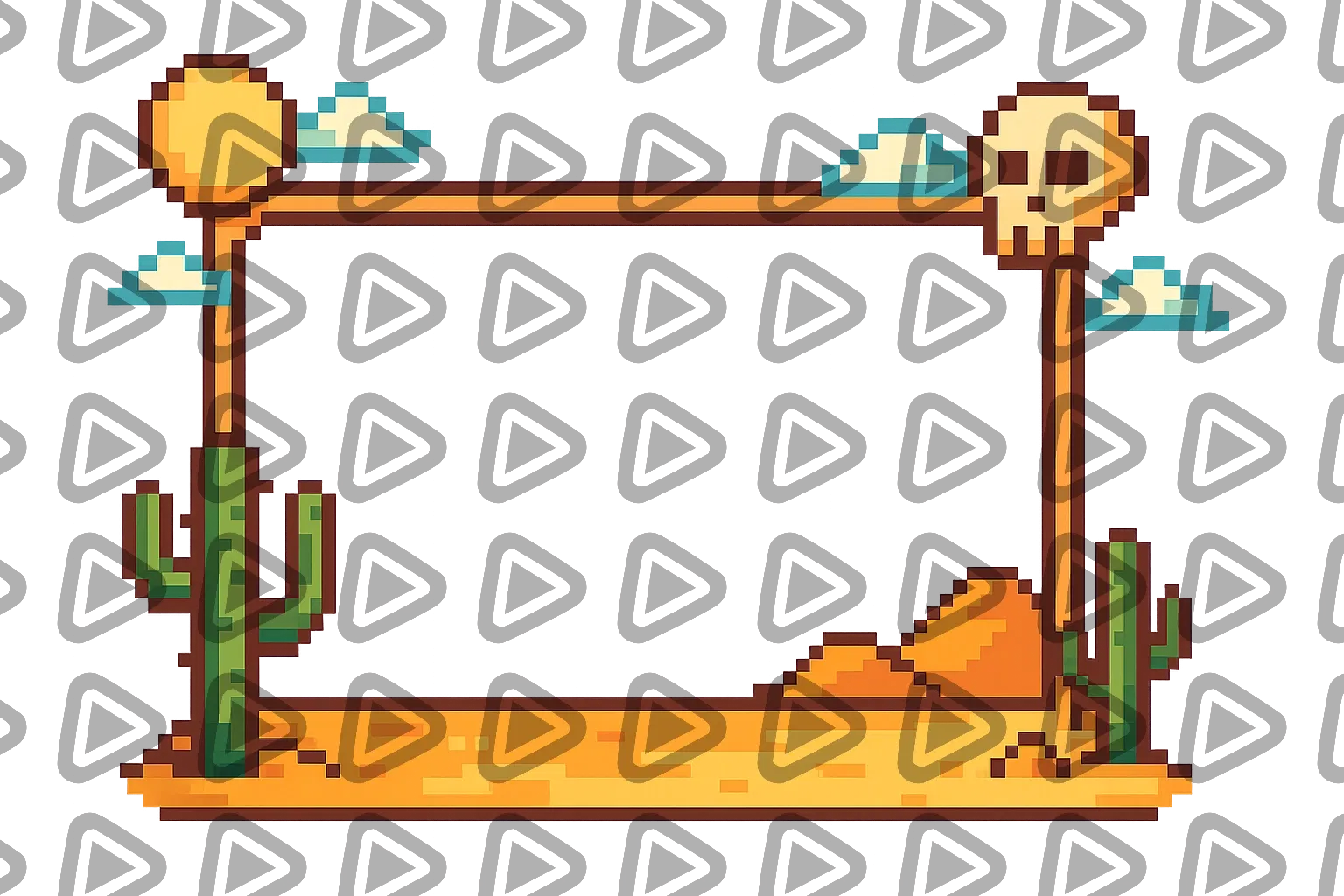
Every successful YouTube creator builds a recognizable look. Your thumbnails, your editing style, your tone, and especially your face on camera all play a role. A YouTube webcam overlay turns your facecam into a visual signature. In OWN3D Pro, you create that signature once and bring it into any broadcasting tool, so every stream and every upload feels yours unmistakably.

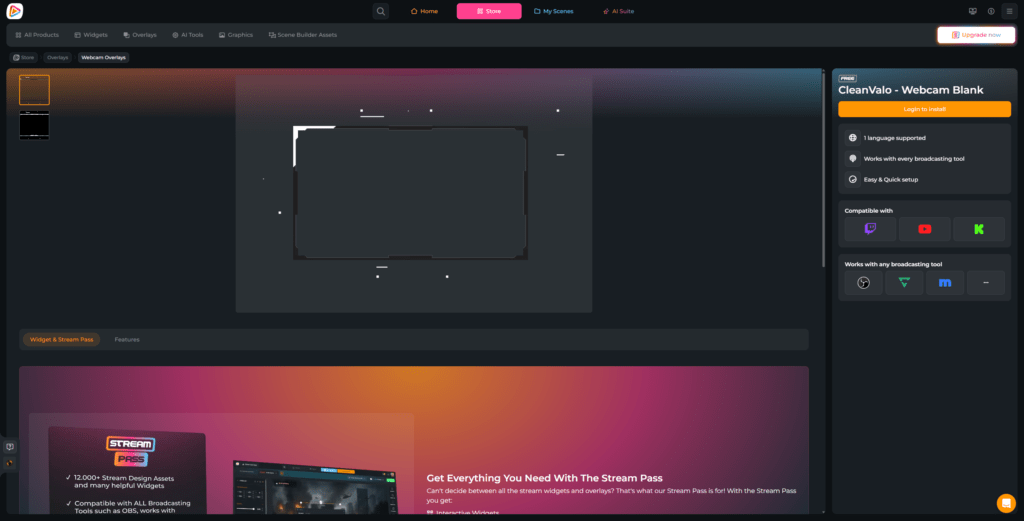
All YouTube Webcam Overlays Free/Premium

1

Turn Your Facecam Into a Signature Element

It’s more than just a webcam box

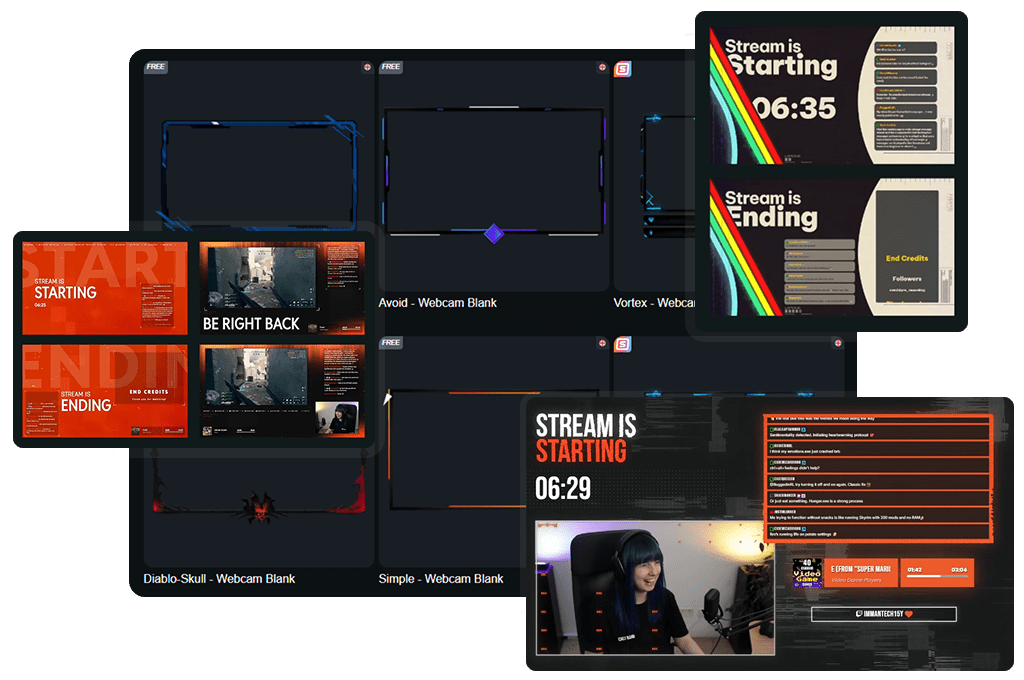
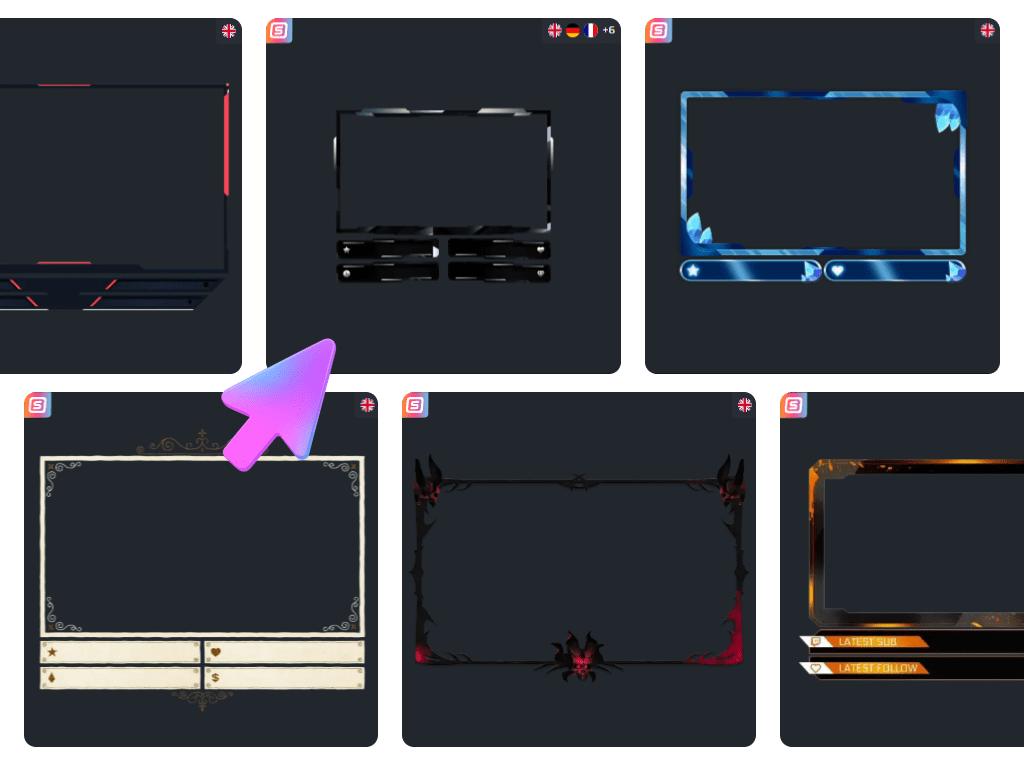
With a YouTube webcam overlay, your face integrates naturally into your layout. Minimal for storytelling. Animated for hype. With labels when you stream and want your community visible on screen.


Design it in OWN3D Pro, connect it to OBS Studio, Streamlabs, or any broadcasting tool, and your setup works for both live and recorded content.

From First YouTube Upload to Full Brand

Grow your visuals as your channel grows

You do not need a massive setup to look professional. Start with a free YouTube webcam overlay and immediately bring structure to your videos. 


When your channel grows, premium designs inside the Stream Pass expand your style with more variety and animated options.

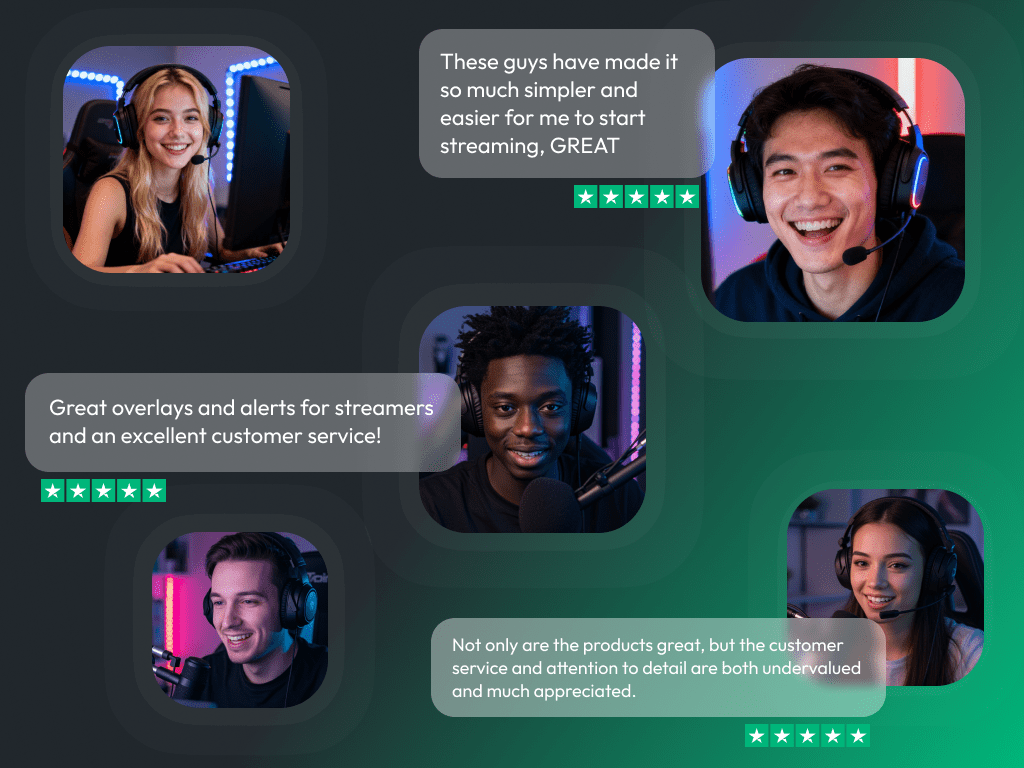
What Happy Customers Say About Our YouTube Webcam Overlay

See how our product makes a difference for content creators.

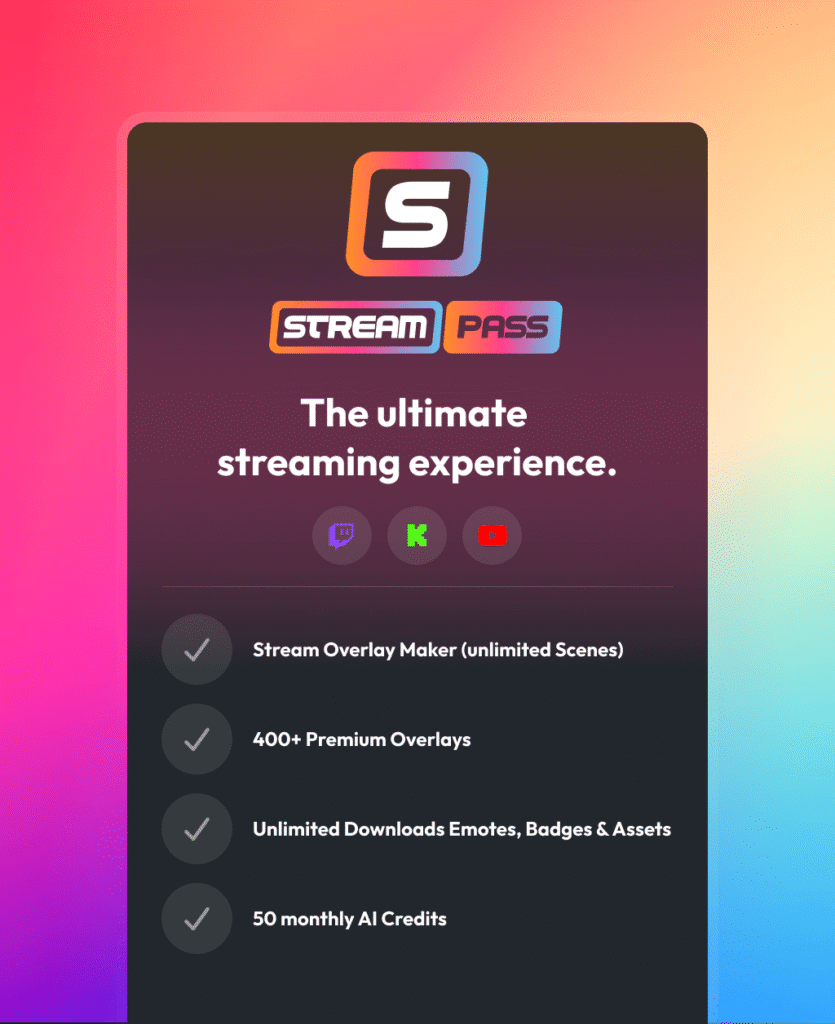
One Pass. Everything Included.

The Stream Pass gives you full access to everything OWN3D Pro has to offer. All products, including YouTube webcam overlay designs, alerts, widgets, emotes, and more, are included and not sold separately.

Works with all broadcasting tools

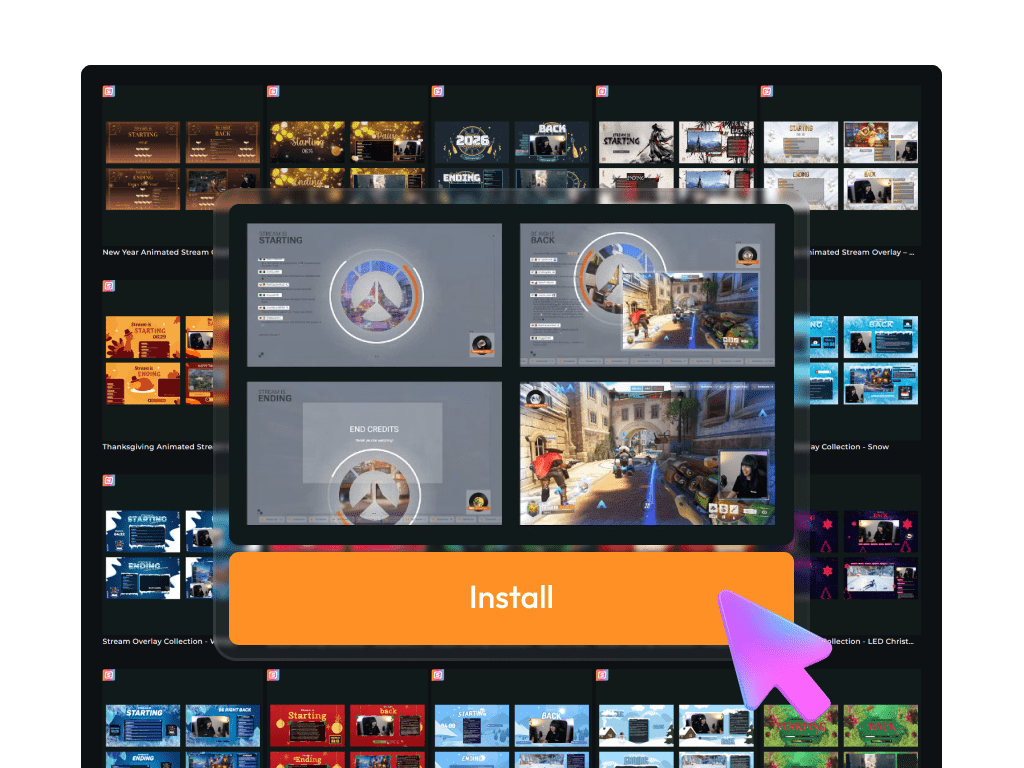
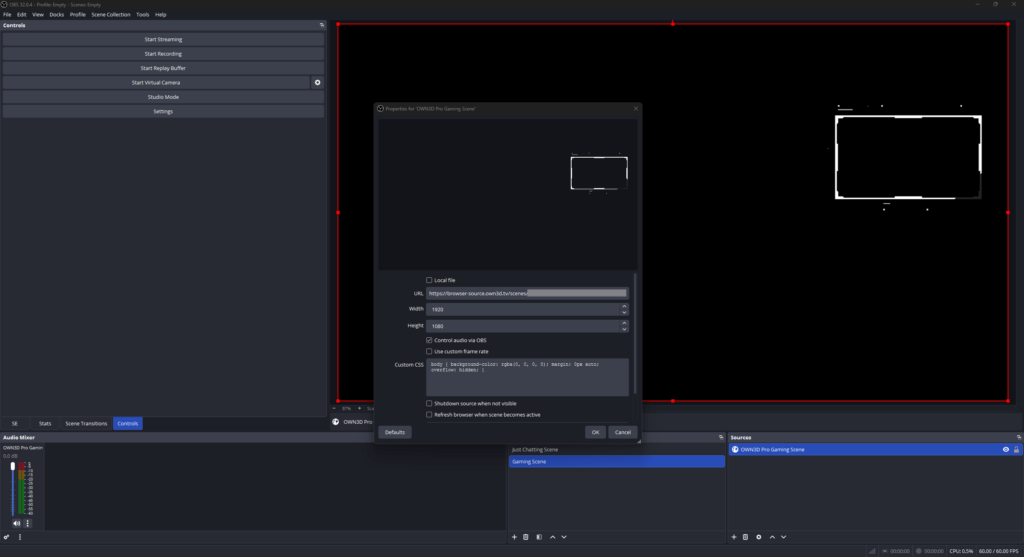
Customize your YouTube webcam overlay in the Scene Builder and use it with OBS Studio, Streamlabs, XSplit, and more. Easy to integrate with any setup.

Unlimited* asset downloads

Download emotes, badges, panels, and more static assets. *Our unlimited plan is subject to fair use.

AI-powered creations

Get 50 AI credits with your Stream Pass to generate custom stream widgets, YouTube webcam overlay designs, emotes, and more.

Multistreaming ready

Stream on Twitch, YouTube, and Kick with webcam overlays and all the tools you need for a professional-looking livestream.

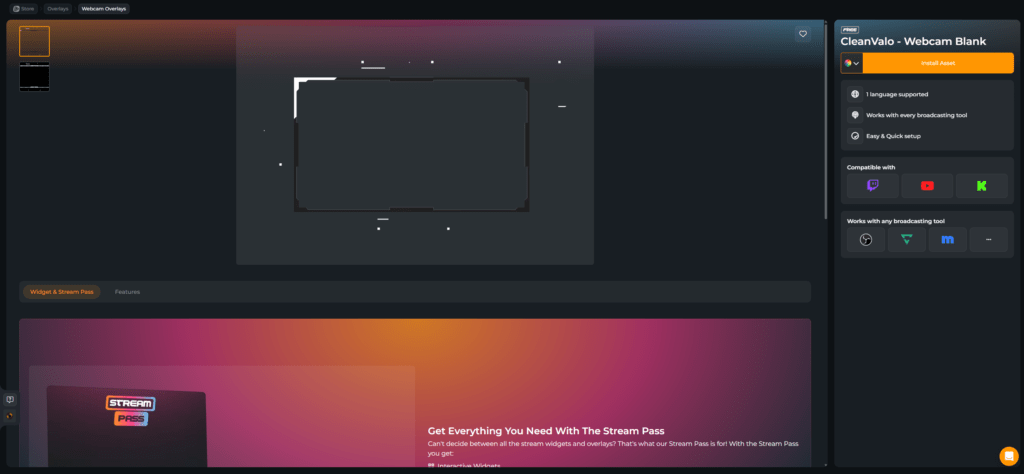
How to Set Up Your YouTube Webcam Overlay

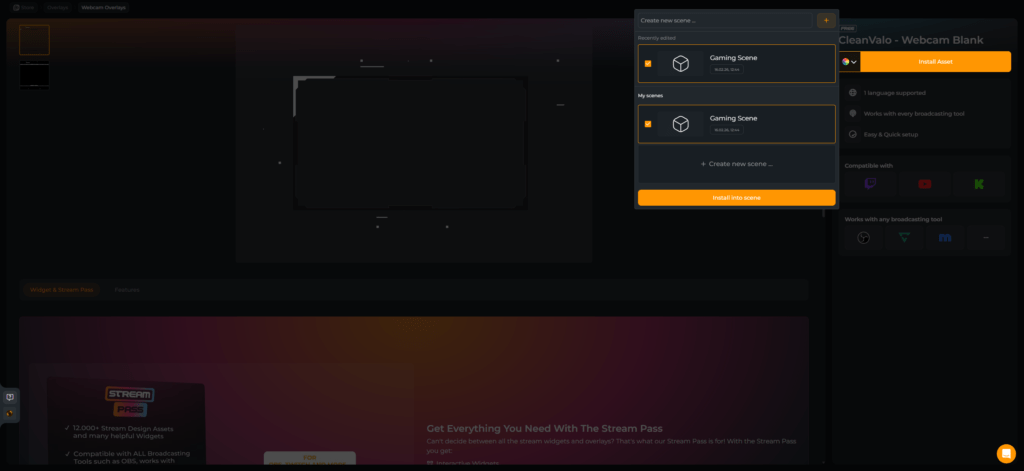
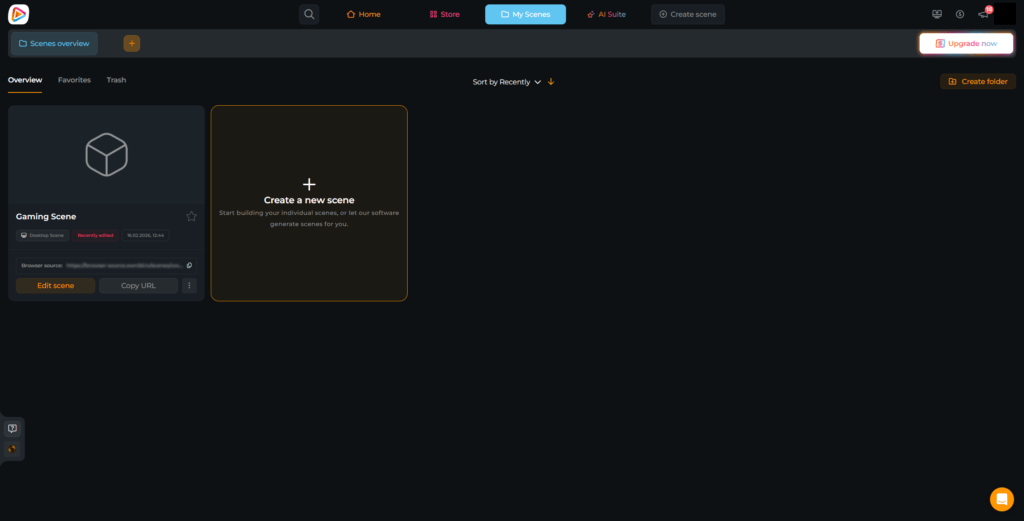
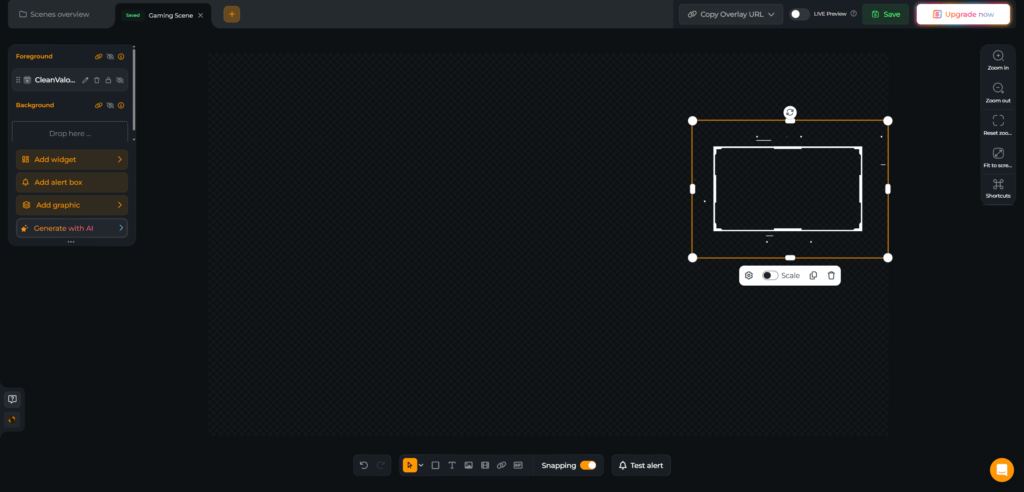
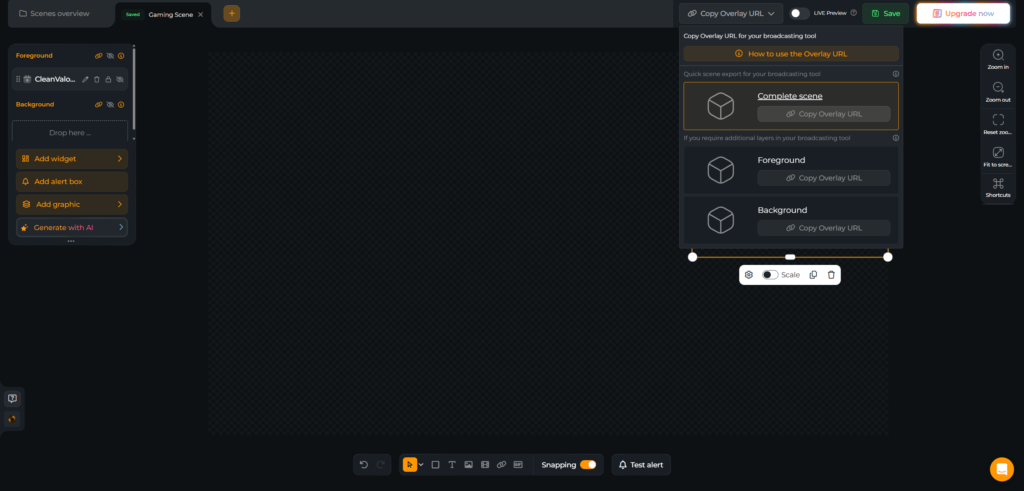
Your YouTube webcam overlay is live in minutes. Need help? This guide has you covered.

FAQs About YouTube Webcam Overlay

What is a YouTube webcam overlay?

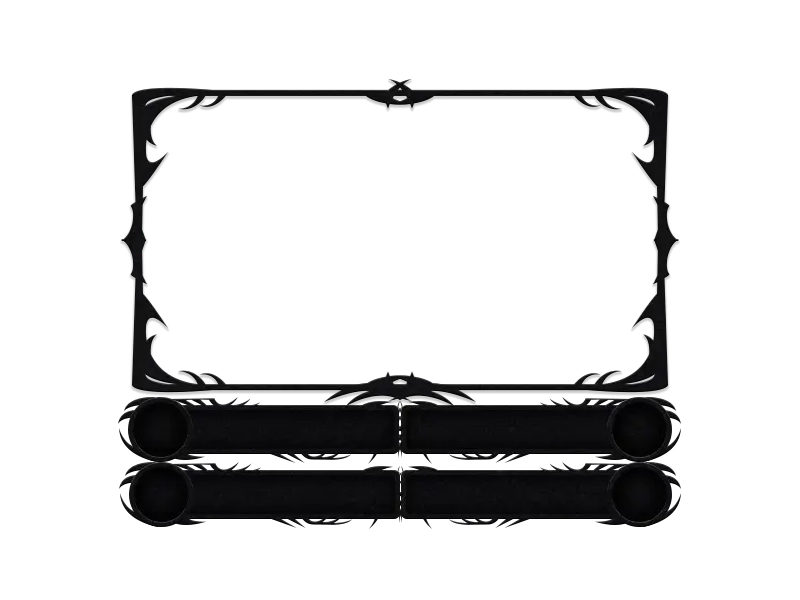
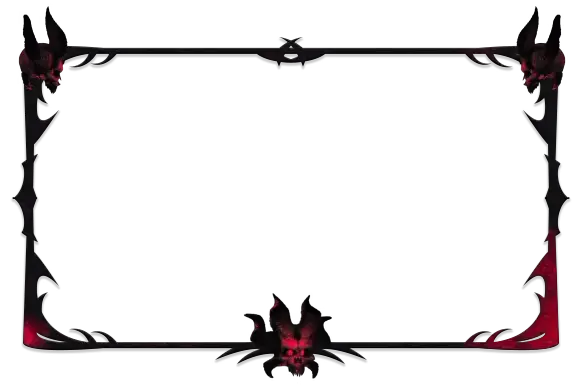
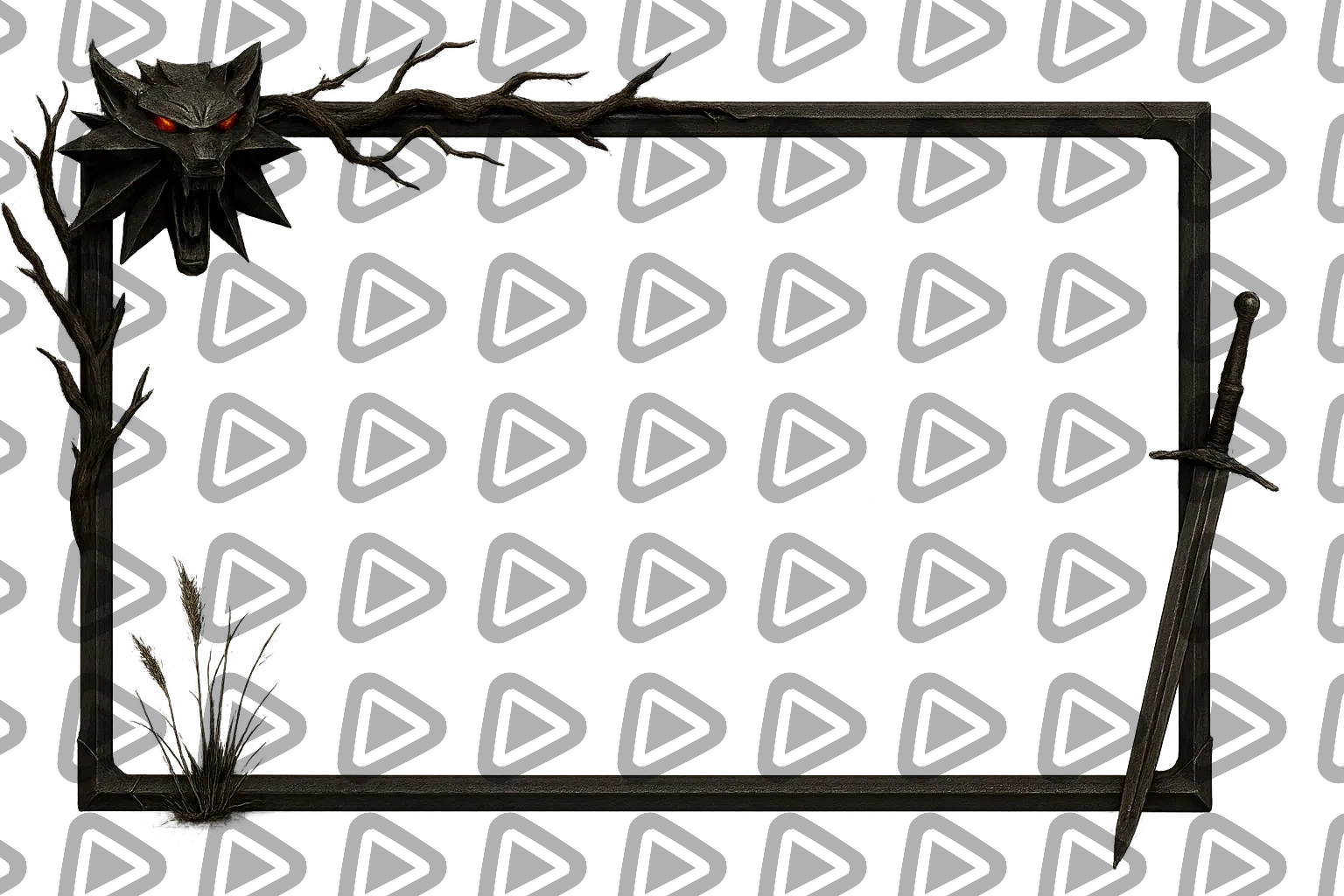
A YouTube webcam overlay frames your camera and integrates it into your layout as a branded design element. Instead of a plain webcam box, you get structure, consistency, and a stronger visual identity across your channel.

Yes. Your YouTube webcam overlay works for both recording and streaming. Whether you create Let’s Plays, reaction videos, tutorials, or live content, it remains part of your visual identity.

Yes. You can start with free YouTube webcam overlay designs inside OWN3D Pro. Premium versions inside the Stream Pass expand your options with more styles, animated designs, and exclusive visuals.

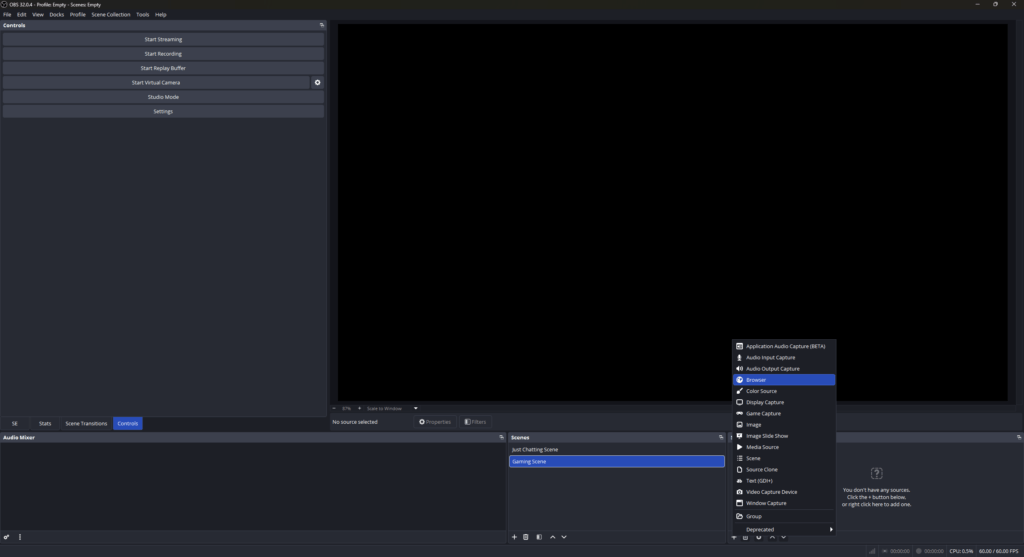
No. You build and manage your YouTube webcam overlay in the Scene Builder, then add it as a browser source in your broadcasting tool. That keeps everything flexible and easy to update.

Absolutely. Choose a minimal webcam frame for a clean and focused look, or select a layout that includes labels for members and supporters during YouTube Live sessions. You decide how prominent and interactive your facecam should be.

Yes. With the AI Webcam Frame Generator, you can design your own YouTube webcam overlay from scratch. You start with 5 free AI credits. If you want more creative freedom and additional generations, the Stream Pass includes more monthly AI credits.
Yes. With the Stream Pass, you unlock more YouTube webcam overlay designs that you can rotate whenever you want. Whether you switch games, launch a new format, or run a milestone stream, you have the freedom to adapt your visuals to fit your content.

Yes. The Scene Builder supports both horizontal and vertical layouts. This means you can set up and use your YouTube webcam overlay not only for classic 16:9 streams and videos, but also for vertical formats like YouTube Shorts or vertical livestreams.