Free and Premium OBS Alerts

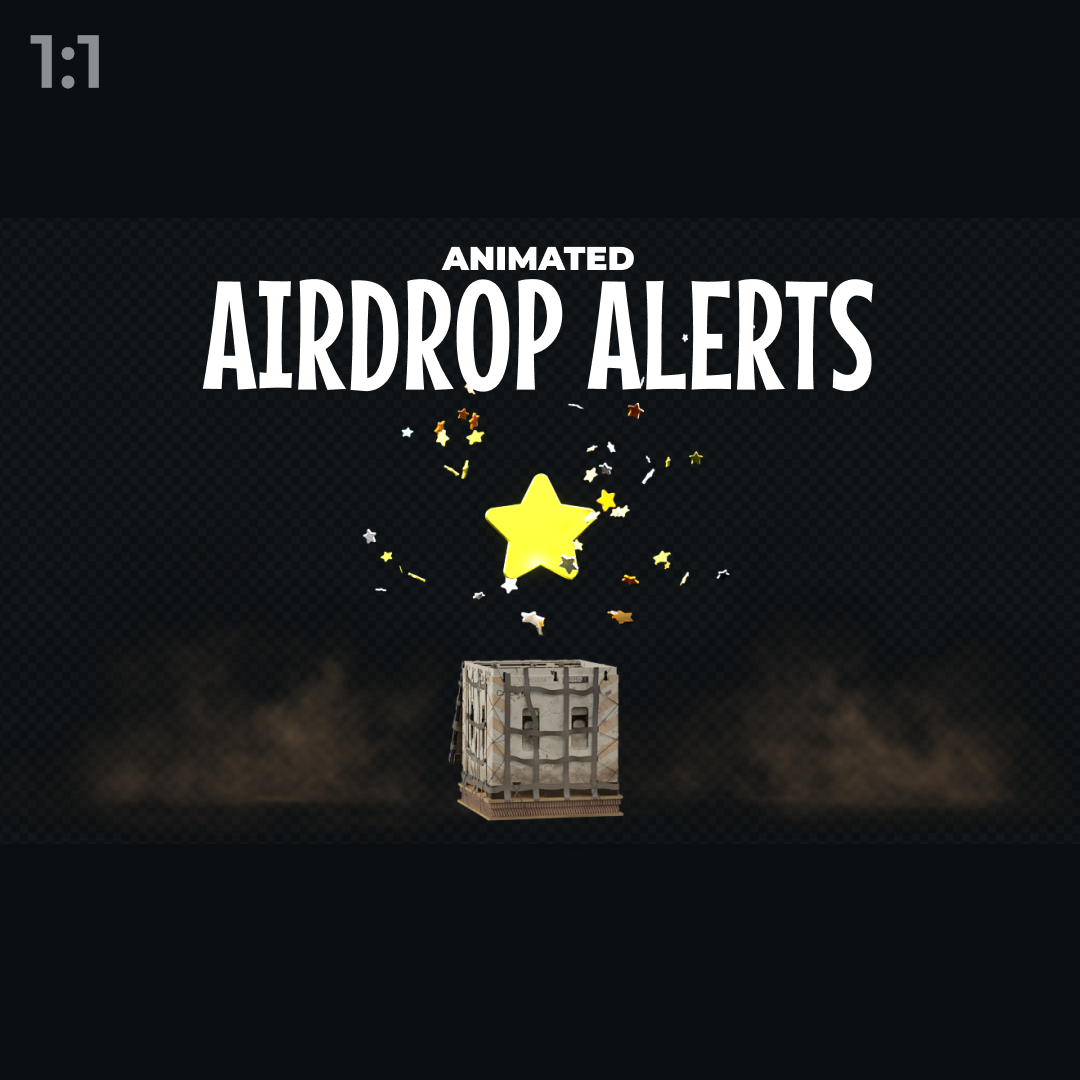
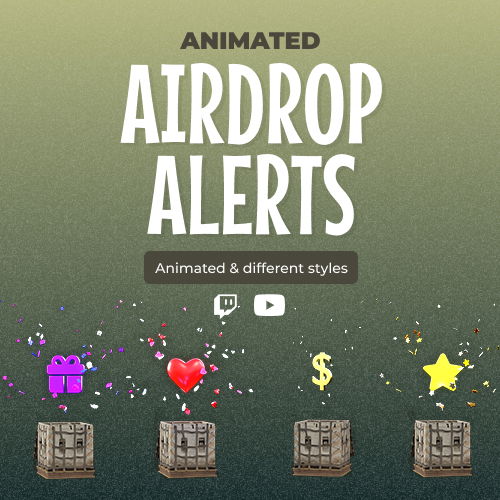
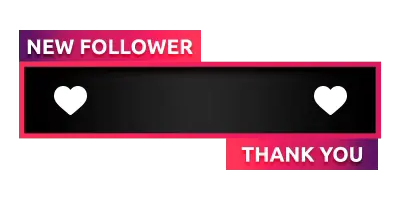
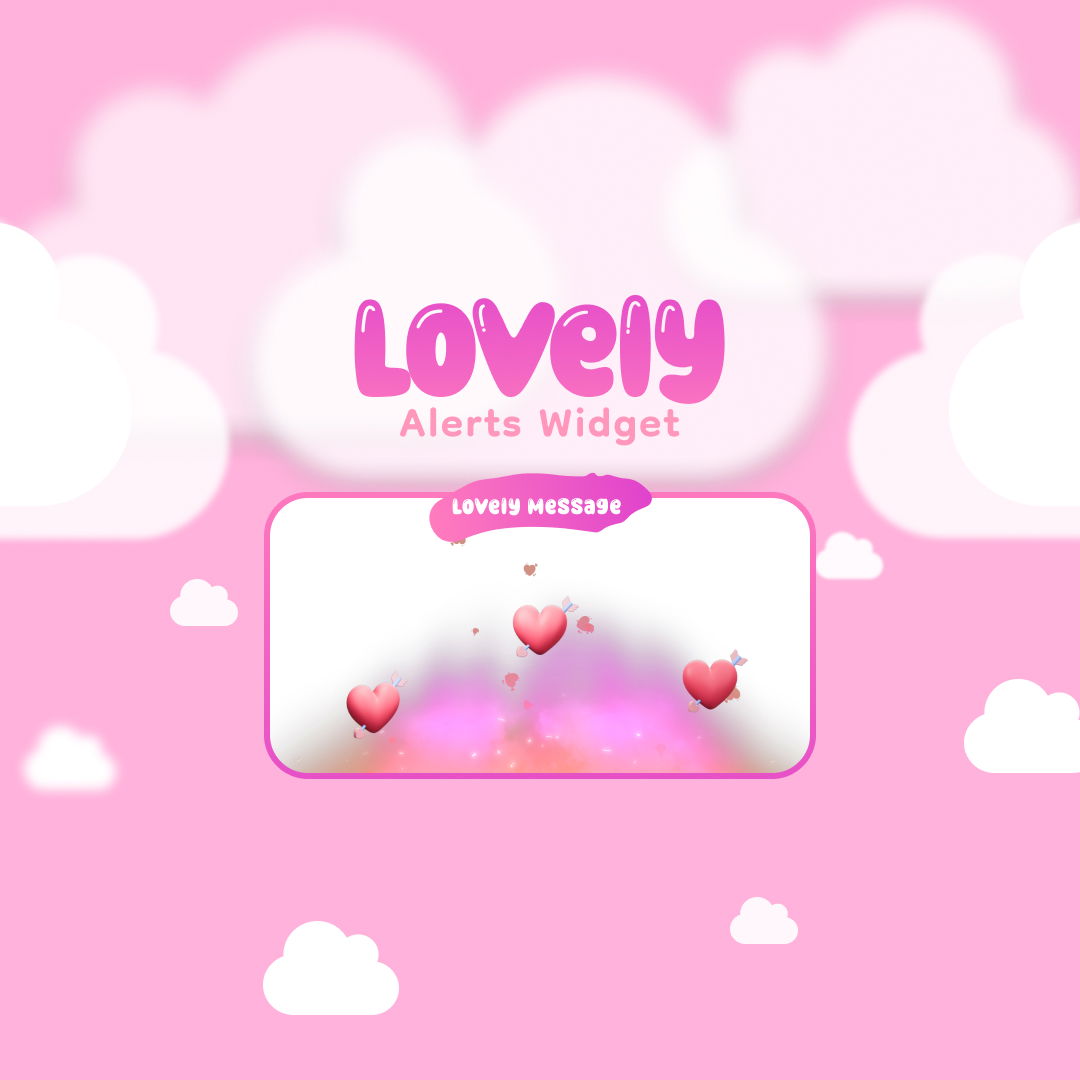
Turn every follow, sub, and donation into a real moment with powerful OBS alerts. Set up stream alerts for OBS as a browser source and connect them to Twitch, YouTube, or Kick in minutes. From OBS follower alert to OBS donation alerts, our alerts are ready to use, easy to add, and designed to keep your stream energetic, clean, and professional.

All Free/Premium OBS Alerts

1

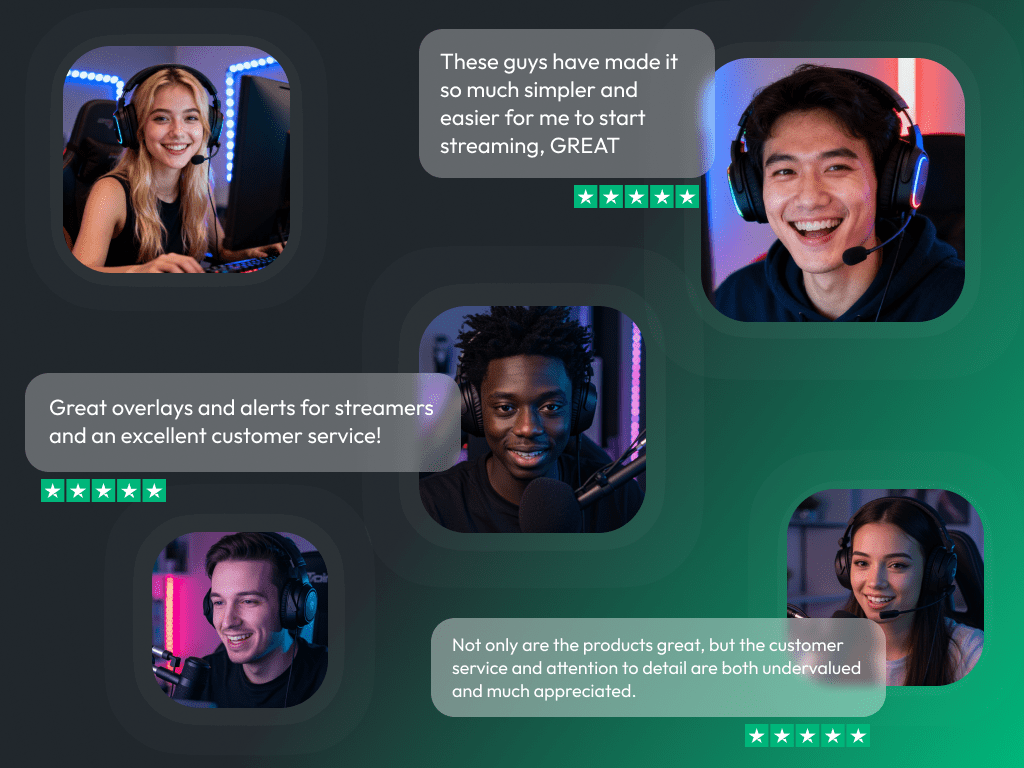
What Happy Customers Say About OBS Alerts

See how our OBS alerts make a difference for content creators.

One Pass. Everything Included.

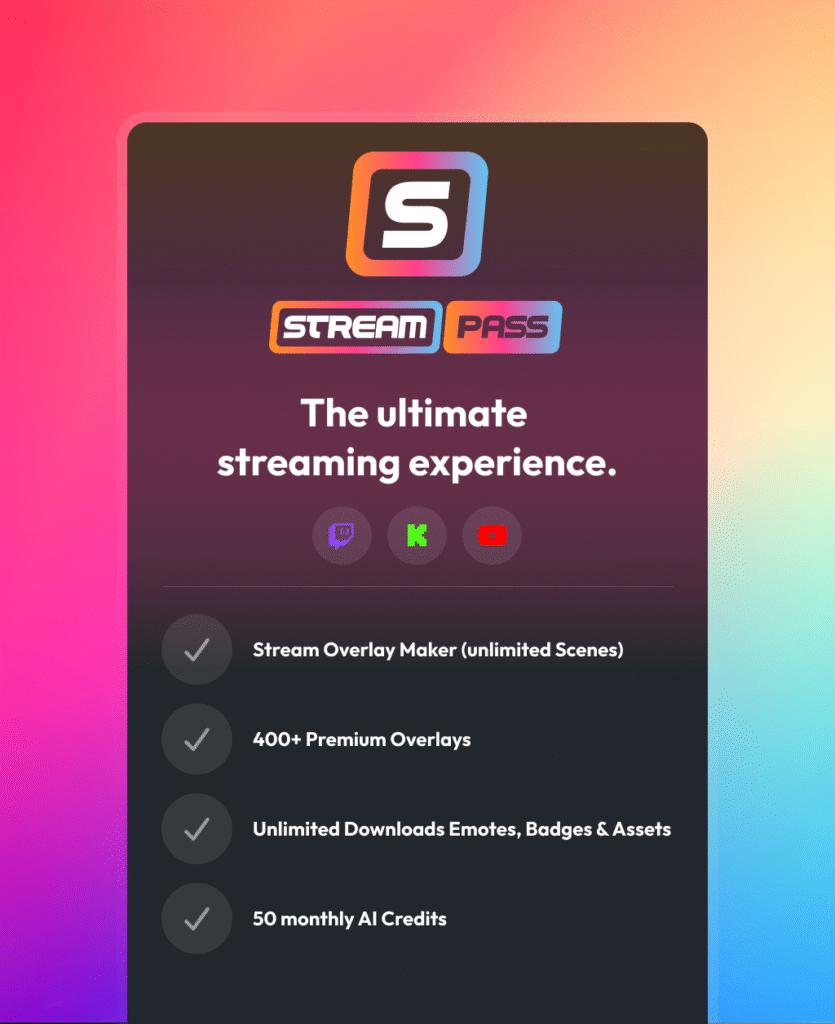
The Stream Pass gives you full access to everything OWN3D Pro has to offer. All products, including overlays, OBS alerts, widgets, emotes, and more, are included and not sold separately.

Works with all broadcasting tools

Customize your OBS alerts in the Scene Builder and use them with OBS Studio, Streamlabs, XSplit, or other tools. Everything works smoothly with your setup.

Unlimited* asset downloads

Download emotes, badges, panels, and more static assets. *Our unlimited plan is subject to fair use.

AI-powered creations

Get 50 AI credits with your Stream Pass to generate custom stream widgets, webcam frames, emotes, and more.

Multistreaming ready

Stream on Twitch, YouTube, and Kick with all the tools you need for a consistent and professional livestream.

FAQs About OBS Alerts

What are OBS alerts, and how do they work?

OBS alerts are visual OBS notifications that appear on your stream when something happens on Twitch, YouTube, or Kick, such as a follow, subscription, or donation. OBS Studio itself is a broadcasting tool, not a streaming platform. Alerts are added to OBS as a browser source and then triggered by events from your connected platform.

If you’re wondering how to add alerts to OBS, the process is simple. You copy the alert’s browser source link and paste it into OBS Studio. Once added, the OBS alert box becomes part of your scene and plays automatically during your livestream when events occur.

Yes. Stream alerts for OBS work across these major platforms. You connect Twitch, YouTube, or Kick to OWN3D Pro, set up your alerts, and then add it as a browser source in OBS Studio. OBS Studio displays the alerts live on your stream. This makes OBS alerts ideal for single-platform streams and multistream setups.

Yes. You can get started with free alerts for OBS, including free alertbox OBS designs. These alerts are fully functional and perfect for creators who want a clean look without the need for immediate upgrades.

Stream alerts in OBS setups support multiple event types, including OBS follower alerts, subscriber alerts, OBS donation alerts, raids, and other supported interactions. All alerts appear live as OBS notifications while you are streaming.

An OBS alert box is the visual element inside your OBS scene where alerts are displayed. It shows animations, text, and sounds when events happen. You can move, resize, and place the alert box anywhere in your OBS layout to match your overlay.

Yes. OBS alerts work with Twitch, Kick, and YouTube by connecting your streaming accounts and adding the alerts to OBS Studio as a browser source. When someone follows, subscribes, or donates on Twitch, Kick, or YouTube, the alerts are triggered automatically and appear live on your stream through OBS.

Yes. While the alerts are ready to use, you can still adjust text, names, sizes, and sounds. This provides flexibility without requiring you to design anything from scratch.

Free OBS alerts give you clean, professional designs that work perfectly for most streams, and they’re a great choice if you want to keep things simple. Premium OBS alerts go a step further, offering more visual variety, exclusive styles, and different animations. These upgraded designs are available with the Stream Pass and are ideal if you want your alerts to stand out even more.

Absolutely. You can swap alerts, replace your OBS alert box, or change styles at any time. Your OBS alerts can evolve with your stream without rebuilding your entire setup.