Free & Premium YouTube Stream Labels
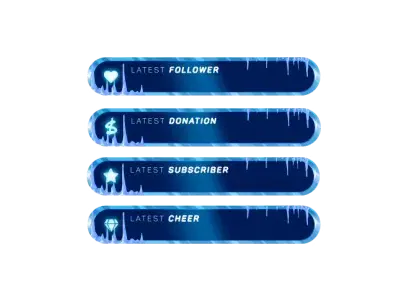
Your viewers want to be seen. When a new subscriber joins, or a Super Chat comes in, YouTube stream labels give them the spotlight they deserve. These labels update automatically on your stream as events happen. You do not have to worry about the technical side at all. Just enjoy the interaction and let your overlay handle the rest. For OBS Studio, Streamlabs, and other broadcasting tools!
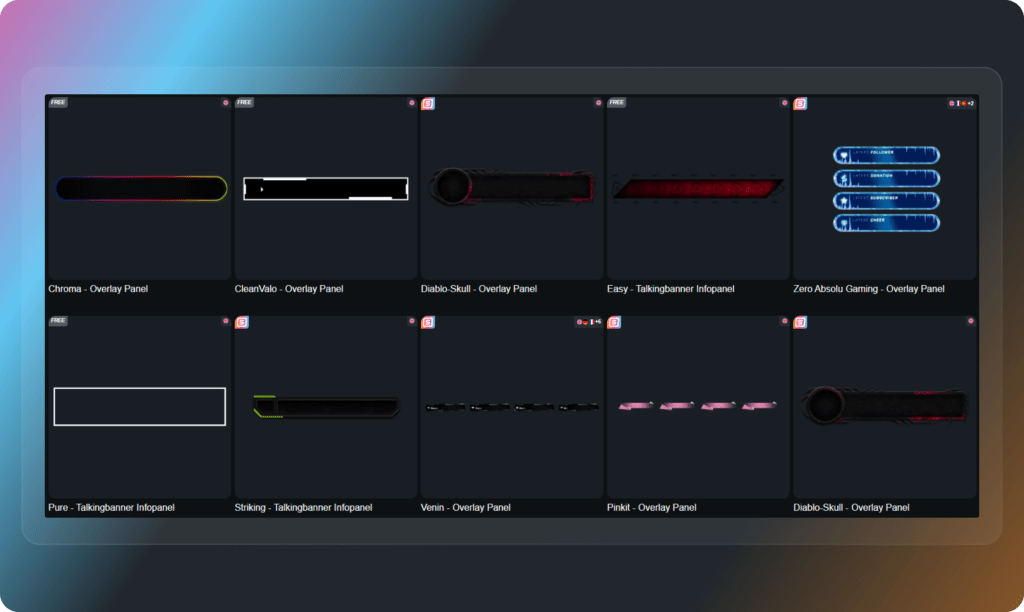
Our Community’s Favorite YouTube Stream Labels
All YouTube Stream Labels Free/Premium
Claim Your Unique Look
YouTube labels that actually match your content
Viewers notice when a stream looks well put together. You can easily adapt your YouTube stream labels to fit your specific style. Choose from a massive library of modern or fully animated designs. You get a unified look that makes you feel incredibly confident every time you go live.
Effortless YouTube Setup
Get your labels live in minutes
We built this so you can start streaming immediately. There are no confusing settings or extra files to install. Design your widgets, copy the link, and paste it into your broadcasting tool. Your stream labels will react to every new event in real time. It really is that simple.
Free Rotating YouTube Label Widget
Show every event in one spot
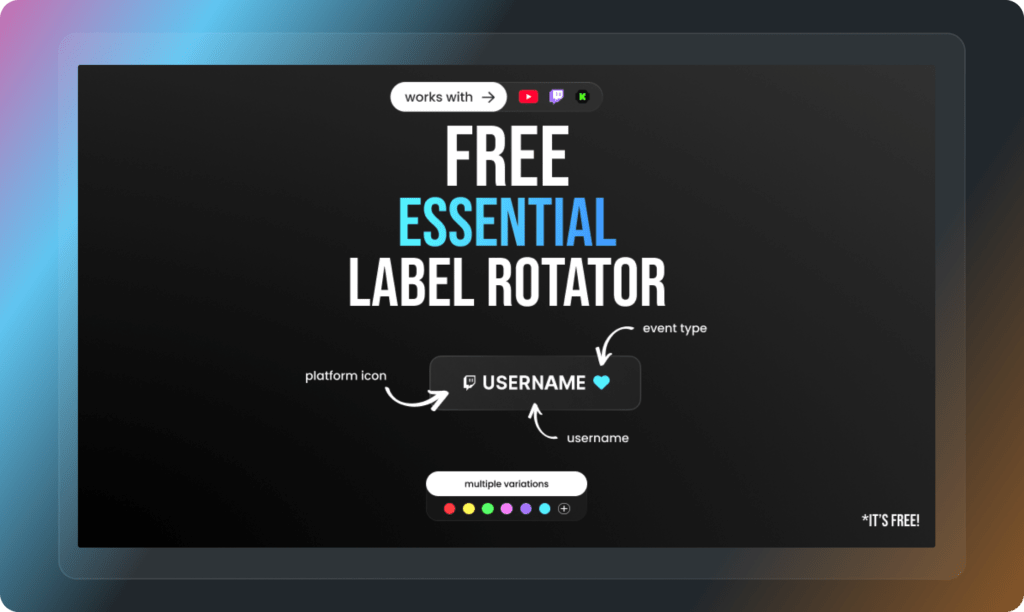
You want to show some love to your community without hiding your game? The free rotating widget combines all your YouTube stream labels into one dynamic element. It automatically switches between your latest events, such as the newest sub and Super Chats. This keeps your stream looking incredibly clean and perfectly structured.
Custom Free YouTube Stream Label Widget
Highlight what matters most to you
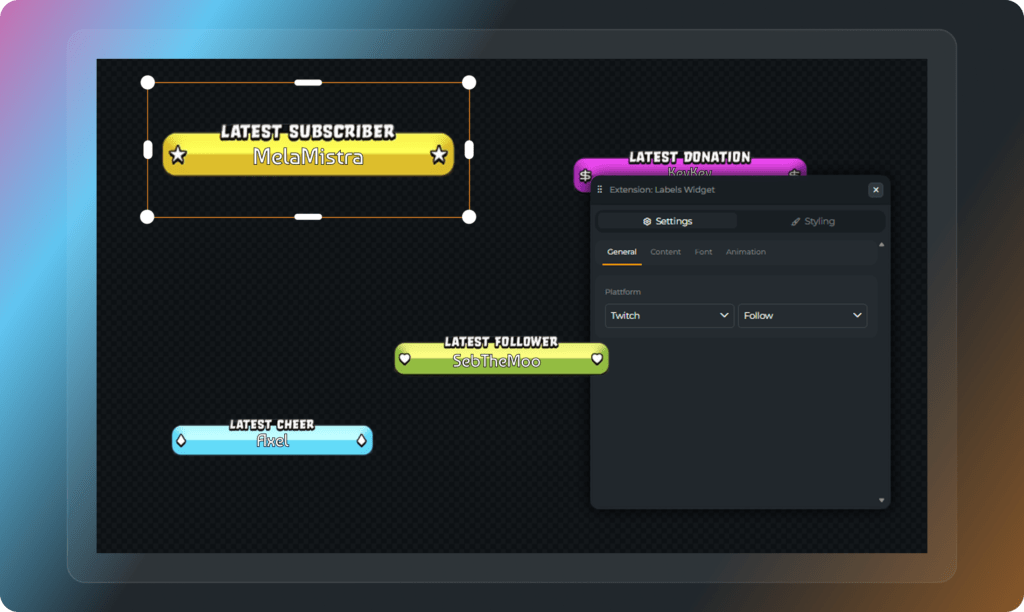
You know best what fits your stream. Custom YouTube stream labels give you full control over your layout. You can highlight specific events, like your newest subscriber, or place multiple labels across your overlay. You get absolute flexibility to create an overlay that feels truly yours.
What Happy Customers Say About Our YouTube Stream Labels
See how our product makes a difference for content creators.
One Pass. Everything Included.
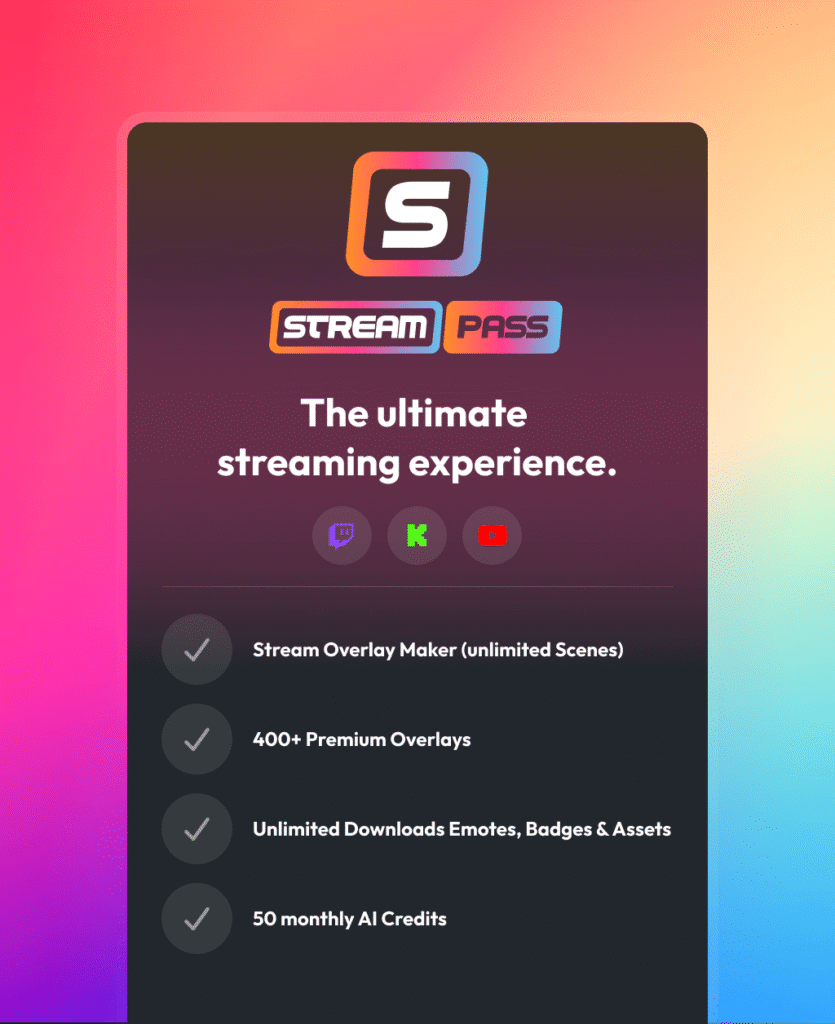
The Stream Pass gives you full access to everything OWN3D Pro has to offer. This includes our entire library of overlays, YouTube stream labels, alerts, badges, widgets, emotes, and more.
Works with all broadcasting tools
Customize your YouTube stream labels in the Scene Builder and use them with OBS Studio, Streamlabs, XSplit, and more. Easy to integrate with any setup.
Unlimited* asset downloads
Download emotes, badges, panels, and more static assets. *Our unlimited plan is subject to fair use.
AI-powered creations
Get 50 AI credits with your Stream Pass to generate custom stream widgets, webcam frames, emotes, and more.
Multistreaming ready
Stream on Twitch, YouTube, and Kick with all the tools you need for a professional-looking livestream.
How to Set Up YouTube Stream Labels
Setting up YouTube stream labels is quick and beginner-friendly, while still giving you full control over your setup:
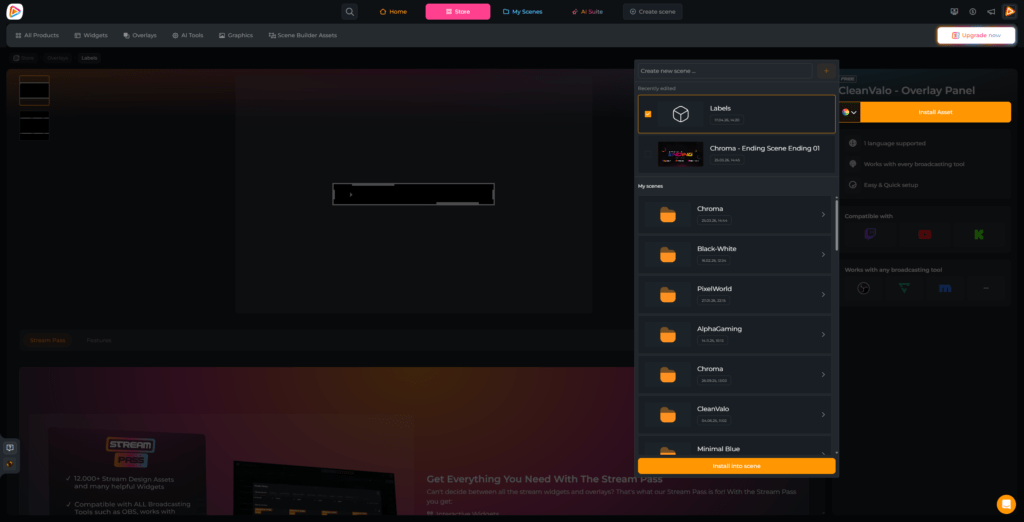
Step 1: Pick Your YouTube Label Design
Browse the available YouTube stream label styles and choose one that fits your stream’s look. Add it directly to your OWN3D Pro scene to create the visual foundation for your labels.

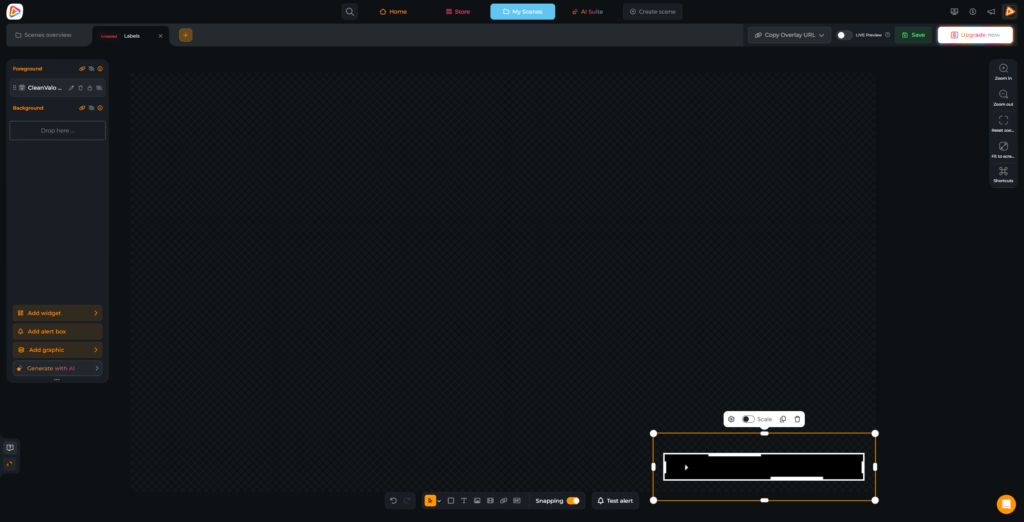
Step 2: Customize Your Scene
Open the Scene Builder and adjust your layout. You can move elements, resize them, tweak colors, and fine-tune the design so everything aligns with your branding and overlay style.
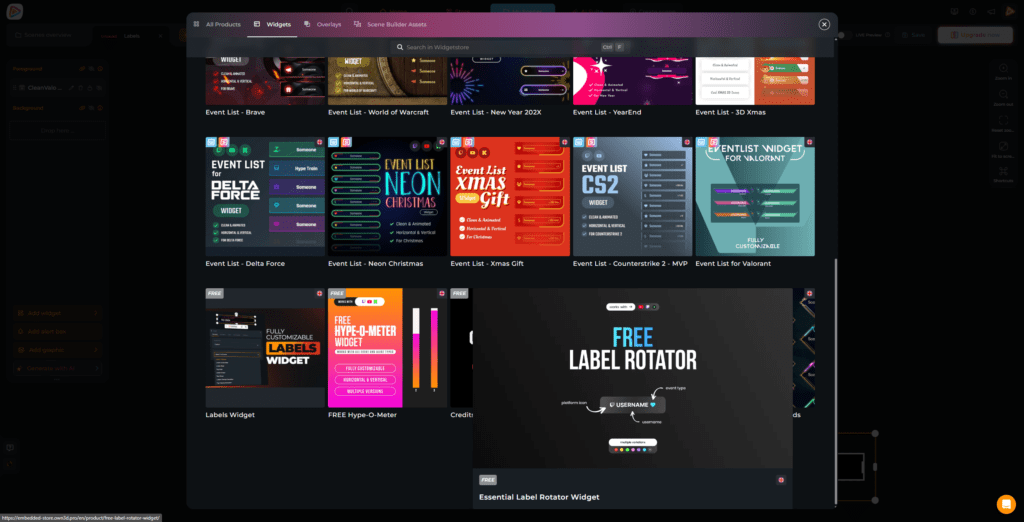
Step 3: Add Your Label Widgets
Click on “Add Widget,” navigate to the label widgets, and choose between the rotating label widget or standard stream labels. This is where the real-time data gets connected to your design.
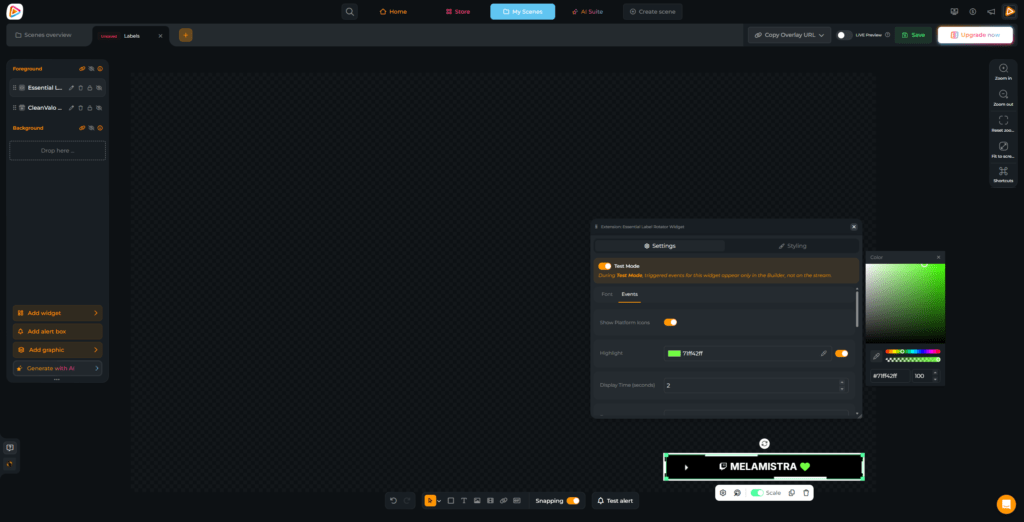
Step 4: Configure Your YouTube Events
Select exactly which YouTube events you want to display, such as new subscribers, memberships, Super Chats, or Super Stickers. You can focus on a single highlight or combine multiple events depending on your setup.
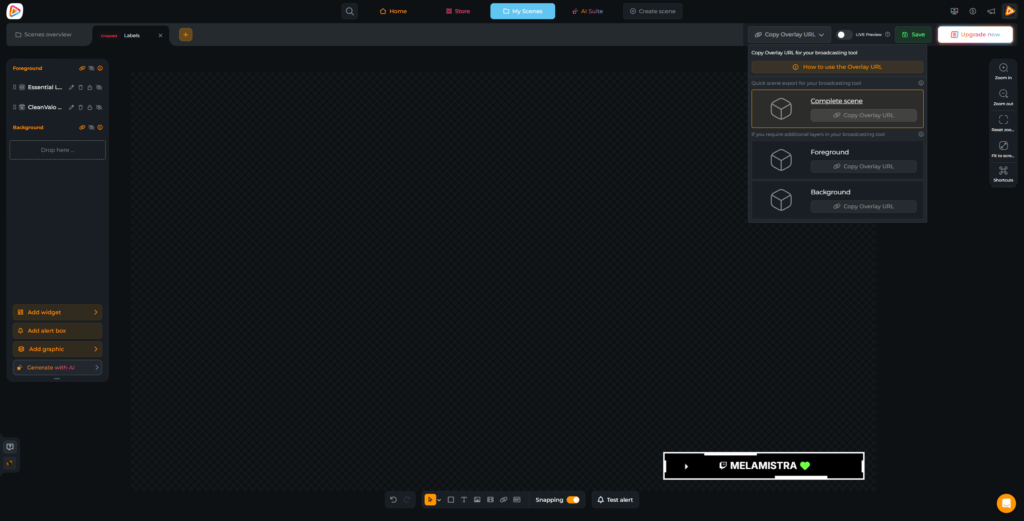
Step 5: Copy Your Browser Source URL
Once everything is set up, save and copy your unique browser source link directly from OWN3D Pro. This link connects your design and widgets to your broadcasting tool.
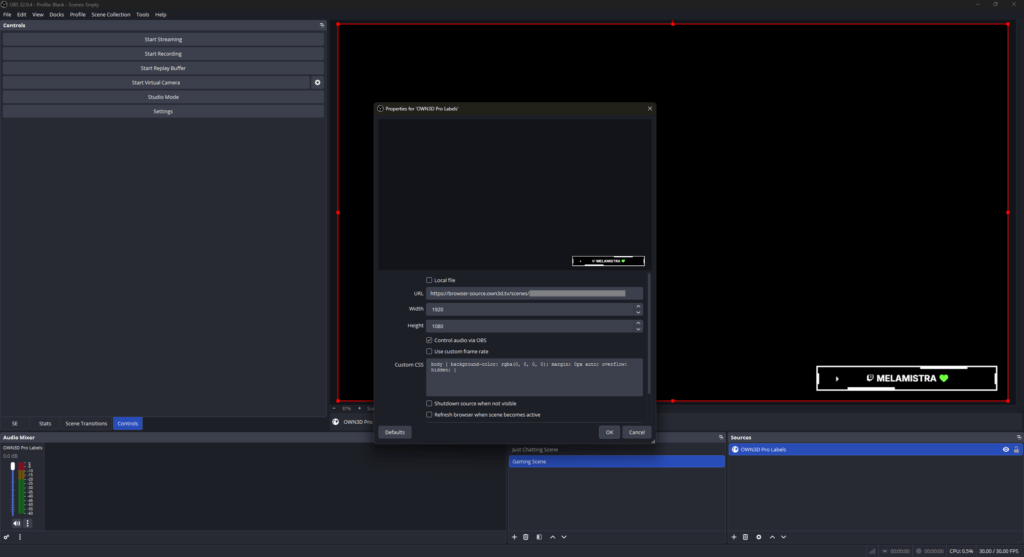
Step 6: Add It to OBS Studio or Streamlabs Desktop
Open your broadcasting tool, create a new browser source, and paste your link in there. Set your resolution (e.g., 1920×1080), confirm the settings, and your YouTube stream labels will appear instantly.
FAQs About YouTube Stream Labels
What are YouTube stream labels?
YouTube stream labels are dynamic elements in your overlay that display real-time events, such as new subscribers, memberships, Super Chats, and Super Stickers. Instead of manually updating your stream, these labels automatically show what is happening while you are live. This gives you the freedom to focus entirely on your content and your community while your tech handles the professional look in the background.
Do I need to download stream labels for YouTube?
No. You do not need to search for a YouTube stream labels download or install separate files. All YouTube stream labels are created and managed directly inside the OWN3D Pro Scene Builder. This means no file handling and no complicated setup. Everything runs smoothly in one place, so you can start streaming in minutes.
Are there free YouTube stream labels available?
Yes. You can start with free YouTube stream label designs and widgets that are simple to use and perfect for those just starting their journey. They already give your channel a clean, professional look. If you want more variety, animated designs, and full creative control, the Stream Pass gives you access to hundreds of premium options.
How do I add YouTube stream labels to OBS Studio?
To use stream labels for YouTube in OBS Studio, you simply set everything up inside OWN3D Pro and copy your browser source link. In OBS Studio, Streamlabs, or any other broadcasting tool, you add a browser source, paste the link, and your labels appear instantly. From that point on, they update automatically.
Which events can I show with stream labels for YouTube?
You can display a wide range of YouTube events, including new subscribers, memberships, gifted memberships, Super Chats, and Super Stickers. If you decide to multistream, OWN3D Pro also supports Twitch and Kick events, such as follows, subs, or raids, all within the same setup.
What is the difference between rotating and standard labels?
The rotating label widget displays multiple events in a single area, cycling through them automatically. This is ideal if you want to keep your overlay clean and minimal. Standard stream labels display specific events in fixed positions, giving you more control over your layout and structure.
Do YouTube stream labels update automatically?
Yes. Once your labels are connected via browser source, they update in real time. You do not need to refresh anything or make manual changes. Every new event appears automatically as it happens, allowing you to react instantly to your viewers.
Can I customize my YouTube stream labels?
Yes. You can fully customize your labels inside the Scene Builder. Adjust the position, size, colors, and fonts so everything aligns with your branding and vibe. This ensures your stream looks unique and professional, no matter which platform you are streaming on.
Do these labels also work for Twitch and Kick?
Absolutely! OWN3D Pro is built for multistreaming. Your labels and overlays are fully compatible with Twitch, YouTube, and Kick. This means you can maintain a consistent brand across all platforms and connect your entire community, regardless of where they are watching.